Motion Maker
Summary: Motion Maker transfers the movement from a viral video template onto your chosen AI model image — producing a motion video in three steps without filming.
What is Motion Maker?
Motion Maker extracts the motion from a pre-made viral video template and applies it to a selected AI model photo. The result is a short-form video featuring the model performing the same movement as the template — ideal for dance trends, product showcases, and viral content formats.
Step 1 — Select a Viral Template (바이럴 템플릿 선택)
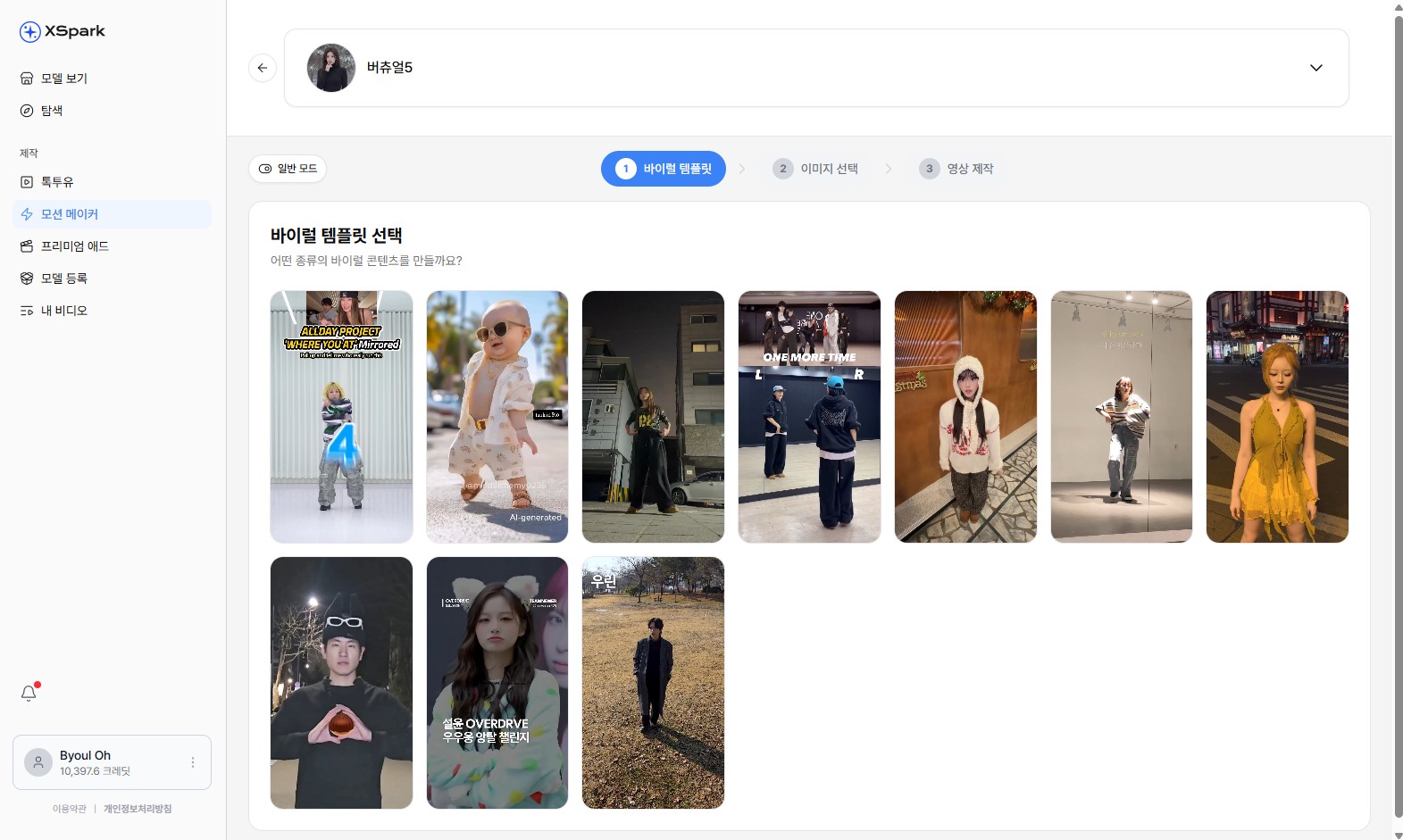
Choose a motion template to apply to your AI model.
- Click Motion Maker (모션 메이커) in the left sidebar.
- Select the AI model you want to use from the model selector at the top.
- A grid of viral video templates is displayed — dance moves, sports motions, lifestyle clips, and more.
- Click a template to select it. The selected template is highlighted and shown in the 선택한 항목 panel on the right.
Step 2 — Select an Image (이미지 선택)
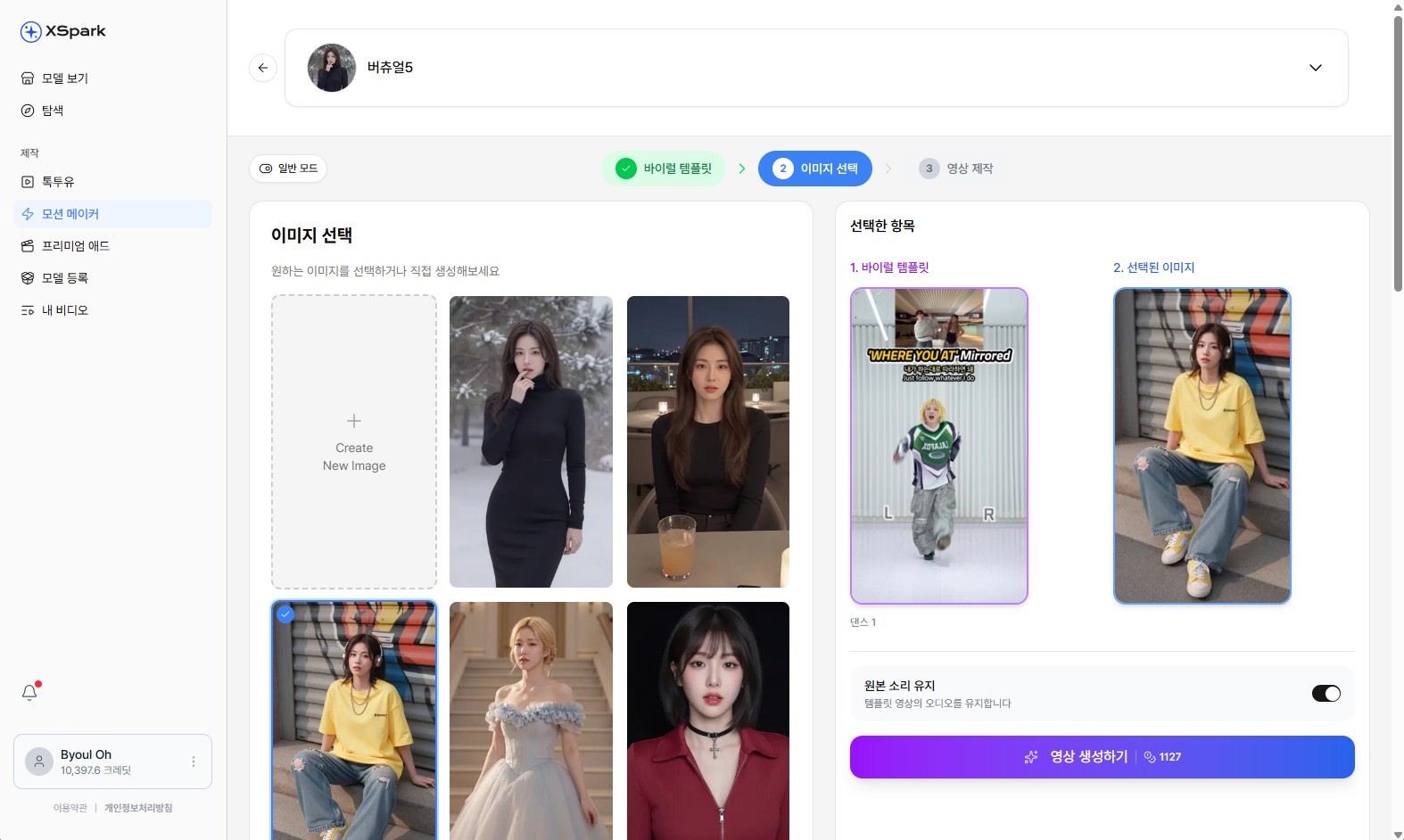
Select one of the model's photos as the base for motion transfer.
- The screen advances to 이미지 선택 (Step 2).
- A grid of the chosen model's photos appears. Click one to select it.
- To use a custom image, click Create New Image to generate a new model photo first.
- On the right panel, 선택한 항목 shows your chosen template and selected image side by side.
- 원본 소리 유지 toggle — keep the original audio from the viral template in the output video.
- When ready, click 영상 생성하기 (credit cost shown on the button).
Step 3 — Video Production (영상 제작)
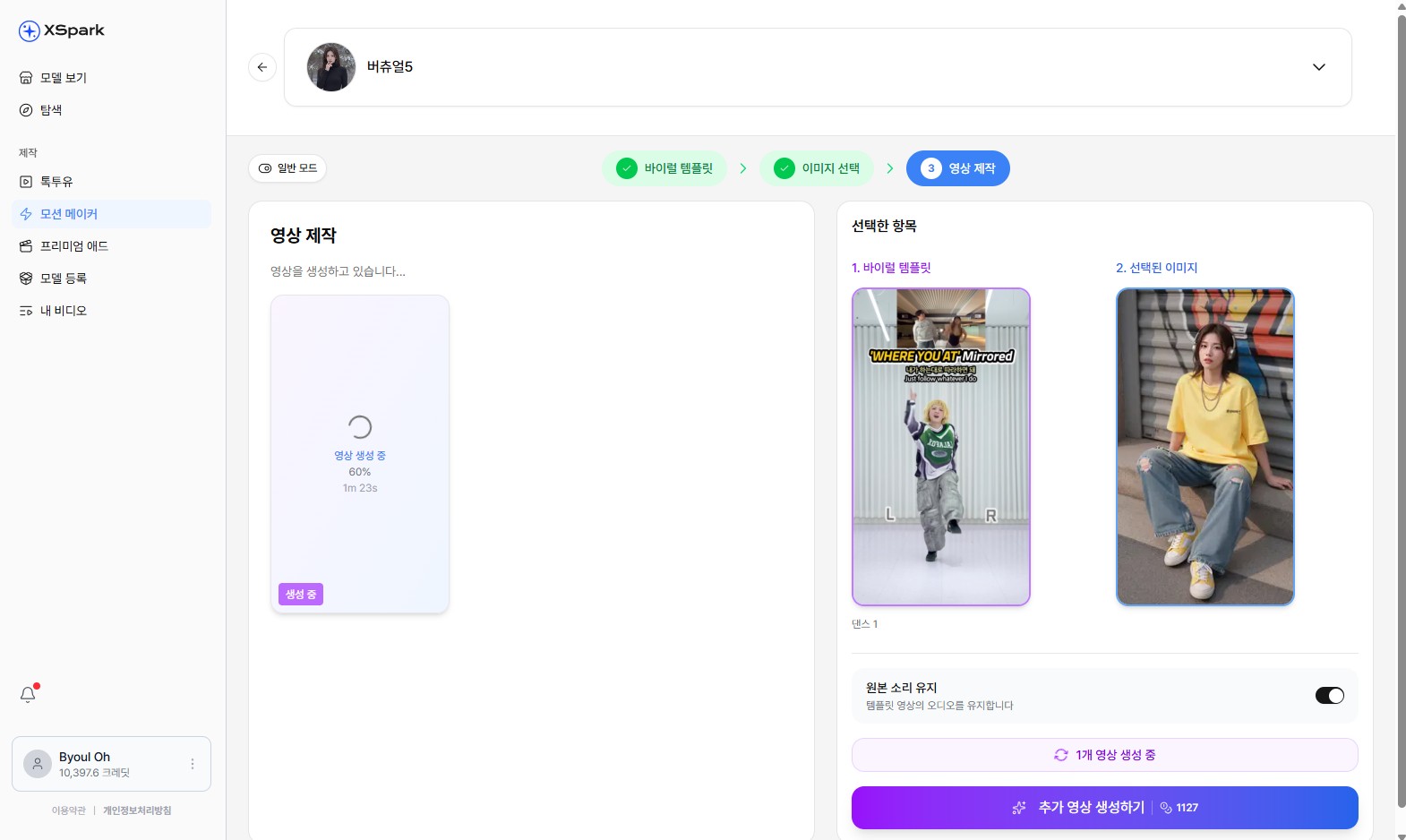
The video is being generated — progress and estimated time are shown.
- The screen advances to 영상 제작 (Step 3).
- A progress bar shows the current percentage and estimated time remaining (e.g., 60%, 1h 22s).
- The selected template and image remain visible on the right for reference.
- Click 추가 영상 생성하기 to queue another generation with a different image while the current one is processing.
Viewing the Result
- When generation completes, the video appears in My Videos (내 비디오).
- It also appears at the top of the Talk2U workspace under 생성한 동영상 for the same model.
- You can switch between AI 시프트 모드 (automatic AI adjustments) and 타임라인 편집 (manual timeline editing) after generation.
Tips
- Templates labeled with high usage counts tend to produce the most consistent results.
- Enabling 원본 소리 유지 preserves the audio energy of the original viral clip, which can strengthen viewer engagement.
- For best motion transfer quality, select a model image where the pose and clothing are clearly visible.