Credit Usage History
Summary: The Credit Usage History lets you review per-transaction credit consumption and daily statistics. Click the credit icon in the top navigation bar to access it directly.
Credits vs. Points — What's the Difference?
XBRUSH uses two types of balance, both visible in the credit icon in the top navigation bar:
| Credits | Points | |
|---|---|---|
| Earned from | Subscription plans, credit top-up purchases | Promotional events, referral rewards, sign-up bonuses |
| Expiration | Reset on each billing date (subscription); refer to ToS for top-up credits | Permanent — no expiration |
| Deduction order | Used first | Used after credits are exhausted |
| Refundable | Unused credits may be refunded within 7 days of purchase | Not refundable |
When performing an AI task, credits are deducted first. Points are only consumed once your credits run out. Both credits and points are displayed together as your total available balance.
What Is Credit Usage History?
Credit Usage History is a feature that lets you view the credits consumed by AI tasks in XBRUSH — such as image generation, video generation, and enhancement — either per transaction or by day. By understanding your remaining credit balance and consumption patterns, you can manage your credits more efficiently.
How to Access Credit History
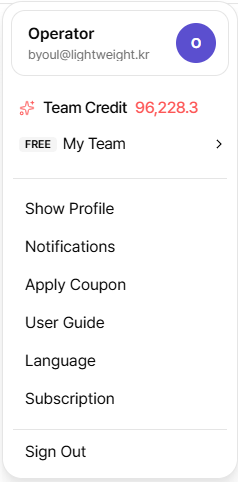
Top navigation bar - credit icon
- Click the credit icon in the top-left area of the screen.
- A credit-related popup will appear.
- Click the "Usage History" tab inside the popup.
Credit Usage Log (Per Transaction)
The default view shows credit consumption broken down by individual task.
| Field | Description |
|---|---|
| Task Type | The type of task performed (e.g., image generation, video generation, upscaling) |
| Credits Used | The number of credits deducted for the task |
| Date & Time | The date and time the task was executed |
| Remaining Credits | The credit balance remaining after the task |
How to Browse the History
- Records are displayed in reverse chronological order, with the most recent tasks first.
- Scroll down to view older records.
- Compare credit consumption by task type to identify which features use the most credits.
Credit Usage Statistics (Daily)
Switch to the daily tab to view credit consumption aggregated by date, presented as both a graph and a table.
Information Available in Statistics
- Total Daily Credits Used: The total credits consumed on a specific date
- Task Count: The total number of AI tasks executed on that date
- Period Comparison: Compare daily consumption patterns to identify high-usage days
Tips for Using Statistics
- Use the data to forecast your monthly credit consumption and choose the most suitable subscription plan.
- If you're using more credits than expected, consider more efficient ways to work.
Checking Your Credit Balance
Your current credit balance is visible in the following locations:
- Top Navigation Bar: Your current balance is displayed next to the credit icon.
- Payment Popup: The balance appears at the top of the popup that opens when you click the credit icon.
If you're running low on credits, you can change your subscription plan or top up your credits on the Billing Page.
Frequently Asked Questions About Credits
- Did your credits run out faster than expected? → Check the per-transaction tab in your usage history to see which tasks consumed the most credits.
- Need a refund? → Refunds are only available within 7 days of payment and only if the credits have not been used. For more details, refer to the Billing Guide.
- Do credits expire? → Credits from a recurring subscription reset on the next billing date. For the expiration policy on top-up credits, refer to the Terms of Service.