Talk2U
Summary: Talk2U lets you place your product into an AI model's hands and have the model deliver a spoken script — producing a complete short-form ad video in minutes.
What is Talk2U?
Talk2U is XSpark's core ad creation feature. Select an AI model, upload your product image, write a script, and the system generates a video of the model holding your product and speaking the lines. The result is a polished short-form ad ready for social media or marketing campaigns.
Step 1 — Select a Model
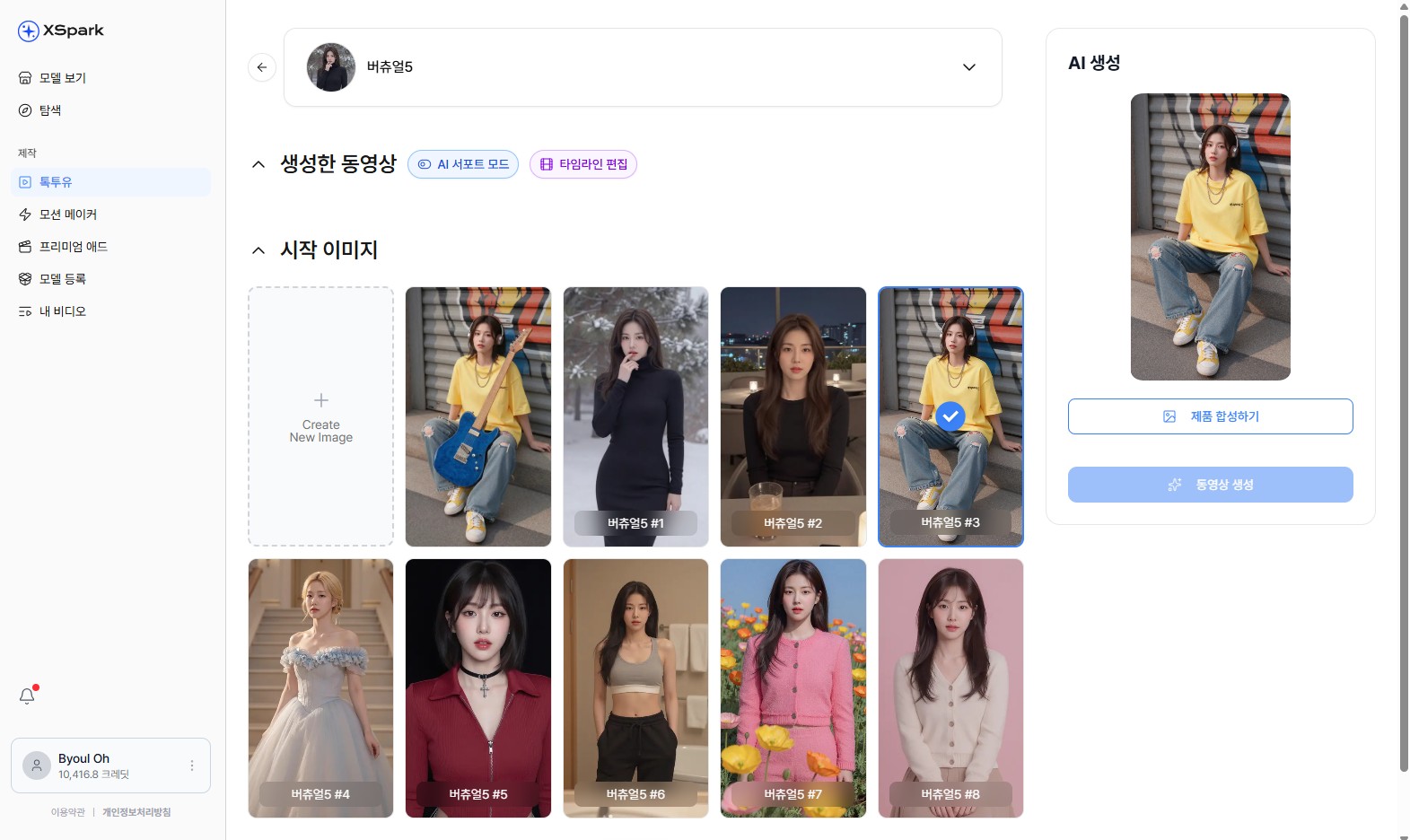
Talk2U workspace — generated videos (top) and starting images (bottom).
- Click Talk2U (툭투유) in the left sidebar.
- The workspace shows:
- Generated Videos (생성한 동영상) — your previous Talk2U videos for this model
- Starting Images (시작 이미지) — photos of the selected model
- Click the model name at the top to switch to a different model.
- Select one of the model's photos as your starting image, or click Create New Image to generate a new one.
The top tabs offer two editing modes after generation:
- AI 시프트 모드 — AI automatically adjusts scenes
- 타임라인 편집 — manual timeline editing
Step 2 — Product Synthesis (제품 합성)
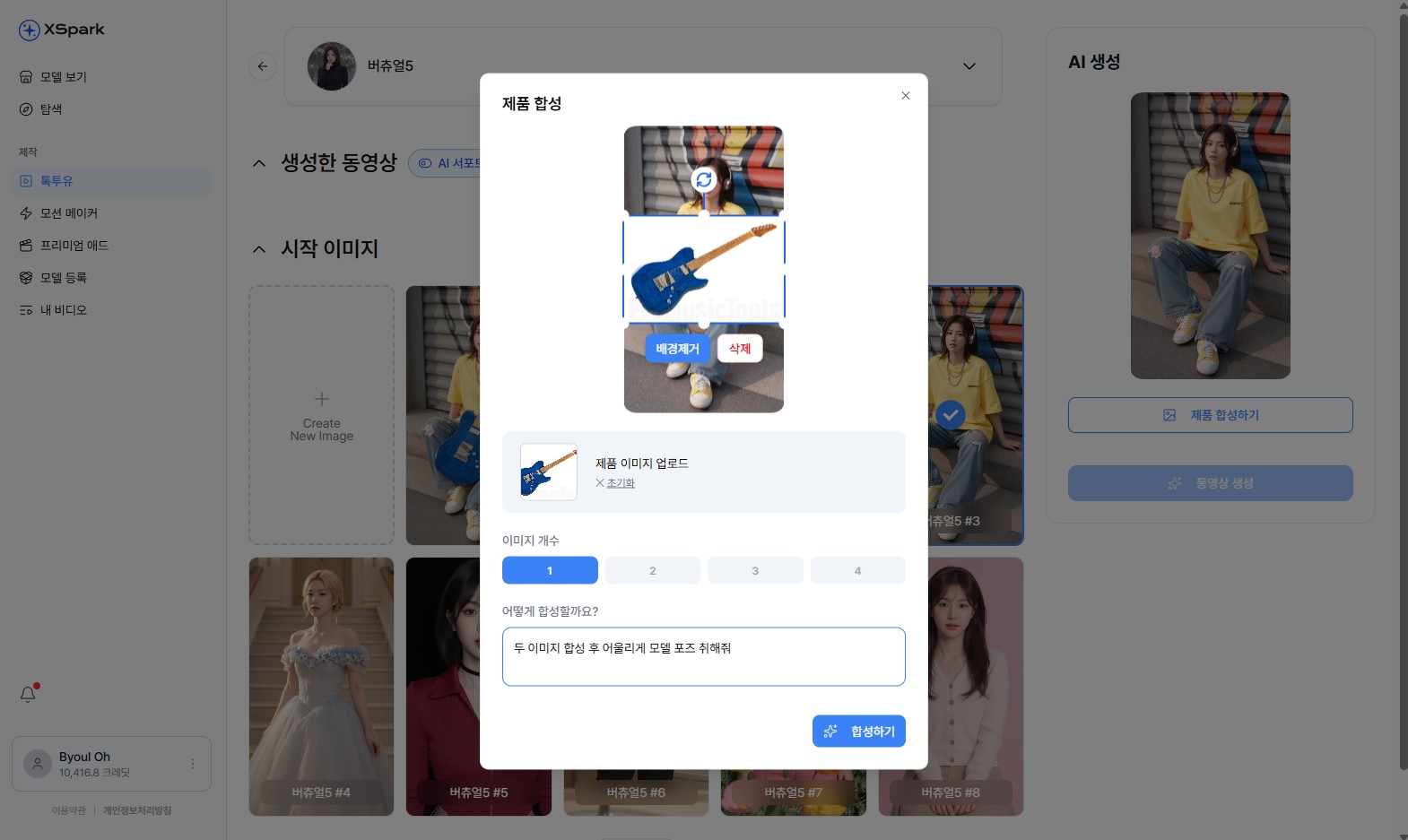
Upload your product image and describe how to composite it.
- On the right panel, click 제품 합성하기.
- The 제품 합성 modal opens:
- Upload product image — drag and drop or click to upload your product photo
- 배경제거 — automatically remove the product background
- 이미지 개수 — choose how many composite variations to generate (1 – 4)
- 어떻게 합성할까요? — describe in text how the product should be placed (e.g., "두 이미지를 합성 후 어울리게 모델 포즈 취해줘")
- Click 합성하기 to generate the composite.
The composite image is placed in the model's starting image slot and is used as the base for video generation.
Step 3 — Video Generation (동영상 생성)
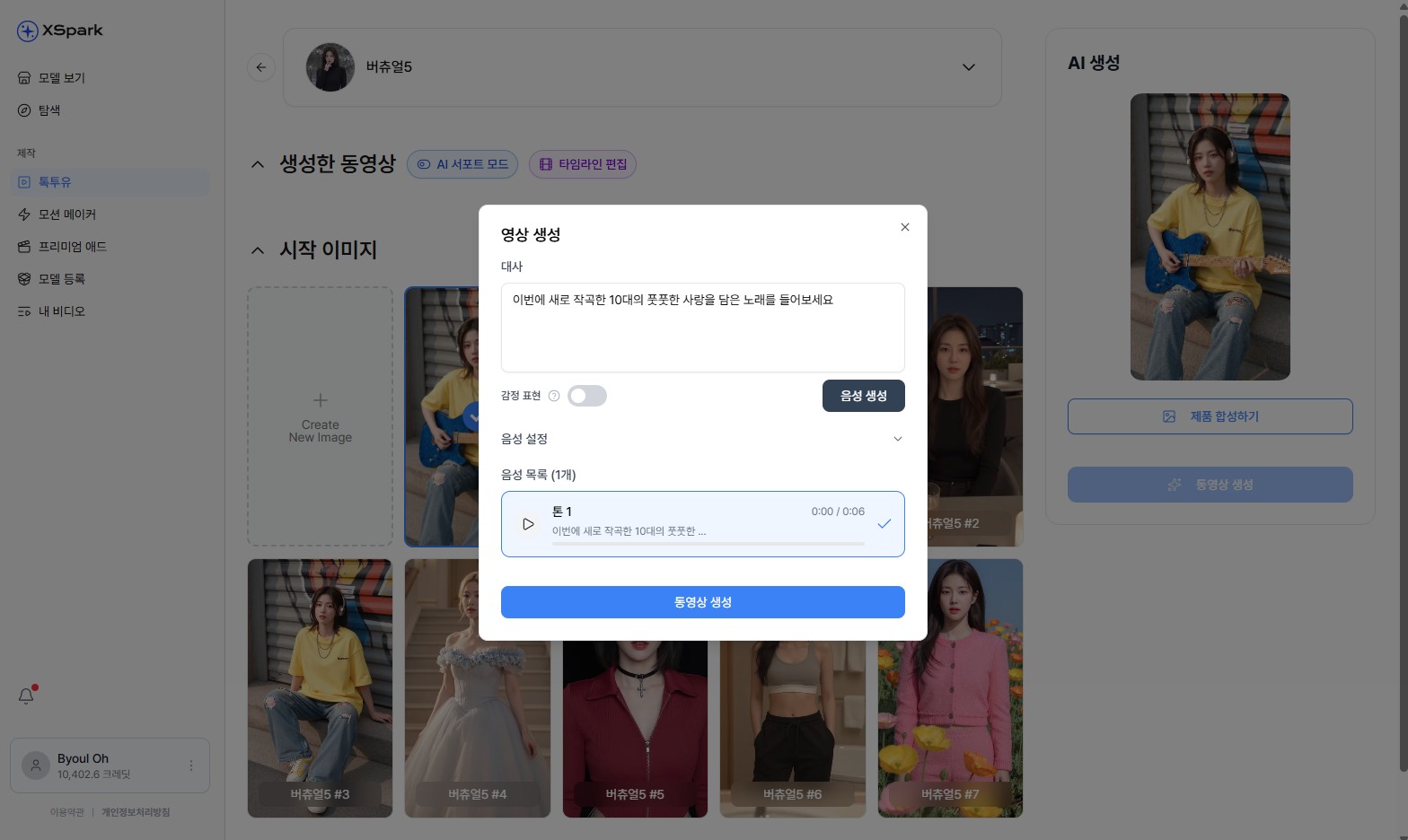
Enter a script and configure voice for the model.
- On the right panel, click 동영상 생성.
- The 영상 생성 modal opens:
- 대사 — type the script the model will speak
- 감정 표현 — toggle to add emotional expression to delivery
- 음성 설정 — expand to select a voice tone
- 음성 목록 — preview available voices (e.g., 톤 1) and select one
- Click 동영상 생성 to start rendering.
Viewing the Result
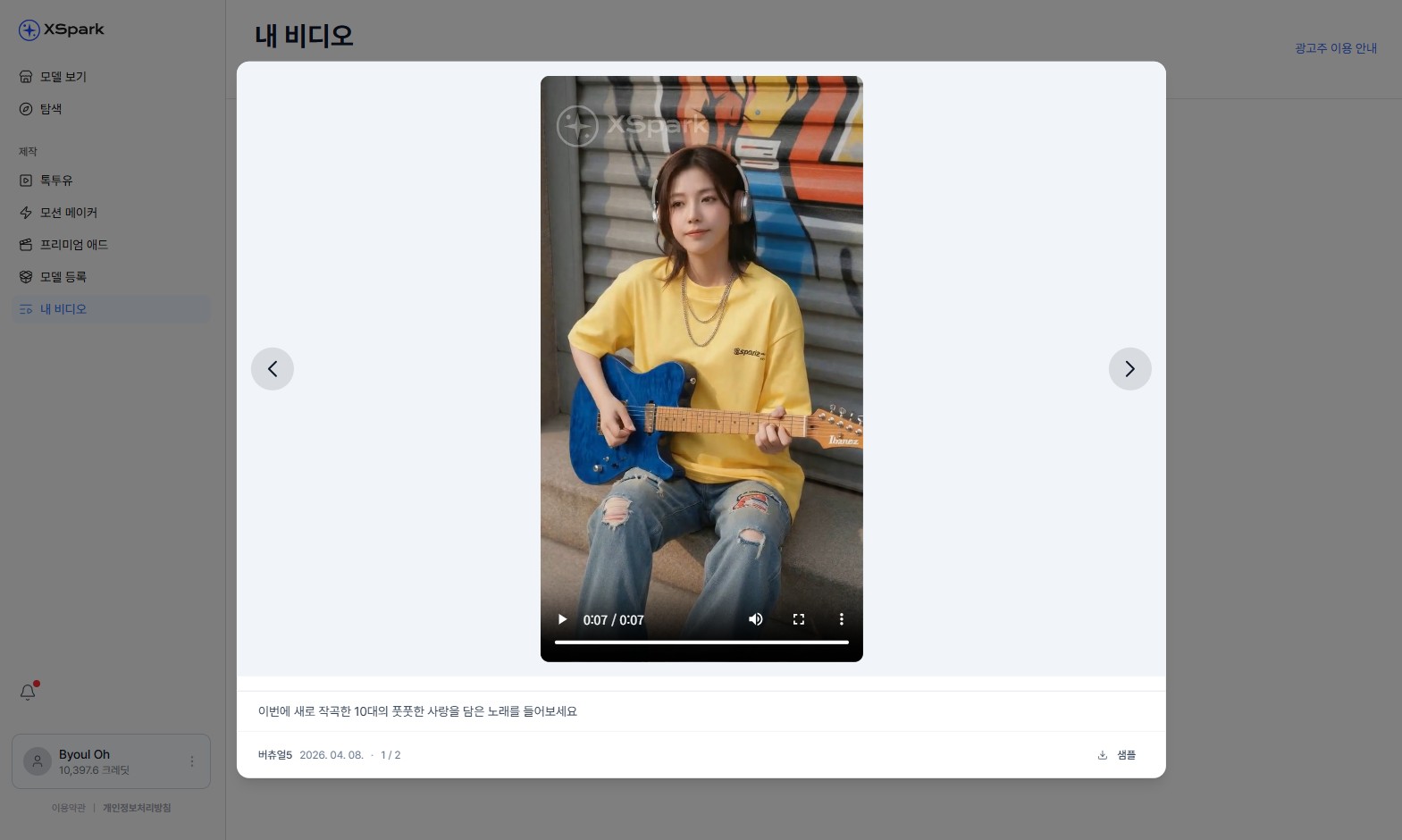
Completed Talk2U video — the model holds the product and speaks the script.
- The finished video appears in My Videos (내 비디오) and at the top of the Talk2U workspace under 생성한 동영상.
- Click the video to play it in a lightbox viewer.
- Use the 업로드 button to download the video file.
- The script you entered is shown as a caption below the player.
Tips
- Shorter scripts (one or two sentences) produce the clearest audio sync.
- Use the 배경제거 option for product images with complex backgrounds to get cleaner composites.
- Generate multiple image variations (up to 4) to find the best product placement before generating the video.