Image Generation — Reference Images & Prompt Tips
Summary: This guide explains how to upload a reference image to reflect its composition and color palette, how to use the Enhance Prompt and Image-to-Prompt features, and how automatic face enhancement (ADetailer) improves portrait quality.
Using Reference Images

Upload a reference image to guide image generation.
- Upload an image or sketch as a reference — you can drag and drop it, or paste it from your clipboard. Uploading a reference image switches the interface to the Edit tab.
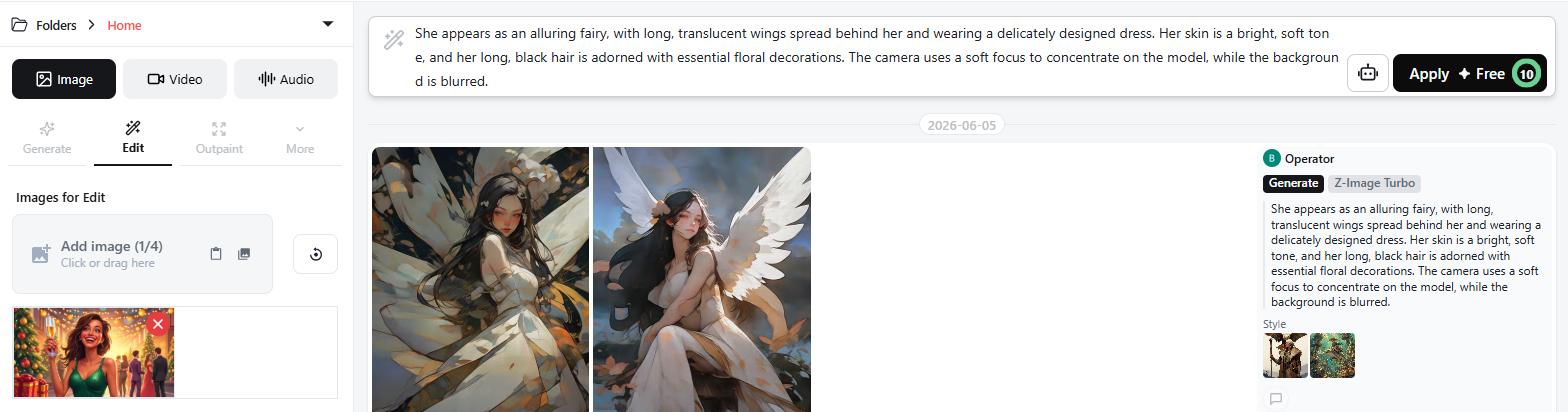
After uploading, the interface switches to the Edit tab where you can work on your image.
- Work on your image in the Edit tab. For details, see Editor.
Image Detail View
- Click a generated image to open a popup with a closer view of the image.
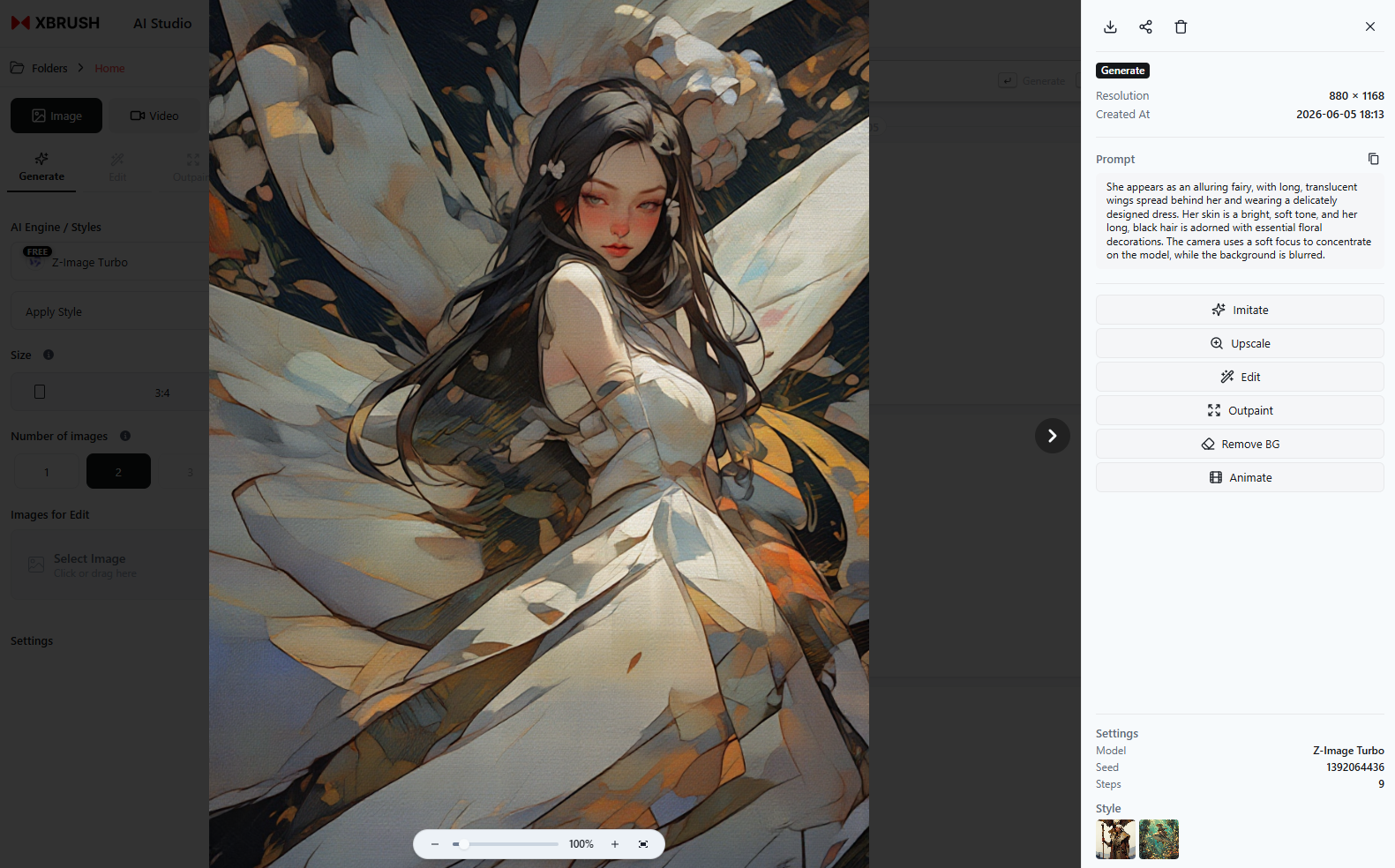
Image detail view.
Image Action Buttons
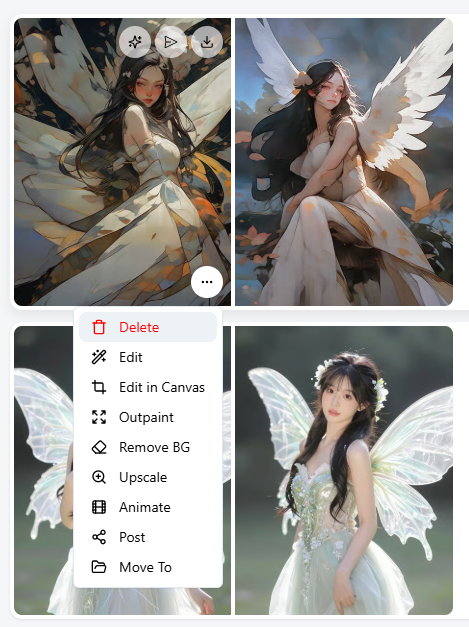
Image action buttons.
- 2 buttons at the top: Imitate / Download
- 9 buttons at the bottom: Delete / Edit / Edit on Canvas / Outpainting / Remove Background / Upscale / Generate Video / Publish / Move
For details on each action button, refer to "Publish Image" and "Image Enhancement."
Idea Input Field Menus (Right-Side Menu)

Right-side menu.
Enhance Prompt
- Use this when you want to make your entered idea more specific and detailed.
- The system automatically suggests a more detailed version of your idea and displays it in the idea field.
Image to Prompt
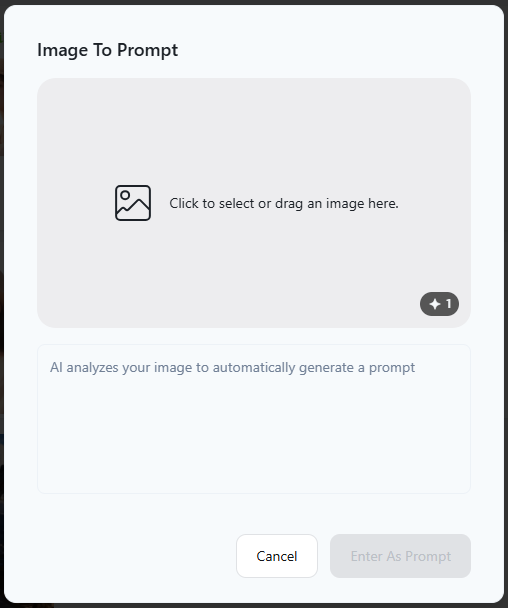
Right-side menu — Extract prompt from image.
- Upload an image to extract a prompt from it, then use that prompt for generation.
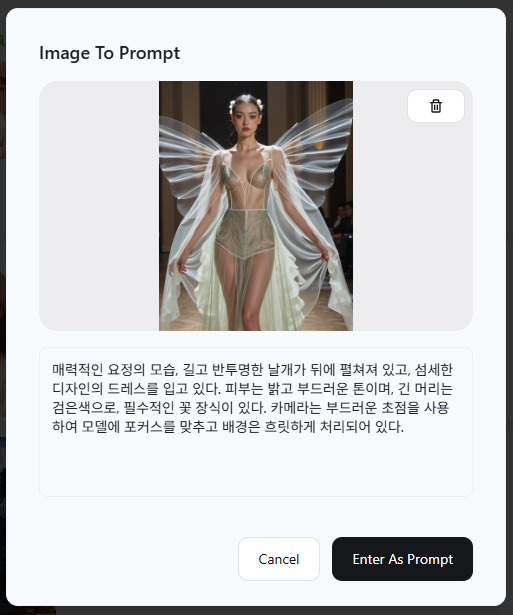
Right-side menu — Extracted prompt from image.
Face Auto-Enhancement (ADetailer)
XBRUSH automatically applies ADetailer during image generation to detect and refine faces in generated images. This process runs in the background without any manual configuration.
- What it does: Detects faces in the generated output and applies an additional enhancement pass to improve facial detail, proportions, sharpness, and consistency.
- When it applies: ADetailer activates automatically whenever a face is detected in the generated image.
- No setup required: There are no settings to configure — ADetailer runs silently and the result is the enhanced image you see in the results feed.
This is especially beneficial when generating portraits, group scenes, or any image where facial accuracy matters. Without ADetailer, faces in AI-generated images can appear blurry or distorted; ADetailer corrects this automatically.
Generation History
See "Credit Usage History."
Next Steps
- Enhancement — Upscale for higher resolution, inpaint for detailed edits
- Video Generation — Convert a selected image into a 5- or 10-second video
- Publish — Community visibility settings and content review guidelines