Image Generation
Summary: XBRUSH's image generation is a core feature that automatically creates images from text prompts using an AI engine. You can combine various AI engines, styles (LoRA), reference images, and templates to produce the results you want.
What is Image Generation?
Image generation is XBRUSH's core feature that automatically creates images when you enter a text prompt into an AI engine. Users can combine prompts, reference images, and styles (LoRA) to generate the images they want. Generating one image consumes credits. Processing time depends on the engine and settings; when it is done, a result card appears in the session feed.
You can open image generation by:
- Switching the Workspace input box to Direct mode and selecting the Image tab (Generate sub-tab), or
- Clicking the "Run" action button on a style in the My Styles tab.
Image Generation Overview
 Image generation in Direct mode. The panel is a compact strip inside the Workspace input box: the Image / Video / Audio row with the sub-tabs, the prompt line ("Describe what you want to create."), the option chips (+ Edit from image · GPT Image 2.5 Flare · 3:4 · Count · 1K · Quality Medium · Settings), and a bottom row with Chat | Direct, "Generating starts a new session", Run · New line, and the Generate button with its credit cost.
There are two main ways to generate images:
- Generate an image from text
- Generate an image from an image or sketch
You can also generate images easily using this method:
- Generate images using a style
Generation Options
 The Settings button at the end of the option row opens extra options such as Transparent background ("Outputs an RGBA PNG with no background").
- The generation options open inside the Workspace input box when you switch to Direct mode. Each option is described below.
- Clicking the folder tree icon at the left of the tab bar lets you view all folders and select a specific one. For more details, refer to the Workspace documentation.
- Select the Image / Video / Audio tab to choose the type of content you want to create. For images, there are six sub-tabs: Generate, Edit, Outpaint, Remove BG, Upscale, and Layer Split.
- AI Engine lets you select the base generation model used to create images. The default is GPT Image 2.5 Flare.
- Apply Style lets you choose an artistic style for the generated image, such as realistic or cartoon. (It is not shown for the default engine.)
- Click + Edit from image to attach an image and use it as a basis for the image you generate.
- The options row also shows the aspect ratio (default 3:4), Count (1–4, default 1), resolution (1K / 2K / 4K), and Quality (Low to Max, default Medium). Additional options such as Transparent background (RGBA PNG, no extra charge) are inside the Settings button at the end of the row.
- The prompt line at the top of the panel is where you enter a text description of the image you want.
- Click the robot icon in the bottom row, next to Run, to access the Prompt Enhancement or Image To Prompt menu.
- Prompt Enhancement recommends a more specific and detailed prompt based on the idea you entered.
- Image To Prompt extracts text from an image you provide and applies it to the idea field.
 Click the robot icon next to Run to open Prompt Enhancement and Image To Prompt. Each costs ◆ 1.
- Be specific: describe the subject, style, lighting, colors, and mood together for closer results.
- Use the Enhance Prompt button (robot icon in the panel's bottom row) to automatically expand a simple idea into a detailed prompt.
- Abstract or vague ideas tend to produce unexpected results — add concrete details to guide the AI.
Generate Images from Text
 An idea typed into the prompt line of Image › Generate in the Direct panel, ready to run with the Generate button (◆ 5.2 with the default settings).
-
In the Workspace input box, switch to Direct mode and select Image > Generate, enter your idea in the prompt field, then click the "Generate" button at the bottom right.
-
By default, 1 image is generated. You can generate up to 4 at once by changing Count.
-
While an image is generating, its result card shows a loading state in the session feed. Processing time depends on the engine and settings.
-
You can start another image generation while one is already in progress.
-
Additional generation requests are queued and executed sequentially.
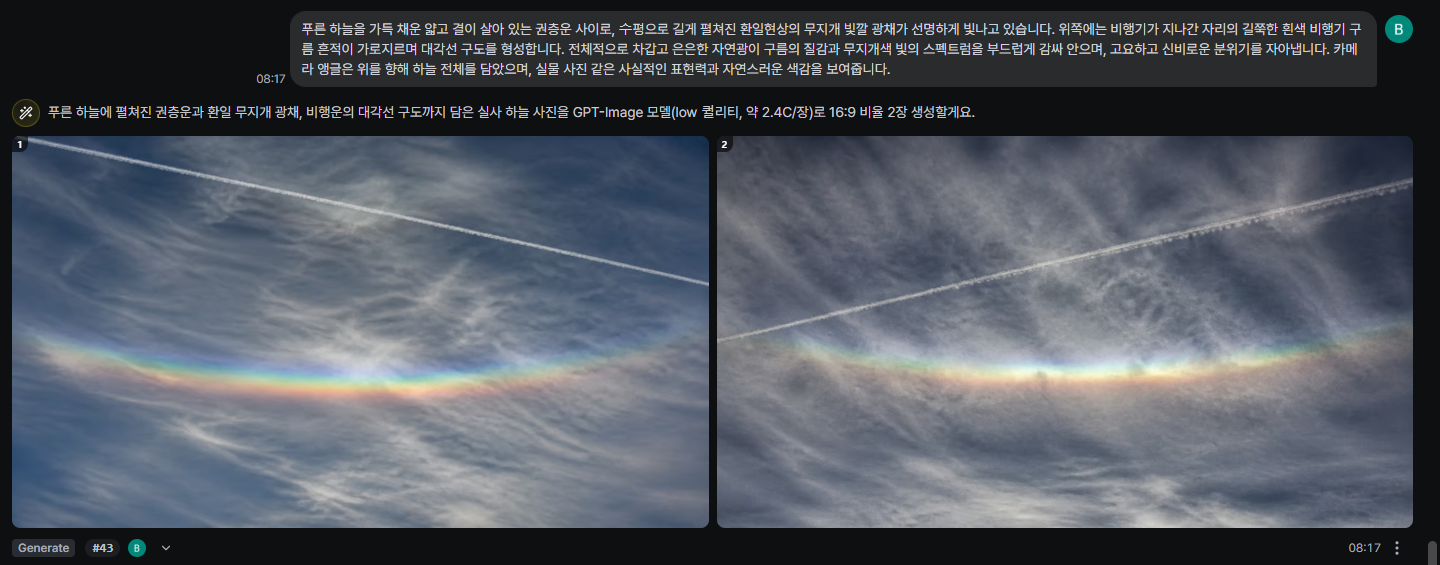 A finished result card: the agent's note above, two generated images side by side, and the label · number · avatar · ▾ · time · ⋮ row below.
- Results are generated randomly based on random seed values, as many as the number of images you selected.
Next Steps