Image Enhancement
Summary: XBRUSH's image enhancement features — Edit (inpaint), Outpaint, Background Removal, and Upscaler — are all integrated into the Workspace Image tab. Select the appropriate sub-tab to access each tool.
What Is Image Enhancement?
Image enhancement is XBRUSH's set of AI editing features available within the Workspace Image tab. Four tools are available: Edit/Inpaint (prompt-based partial replacement), Outpaint (area expansion), Background Removal, and Upscaler (resolution boost).
All tools are accessed from the Image tab in the Workspace at xbrush.ai/workspace.
Image Enhancement Overview
The Image tab provides the following four enhancement modes as sub-tabs:
| Sub-tab | Description |
|---|---|
| Edit | Prompt-based inpainting — replace specific areas of an image with new AI-generated content |
| Outpaint | Expand the canvas beyond the original image borders using AI |
| Background Remover | Automatically remove the background from an image |
| Upscaler | Increase the resolution of an image without quality loss |
Edit (Inpaint): Partial Replacement
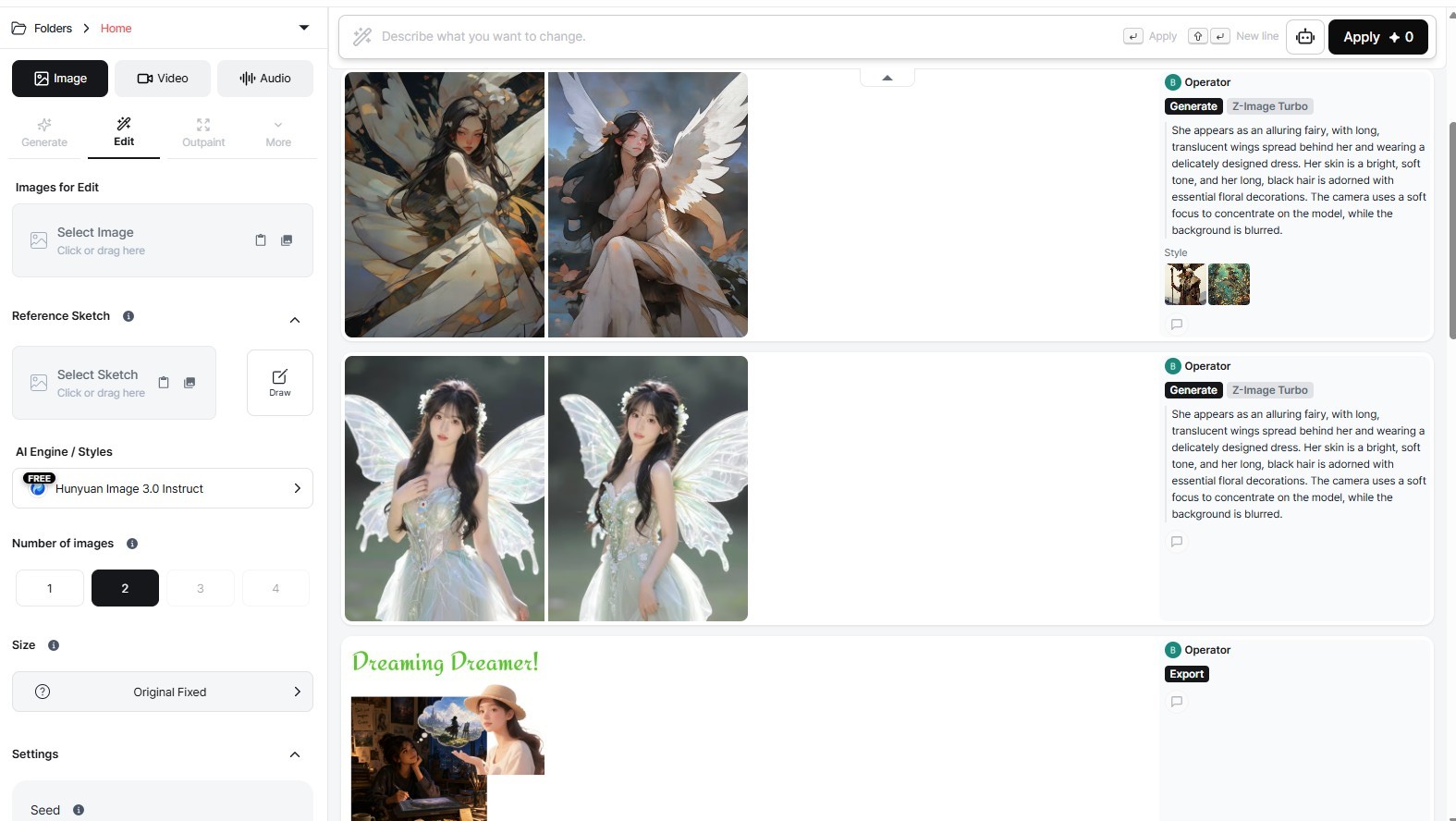
The Edit tab in the Workspace Image tab — upload an image and use a prompt to replace specific areas.
- Upload or drag an image into the Image to Edit area, or hover over a generated image and click the edit button.
- Enter a prompt describing the content you want generated in the target area.
- Click Run to generate the inpainted result.
- For detailed step-by-step instructions, see Inpaint.
Upscaler: Increase Resolution
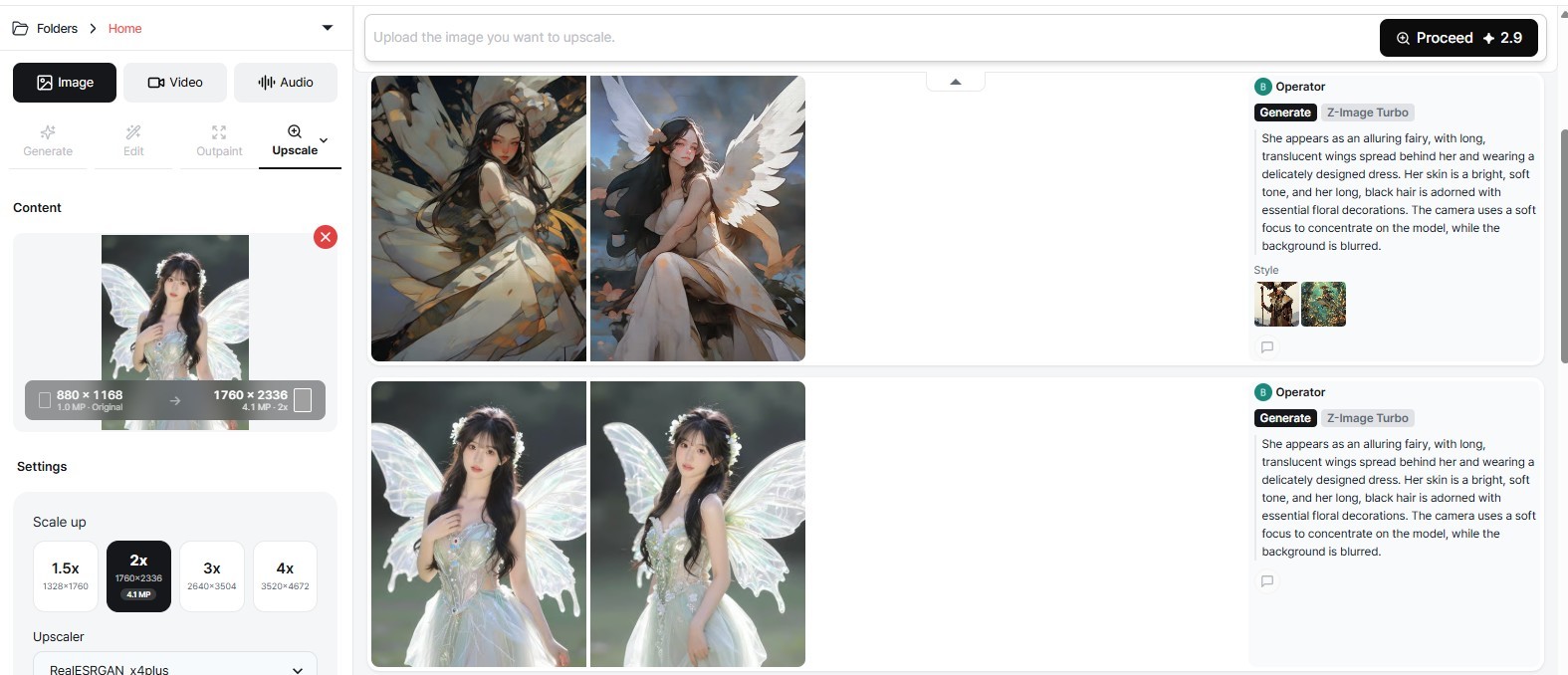
The Upscaler tab — upload an image and select the output resolution.
- Upload or drag an image into the input area.
- Select the desired output resolution.
- Click Run to generate the high-resolution image.
- The upscaler fills in weakened or broken pixels based on the original image, producing a high-quality enlarged result.
Upscaling consumes credits. The exact amount depends on the image size and the output resolution selected. Check your credit balance before running large batches.
Next Steps