Video Generation
Summary: XBRUSH's video generation creates a video from a text prompt, optionally guided by reference images, videos, or audio. Select an AI engine, set the aspect ratio, length, and resolution, describe the motion with a prompt, and a video is automatically generated.
What is Video Generation?
Video generation is XBRUSH's feature that uses an AI engine to create a video with natural motion from a text prompt and, optionally, reference images. With the default engine (Seedance 2.5) you can generate a video even without an image. The credit cost depends on the engine and settings (resolution, length, etc.) and is shown on the Generate button.
Video Generation Overview

Video › Generate in the Direct panel. Sub-tabs: Generate · LARP · AI Edit · Upscale. The prompt line shows an example ("e.g. @Image 1 and @Image 2 are taking a selfie together"), followed by the option chips Seedance 2.5 · Reference images 0/30 · Reference videos 0/10 · Reference audio 0/10 · 16:9 · 720p · 5s · Draft 480p (off) · Audio (on) · Settings, and the Generate button with its credit cost.
- In the Workspace input box, switch to Direct mode, select the Video tab, and open the Generate sub-tab. (Other sub-tabs: LARP, AI Edit, and Upscale.)
- You can select the AI engine used to generate the video. Seedance 2.5 is used by default.
- A start image is not required with the default engine — leave the reference images empty and the video is generated from the prompt alone.
- You can add up to 30 Reference images, 10 Reference videos, and 10 Reference audio files.
- Choose the aspect ratio (Auto, 21:9, 16:9, 4:3, 1:1, 3:4, 9:16; default 16:9) and the resolution (480p / 720p / 1080p; default 720p) from their chips.
- Length: the 5s chip sets the video length. The default is 5 seconds; the available range depends on the engine.
- Draft 480p generates a quick low-resolution draft. It is off by default.
- Audio (on by default) creates audio along with the video. Background music is left out by default because it may be blocked by copyright checks; in Chat mode you can ask the agent to add it (e.g. "add background music too").
- Settings holds additional video options.
- You can add a text prompt to describe the motion.
- With the default settings (Seedance 2.5 · 16:9 · 720p · 5 seconds · audio on), the Generate button shows about ◆ 454. The exact cost changes with the engine and settings.
Generate a Video from a Generated Image
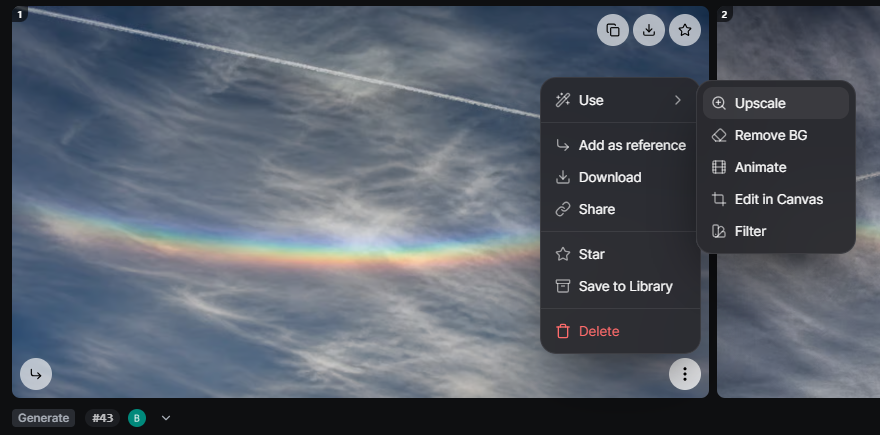
Hover over a generated image, click its ⋮, and choose Use › Animate to turn it into a video. The image detail view has the same Animate button.
- Add an image and click the Run button.
- The video generates immediately without a prompt, producing a 5-second video by default.
- Processing time depends on the engine and settings; when it is done, a result card appears in the session feed.
Generate a Video from an Uploaded Image
- Add an image with + Reference images (optional), adjust the settings, and click the Generate button.
- The default video length is 5 seconds.
- Processing time depends on the engine and settings; when it is done, a result card appears in the session feed.
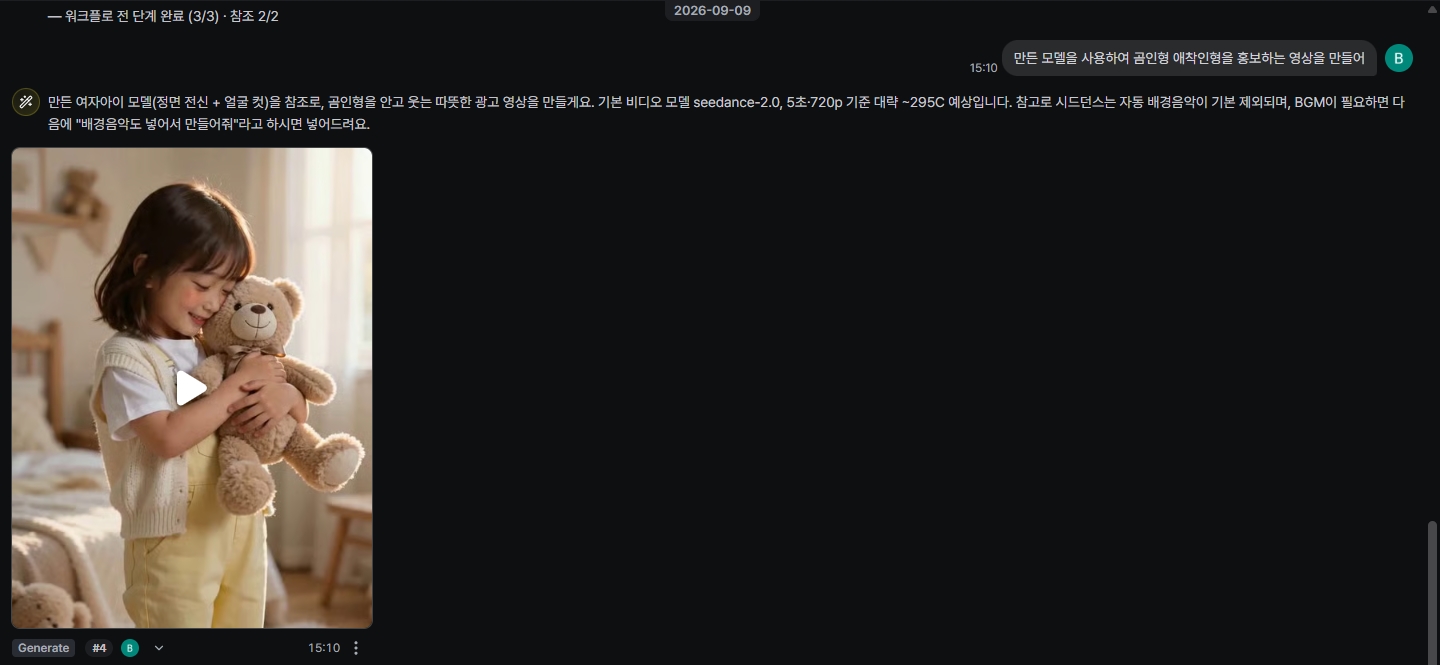
A finished video result card in the session feed, with the agent's note above it and the label · number · avatar · ▾ · time · ⋮ row below.
Writing a Prompt
- You can enter text to describe the motion of the image for video generation.
- When you attach reference files, refer to them in the prompt with @: attached files are numbered in the order you added them, such as @Image 1 and @Image 2. For example, "@Image 1 and @Image 2 are taking a selfie together" tells the engine which reference plays which role. This is especially useful when you combine several references.
Generation Settings
- Set the aspect ratio, video length, resolution, Draft 480p, and Audio from the option chips; more options are under Settings. The available options vary by engine.
Generation History
See Credit Usage History.
Video LARP

Video › LARP: Mode (Swap the lead | Restyle) · Source video 0/1 · Character photos 0/3 · Quality Best · Matches source · 720p · Keep original audio · + sheet 45 · if needed, the notice "Use only videos and photos of yourself or people who agreed.", and the Make video button.
LARP (formerly Recast) remakes a source video with your character as the lead (Swap the lead) or in a different style (Restyle), keeping the original shots and motion. Add the source video and up to 3 character photos, optionally describe changes, and click Make video. Use only videos and photos of yourself or of people who have agreed. For the full steps, see Video Tab — LARP.
Video AI Edit

Video › AI Edit: Source Video · required · Gemini Omni 1.1 Flash · Keep original, and the AI Edit button.
AI Edit changes an existing video from a written instruction. Upload the video with + Source Video · required, describe what to change ("Describe what to change."), and click AI Edit. Keep original keeps the source video's original audio.
Video Upscale
Video upscaling improves the resolution and visual quality of an already-generated video.

Video › Upscale: Source Video · required · RealESRGAN · 2×, and the Proceed button.
- In Direct mode, select the Video tab and open the Upscale sub-tab.
- Upload the video with + Source Video · required.
- Check the AI model (default RealESRGAN) and the scale (default 2×); click either chip to choose another model or scale.
- Click Proceed. The upscaled video is processed and saved as a new file alongside the original.
Notes:
- The credit cost is shown on the Proceed button.
- Processing time varies depending on video length and resolution.
- The original video is preserved and not replaced.
Next Steps
- Audio — Background music, lip-sync, and other audio
- Editor — Create presentations using your videos
- Social Media — Publish results to your social accounts