Manual, Language, and Mode Settings
Summary: From the XBRUSH user menu, you can access the manual, change the interface language, and toggle between dark and light mode — all applied instantly. XBRUSH currently supports Korean and English.
Viewing the Manual
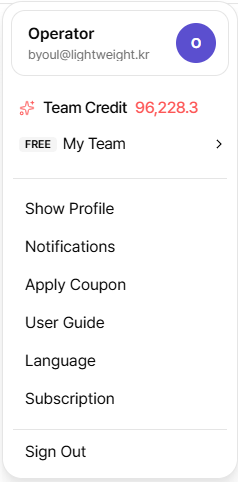
User menu
You can access the manual page at any time while using XBRUSH.
- Click the user icon in the top-right corner of the screen.
- Click "Manual" from the dropdown menu.
- The manual page (xbrush.ai/docs) opens in a new tab.
The manual always opens in a new tab so you can refer to it in a separate window while continuing to use XBRUSH.
Language Settings
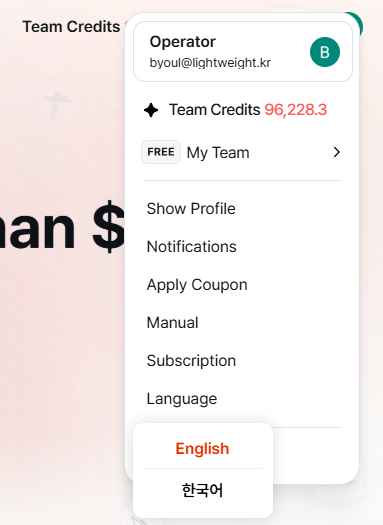
Language settings screen
XBRUSH currently supports Korean and English, and any language change is applied to the entire UI instantly.
How to Change the Language
- Click the user icon in the top-right corner of the screen.
- Select "Language" or "Settings" from the dropdown menu.
- Choose your desired language.
- The change is applied immediately — no page refresh required.
Supported Languages
XBRUSH supports the following 2 languages:
| Language | Display Name |
|---|---|
| Korean | 한국어 |
| English | English |
Note: The language of the manual (xbrush.ai/docs) can be changed separately using the language dropdown at the top of the manual site.