Image Enhancement — Inpaint (Partial Replacement)
Summary: Inpaint is available in the Workspace Image tab → Edit sub-tab. Upload or load an image, enter a prompt describing the changes you want, and the AI replaces or modifies the relevant areas.
Inpaint (via Edit Tab)
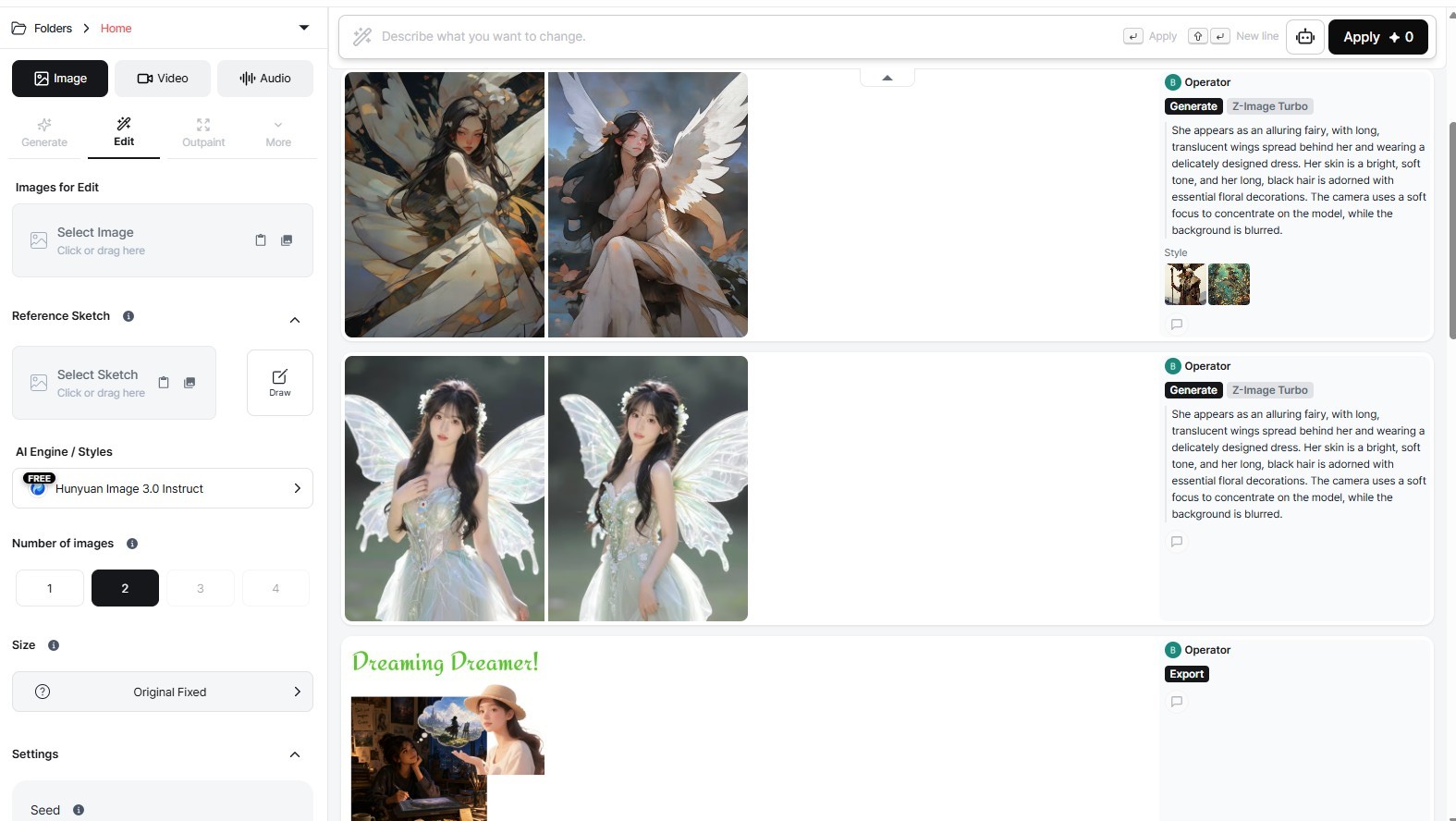
Workspace Image tab → Edit tab. Enter a prompt to partially replace or modify the image.
Inpainting is performed through the Edit tab in the Workspace Image tab. The AI uses your prompt to understand which areas to change and generates new content accordingly.
How to Use
- In the Workspace, select the Image content type tab, then choose the Edit sub-tab.
- Drag an image into the Image to Edit area, or hover over a result in the results feed and click the edit icon.
- Enter a prompt describing the content you want to generate or the change you want to apply.
- Optionally upload a Reference Sketch to guide the edit direction.
- Configure additional options as needed:
| Option | Description |
|---|---|
| AI Engine | Choose the base model (default: Seadream 4.5) |
| Number of Images | 1–4 images per run |
| Image Size | Lock to original ratio or select manually |
| Resolution | 2K or 4K output |
- Click Run to generate the result.
Tips
- The more specific the prompt, the more accurate the result.
- If the result doesn't match expectations, try adjusting the prompt or regenerating with a different seed.
Next Steps
- Outpaint & Background Removal
- Editor — Compositing, layers, and caption handling
- Credits & Payment — Check balance, receipts, and billing policy