Log In or Sign Up
Summary: Log in or sign up using Google, Kakao, or Naver social login — or with an email address. Your account is created automatically on first social login. New email signups are verified with a 6-digit code.
SSO (Single Sign-On) Login or Sign Up Overview
- You can browse without logging in, but features like generation require login.
- You can log in using your Google, Naver, or Kakao account without a separate sign-up process — your account is automatically created on your first login.
- When using a social account to log in, the required user information is handled according to the privacy policy, and your email is mandatory.
Supported SSO Providers
- Kakao
- Naver
Email Login or Sign Up Overview
- You can sign up and log in using an email address you already have.
How to Log In or Sign Up
- On the login page, select an SSO provider or enter your email and password.
- You will be redirected to the selected provider's login page.
- Log in with your account credentials.
- You will be automatically logged into XBRUSH.
Log In or Sign Up
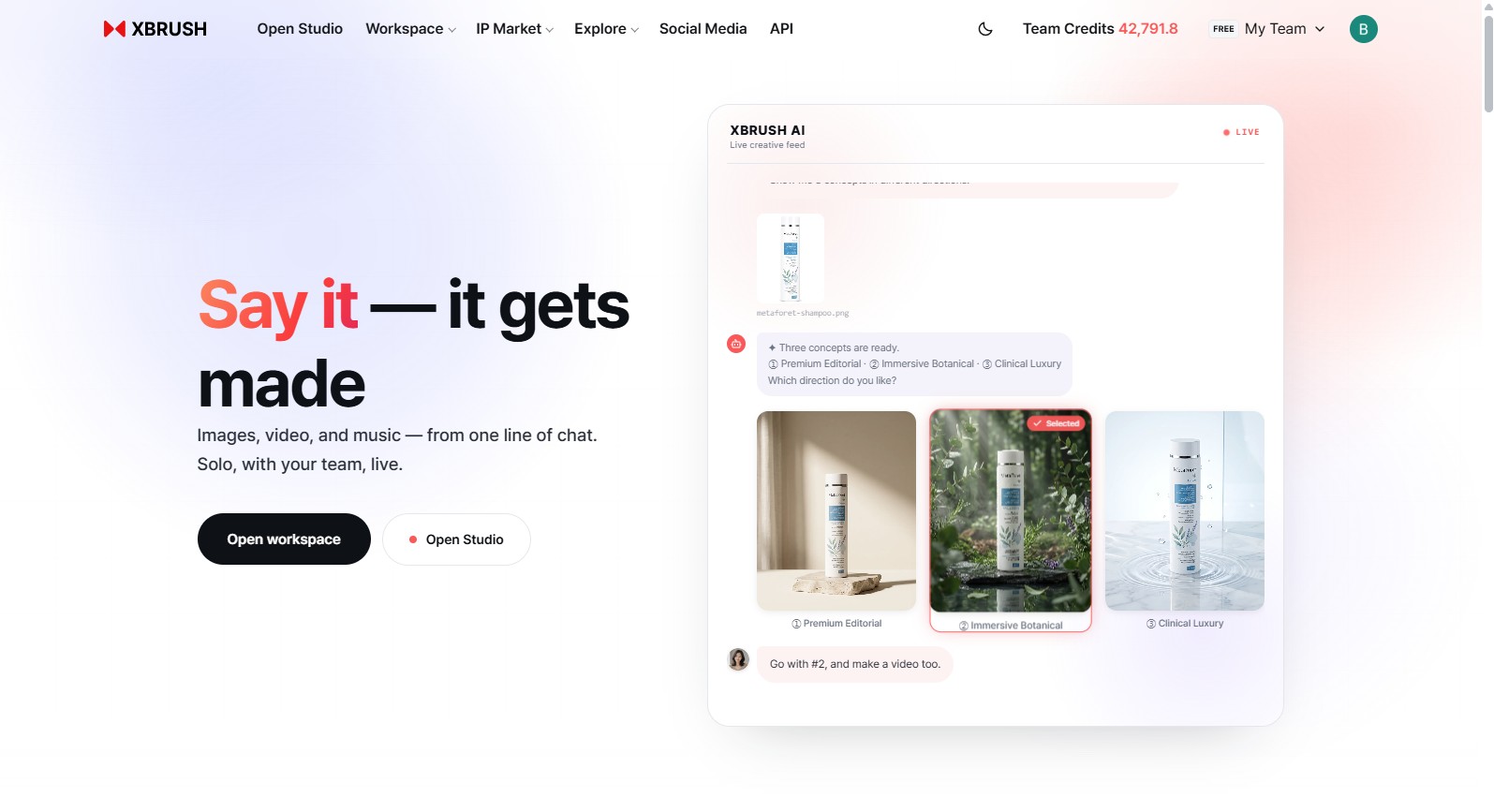
This is the main page where you start the login or sign up process.
- Click Log In / Sign Up at the top right of the main screen to begin.
- Clicking Start for free on the home screen also takes you to the login or sign up screen.
- Opening a menu that requires login (Workspace, Social Media, Apps) or attempting to generate will prompt you to log in or sign up as well.
Select a Provider
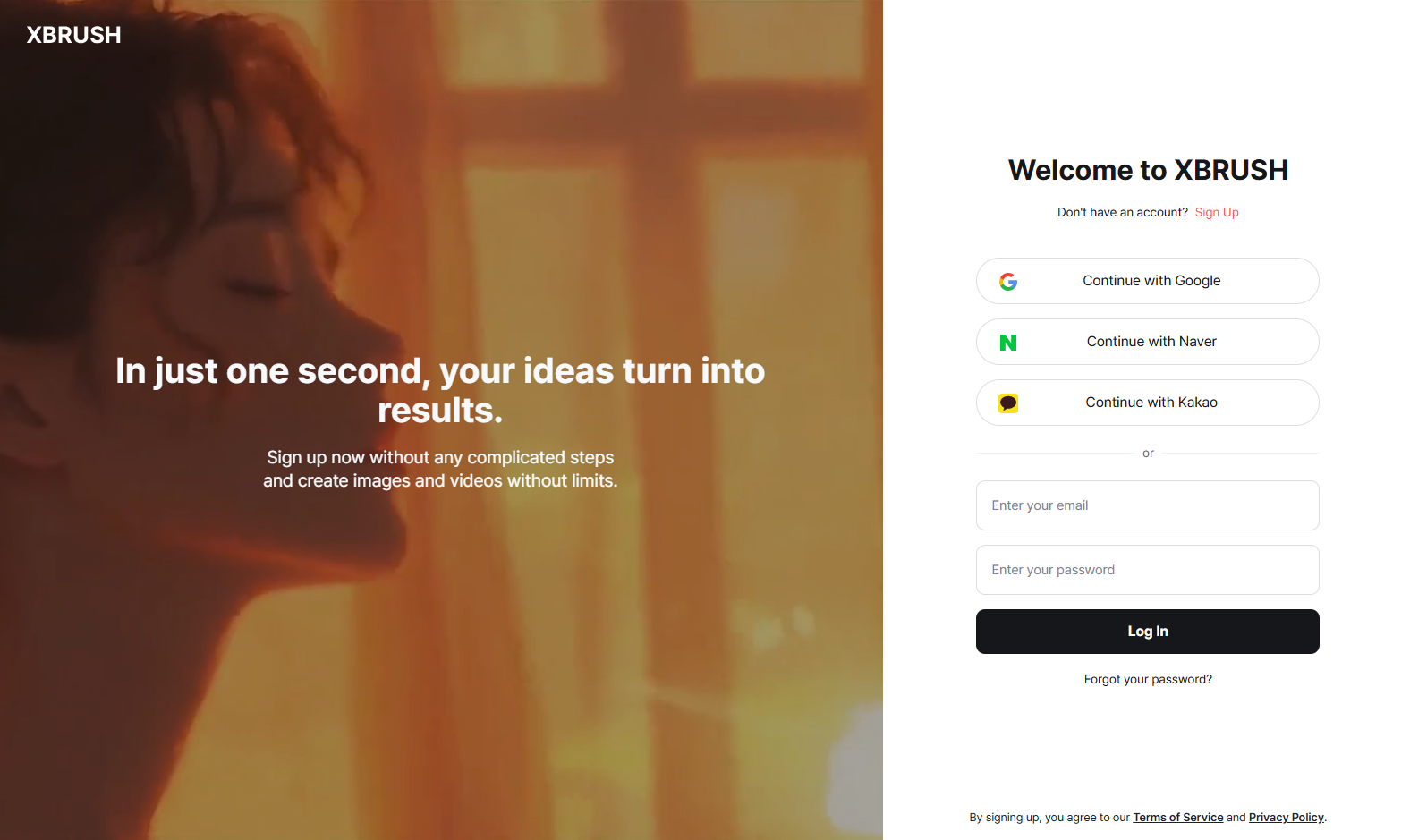
This screen lets you select an SSO provider to log in or sign up with.
- Choose one of the 3 providers and follow the login or sign up process.
Log In or Sign Up with Email
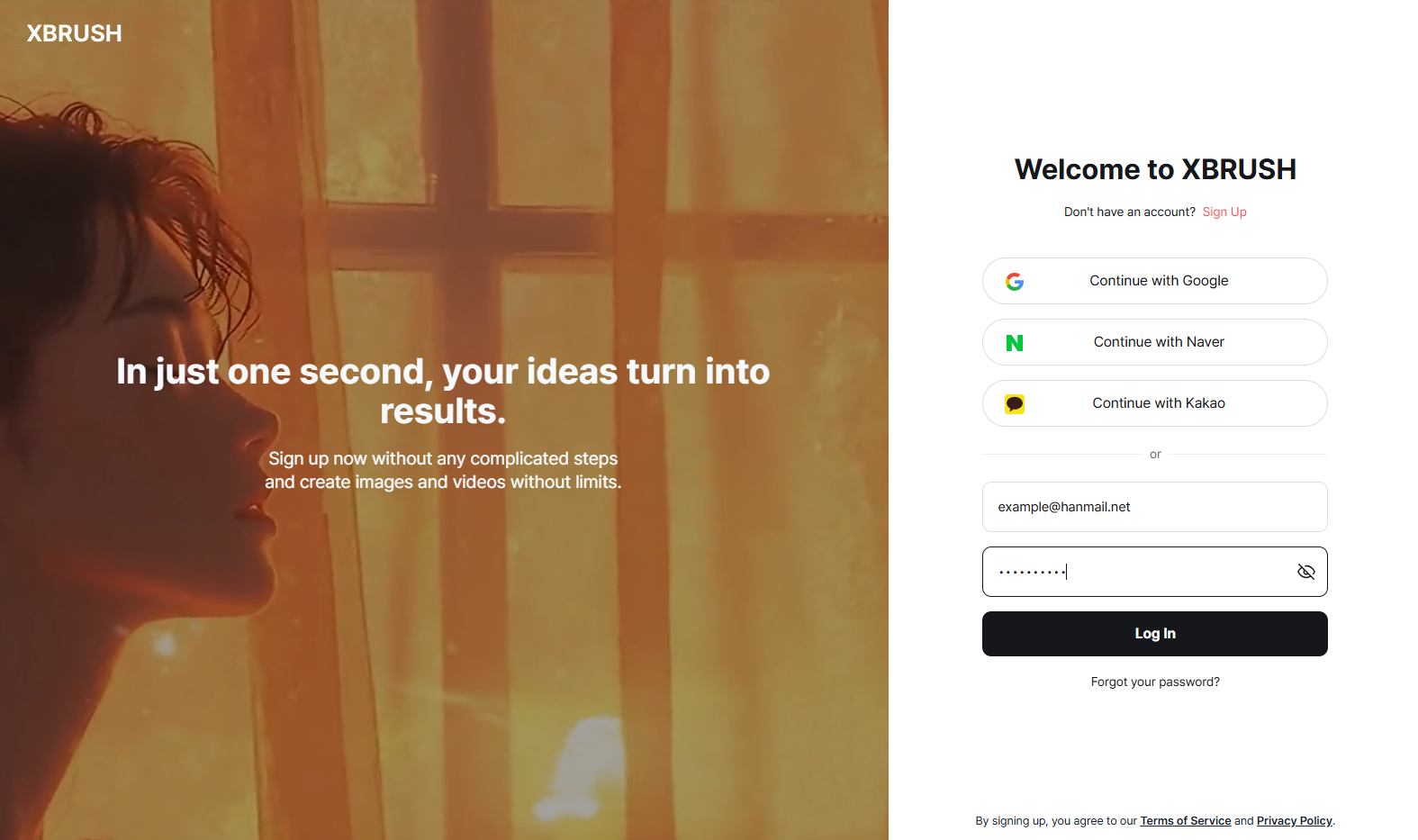
Enter your email and password (8 or more characters, including a special character and an uppercase letter) to log in or sign up.
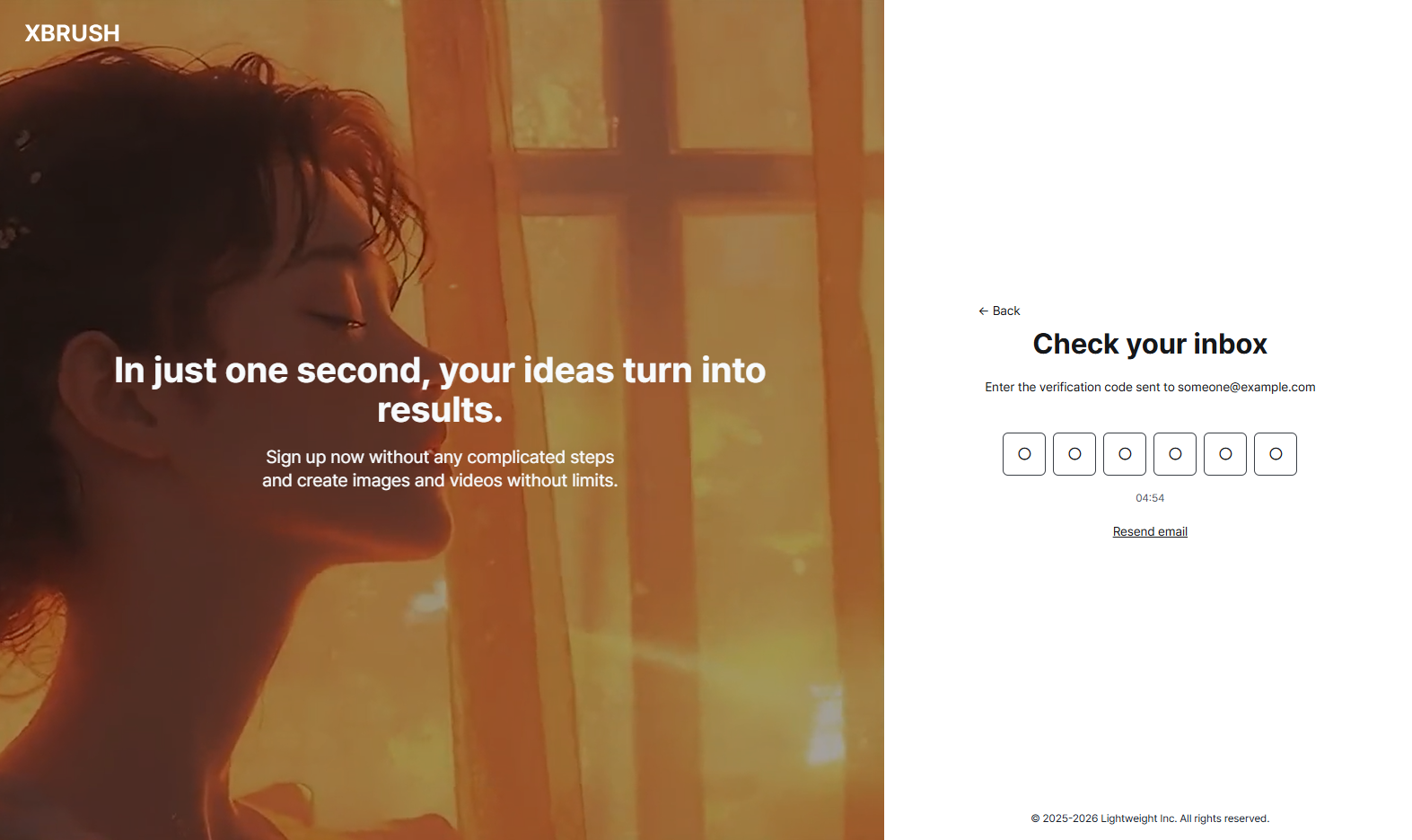
- Enter the 6-digit code sent to your email. If you didn't receive the email, click Resend.
- Once you enter the correct 6-digit code, login or sign up is complete.
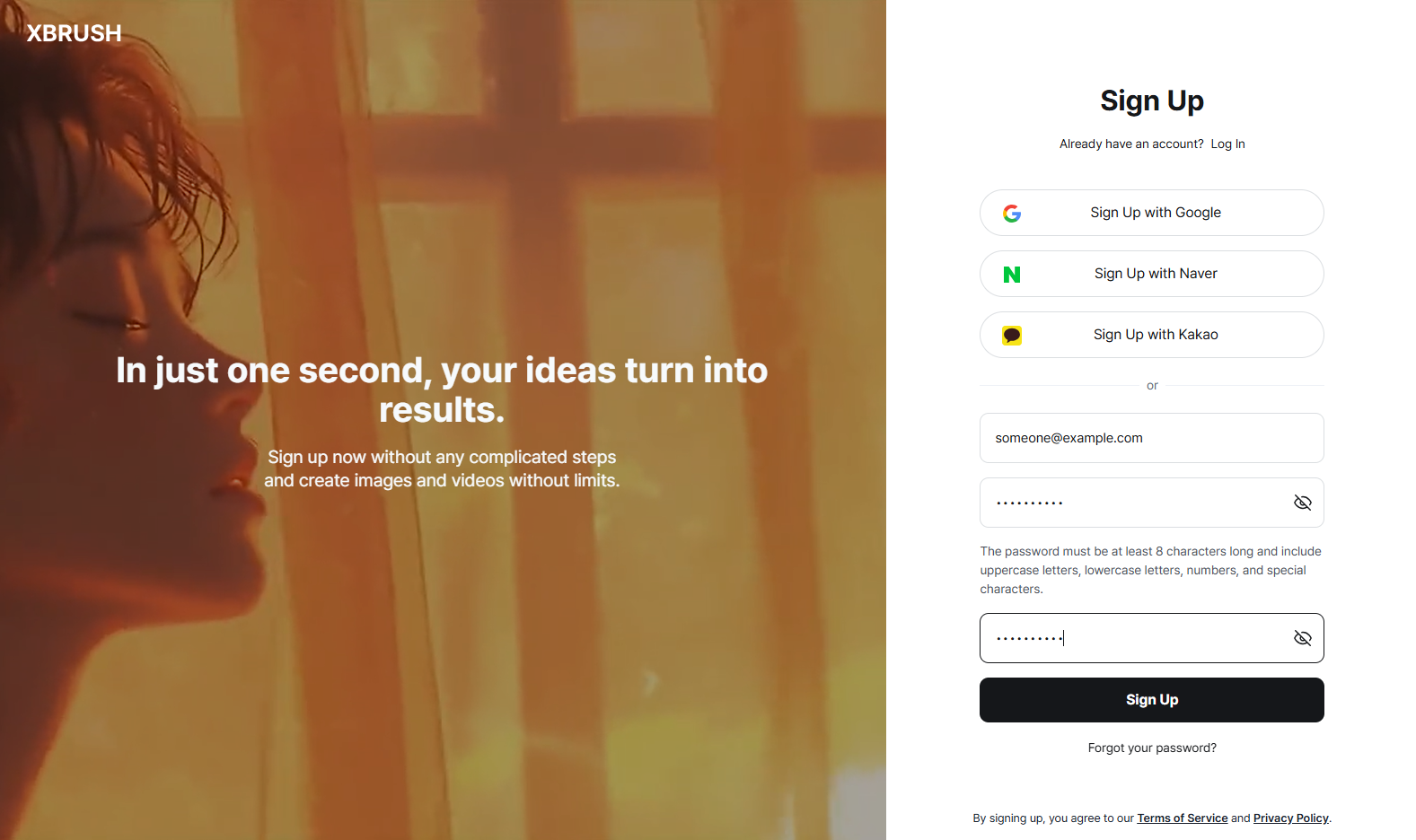
This screen appears only when signing up with email. When using SSO (Google, Kakao, Naver), login and sign up happen simultaneously — no separate sign-up screen is shown.
Login or Sign Up Complete
Once login or sign up is complete, you will be redirected to the home screen.
- Once login or sign up is successful, your user information will appear in the top right corner.
- A My Styles tab (your personal library) will be added, where you can manage your own style models.
Forgot Password
If you signed up with an email and password and have forgotten your password, you can reset it.
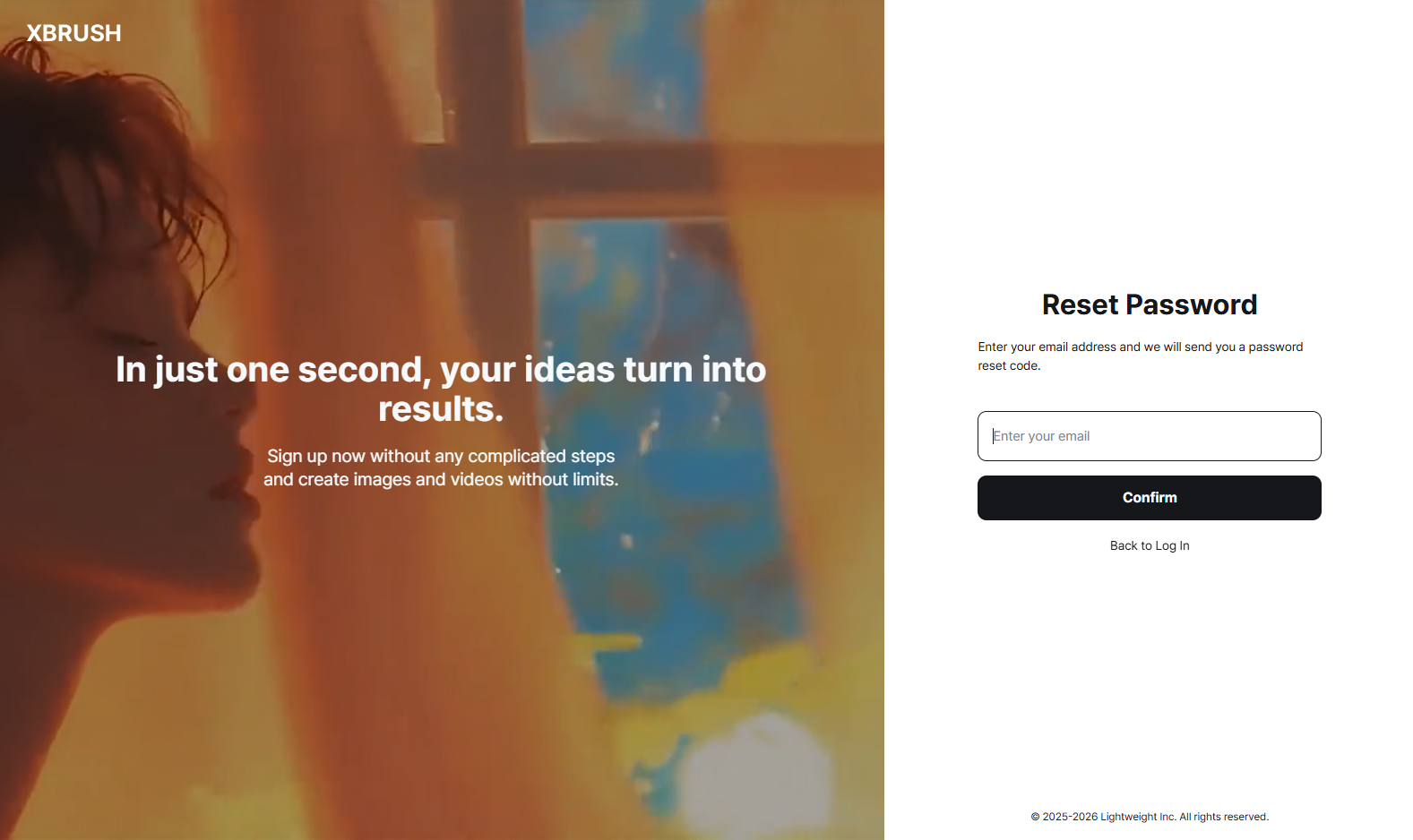
Click "Forgot Password?" on the login page.
- On the login page, click "Forgot Password?" below the password field.
- Enter the email address you used to sign up.
- A password reset link will be sent to that email address.
- Click the link in the email to open the password reset page.
- Enter and confirm your new password (8 or more characters, including a special character and an uppercase letter).
- Your password is updated immediately. Log in with your new password.
Note: Social login users (Google, Naver, Kakao) do not have a separate XBRUSH password to reset. If you need to change your social account password, do so through that provider's account settings page.
Next Steps
- Image Generation — Generate images
- Editor — Edit images
- Video Generation — Generate videos