Cinema
Summary: Cinema offers two ways to create premium ad videos — start from a curated template, or build from scratch with New Creation. Every generated video can be further refined in the built-in timeline video editor.
What is Cinema?
Cinema is AI Studio's premium ad video production feature. Choose from two creation modes:
- Template — Select a pre-built cinematic template with a built-in narrative, persona, and script. Ideal for quickly producing polished brand ads.
- New Creation — Start from a blank canvas and configure every detail yourself, from persona to script to visual style.
All generated videos can be refined in the Timeline Video Editor, accessible via the edit action button on any video.
Method 1 — From Template
Step 1 — Browse and Select a Template
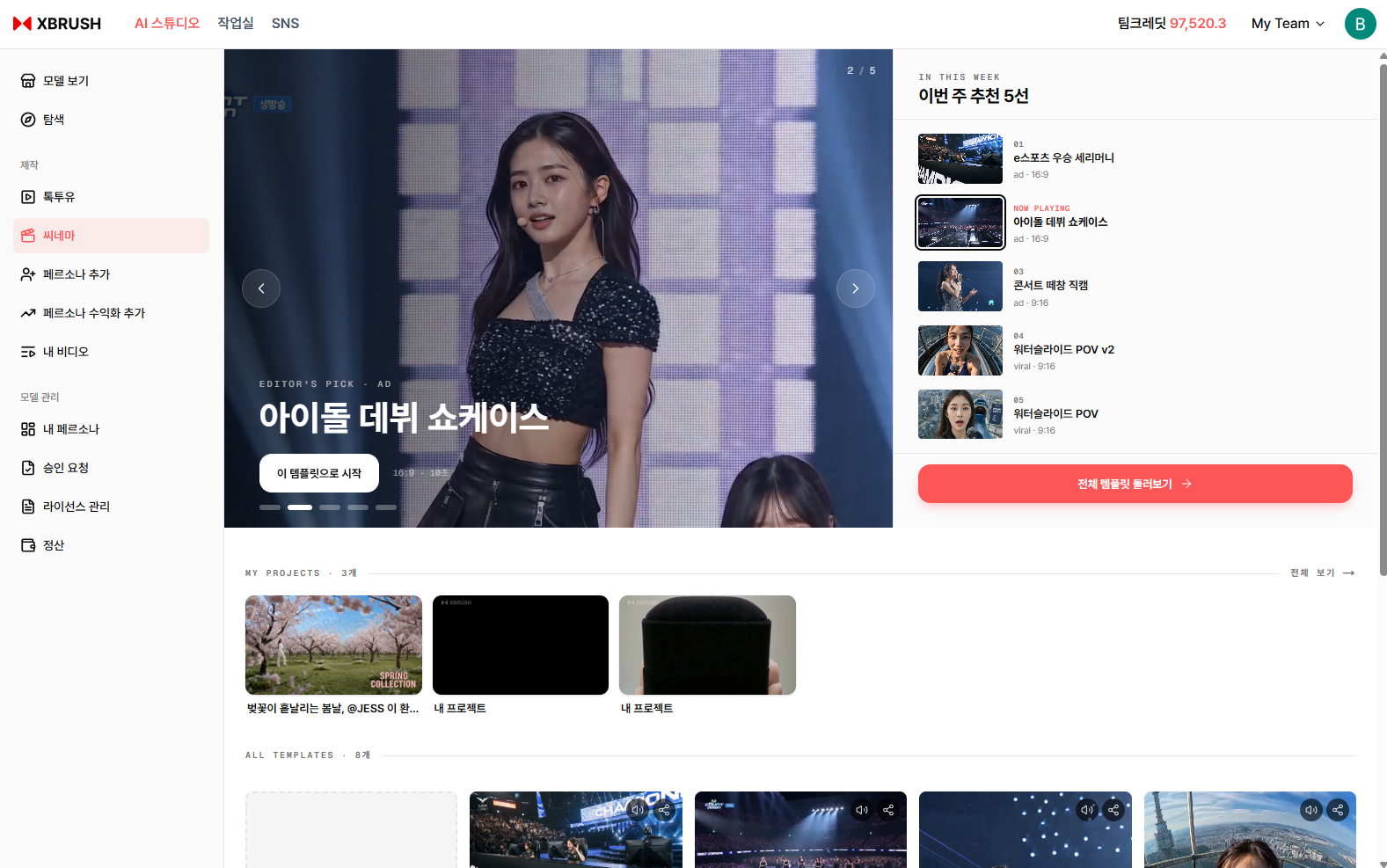
Cinema home — browse curated templates and select one to start.
- Click Cinema in the left sidebar.
- The gallery displays available cinematic templates.
- Browse templates and click one that fits your campaign.
- Click Use This Template to open the template detail view.
Step 2 — Review and Generate
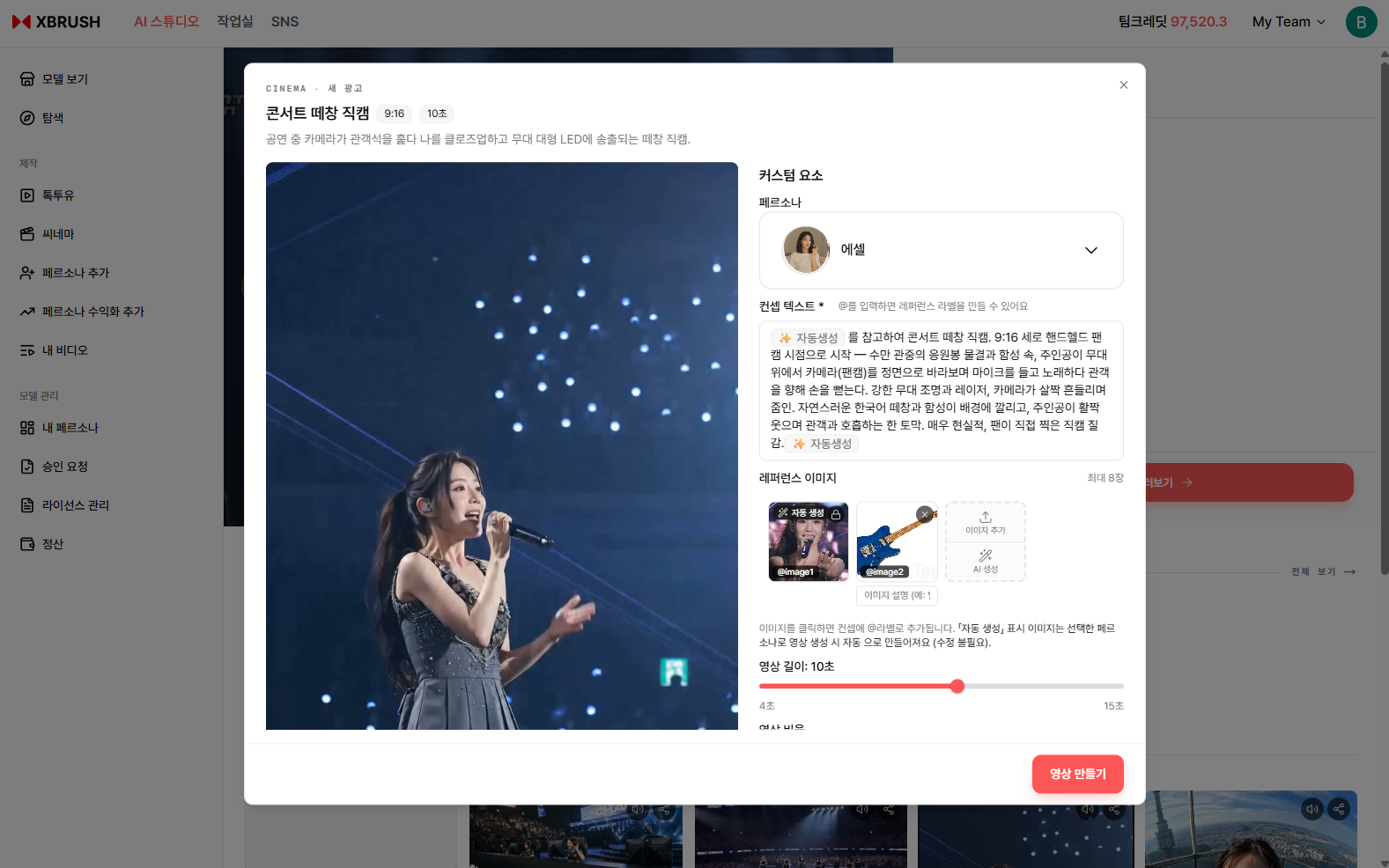
Template detail — review the assigned persona, narrative script, and options before generating.
In the template detail view:
- The left panel plays a preview of the template video.
- The right panel shows the assigned persona and the full narrative script.
- Review the script to confirm the tone and messaging match your intent.
- Select the desired duration or aspect ratio if multiple options are available.
- Click Generate Video to generate the video.
Step 3 — Template Result
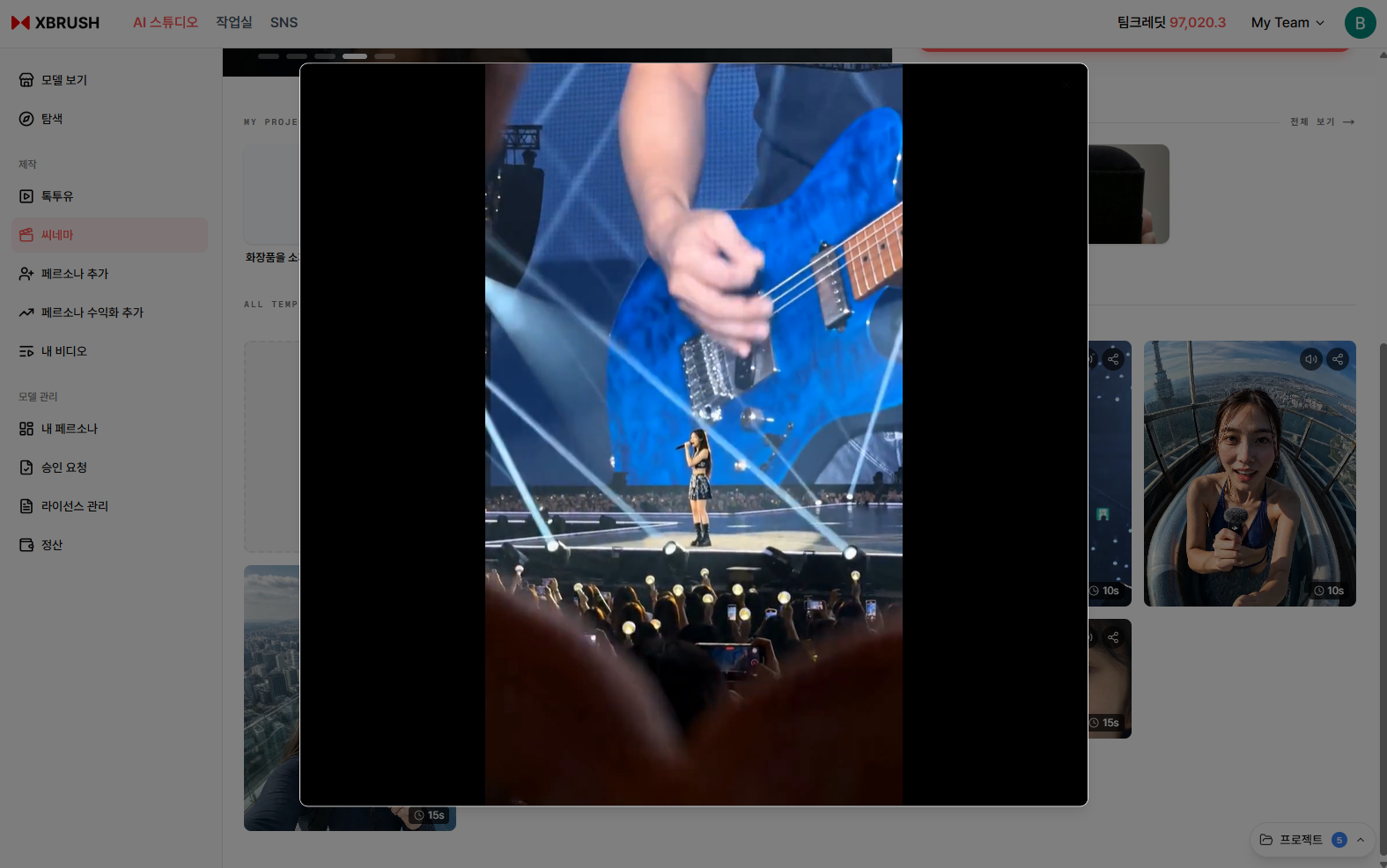
The completed video generated from the template.
- The finished video is saved to My Videos.
- Click the video card to preview or download it.
- To refine the video, click the edit action button to open the Timeline Video Editor.
Method 2 — New Creation
Unlike templates, New Creation gives you full control from the start — pick your own persona, describe your idea in one or two sentences, and optionally attach reference images to shape the visual style. The AI generates an ad immediately from your inputs.
Step 1 — Click New Creation
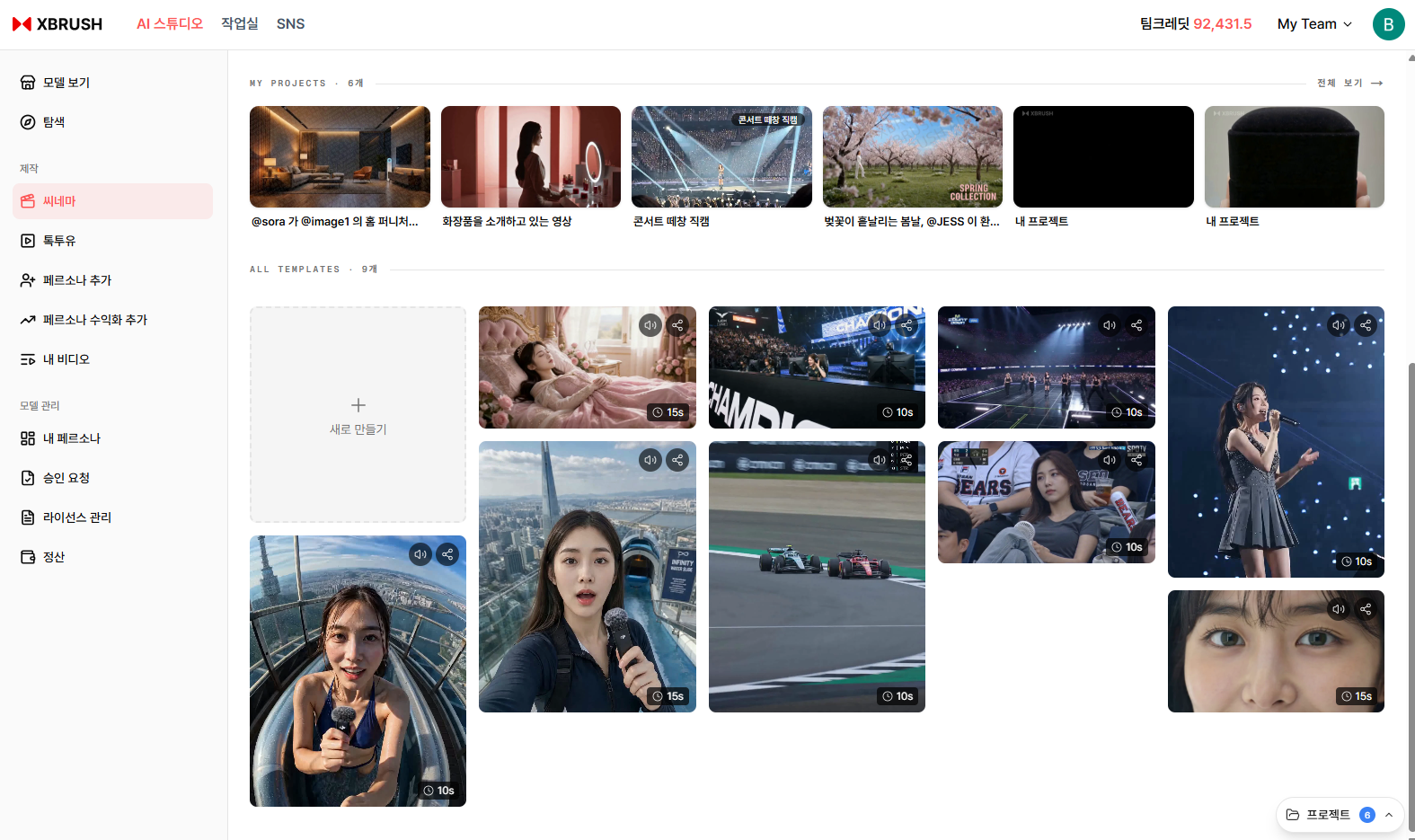
Cinema home — click New Creation in the left sidebar to open the setup dialog.
- On the Cinema home screen, click New Creation in the left sidebar.
- The New Creation dialog opens.
Step 2 — Enter Your Idea
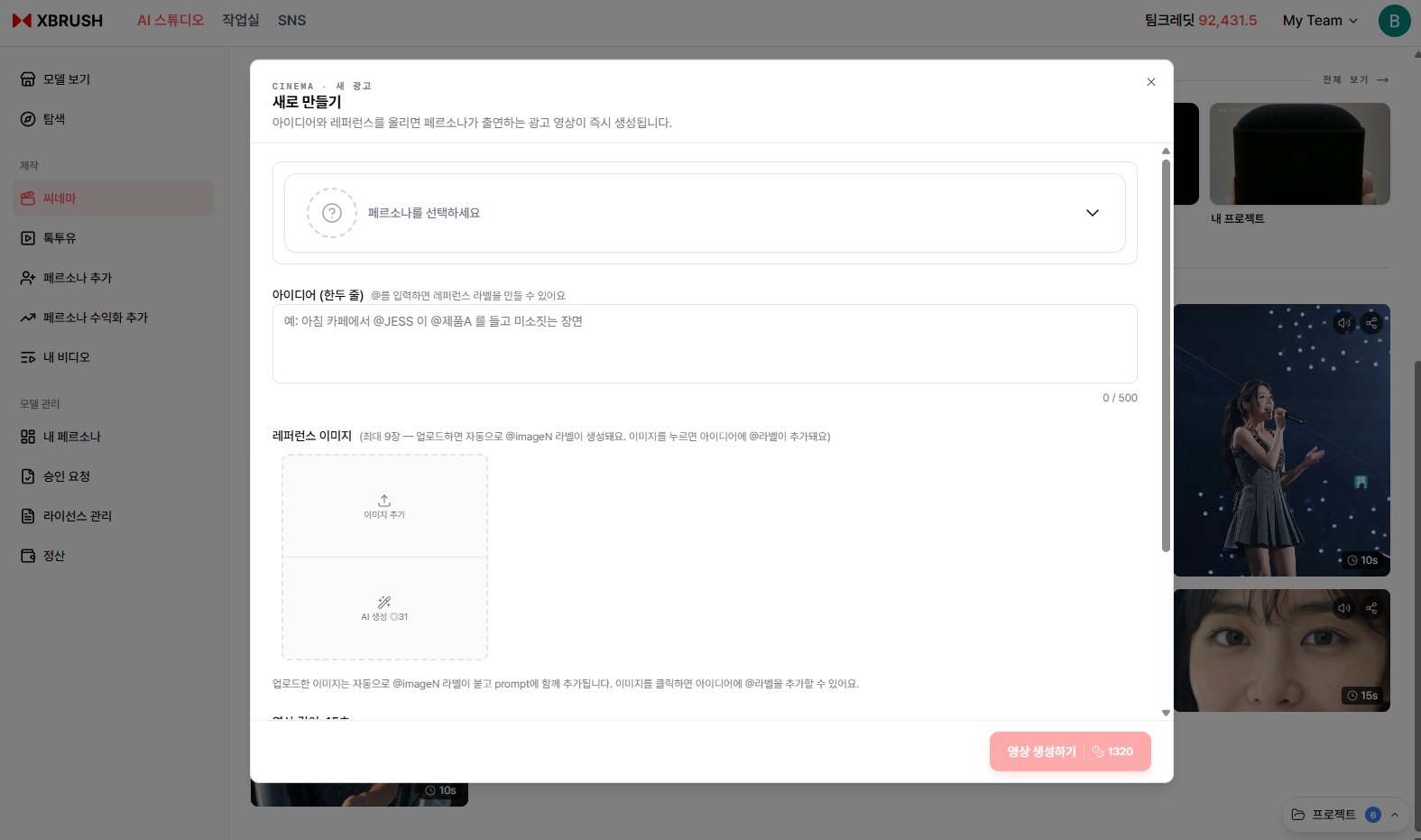
The New Creation dialog — select a persona, describe the scene, and optionally add a reference image.
In the New Creation dialog:
- Click Select Persona to choose the AI persona that will appear in the video.
- In the Idea (1–2 sentences) field, describe the scene or message (e.g., "Morning café, JESS drinks coffee and checks her phone").
- Under Reference Image, upload your own image or click Generate AI Image to auto-generate one from your idea. Reference images guide the visual look of the output.
- Click Generate Video to start production.
Step 3 — Select a Persona
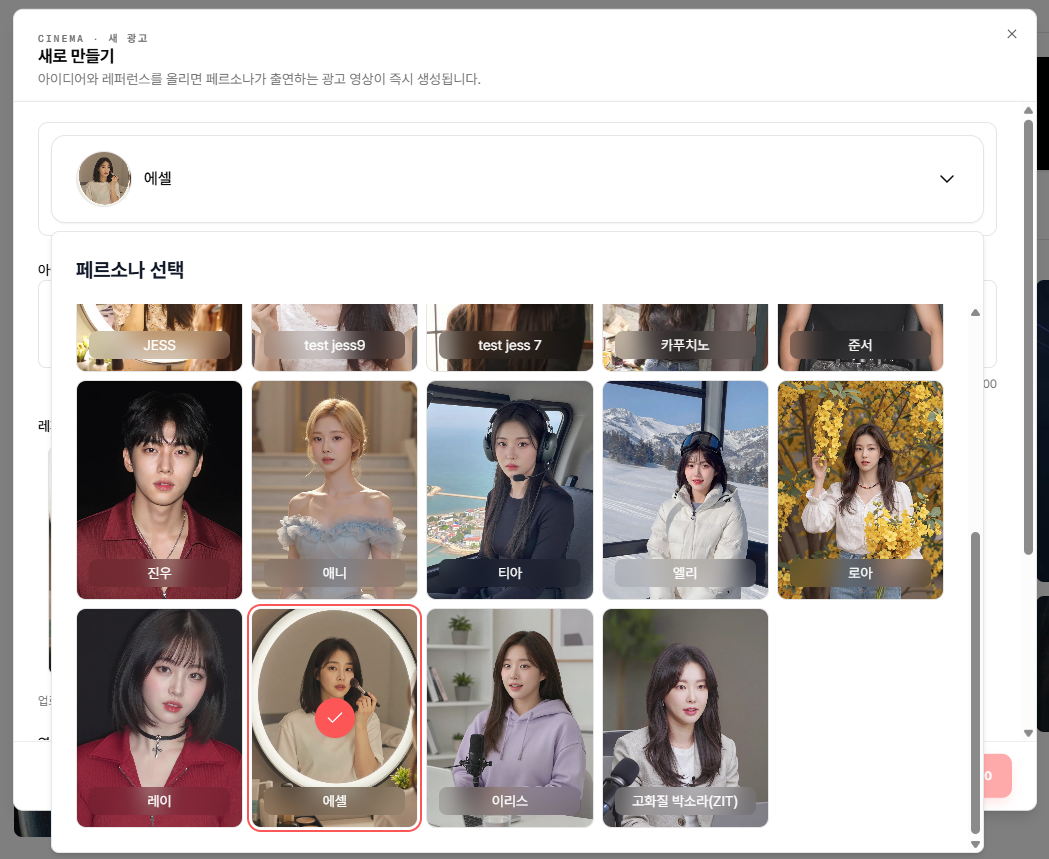
Persona grid — select the AI persona to feature in your video.
- The persona grid displays all available AI personas.
- Click a persona card to select it and return to the New Creation dialog.
Step 4 — Attach Reference Images
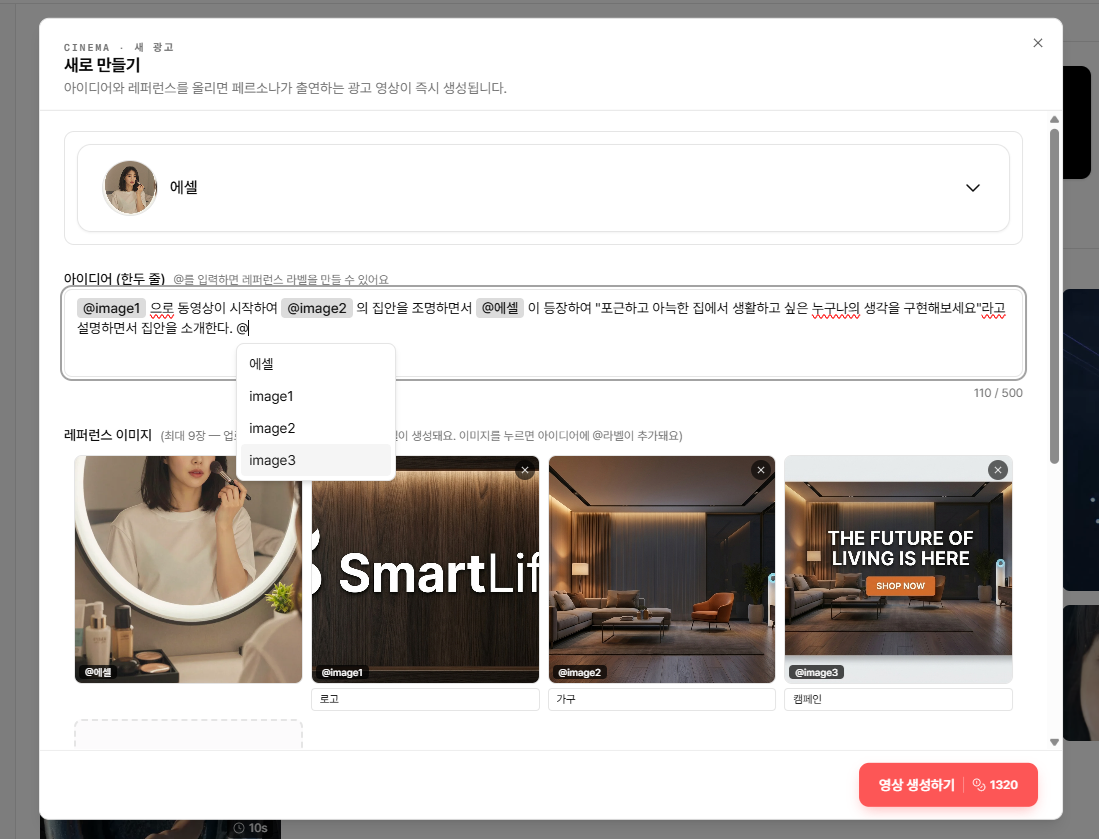
Reference images are tagged @image1, @image2, etc. and can be cited in the idea prompt.
- Each uploaded image is automatically assigned a tag —
@image1,@image2, and so on. Personas can be referenced by their name with the same@syntax (e.g.,@Essel). - Use
@tags in the idea prompt to explicitly direct each resource — which image appears when, and what the persona says. The more precisely you describe the sequence, the closer the output matches your intent. - Example prompt: "The video opens with
@image1(logo), then pans through the interior from@image2while@Esselappears and says 'Let's bring to life the dream of a warm, cozy home that everyone longs for,' introducing the space. The video closes with@image3." - Once all fields are filled in, click Generate Video to produce the ad.
Timeline Video Editor
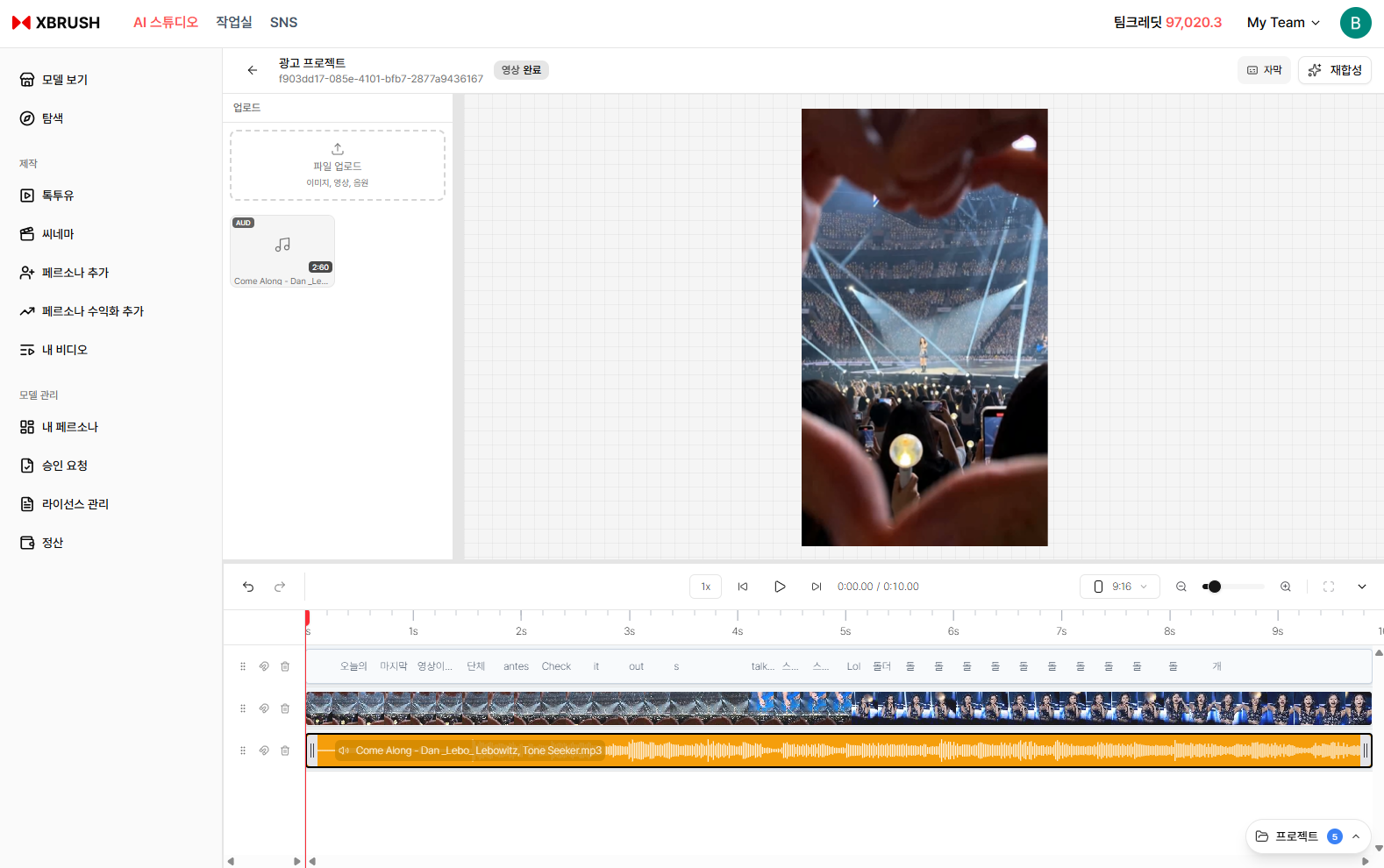
The Timeline Video Editor — opened by clicking the edit action button on a generated video.
After a video is generated (via template or new creation), click the edit action button on the video card to open the Timeline Video Editor:
- The main timeline displays the generated clip with its full duration.
- The left panel (Upload Assets) lets you upload additional video clips, images, or music.
- The right panel (My Projects) lists your recent Cinema projects for quick reference.
- Trim clips, add background music, or adjust timing before exporting the final video.
- Click Save to save your edits.
Tips
- Use the Template path for quick, polished results when a pre-built narrative fits your brand.
- Use New Creation when you need full control over the script, persona, and visual style.
- The timeline editor is the best place to add background music or trim the video before publishing.