Premium Ad
Summary: Premium Ad produces professional-quality brand advertisement videos by combining a persona with curated ad templates. Customize the brand information and generate — or fine-tune further in the timeline editor.
What is Premium Ad?
Premium Ad is Ad Studio's high-quality ad production feature. It provides professionally designed video templates across various industries and formats. Choose a persona (AI model), select a template, add your brand details, and generate a polished advertisement ready for campaigns.
Step 1 — Select a Persona (퍼소나 선택)
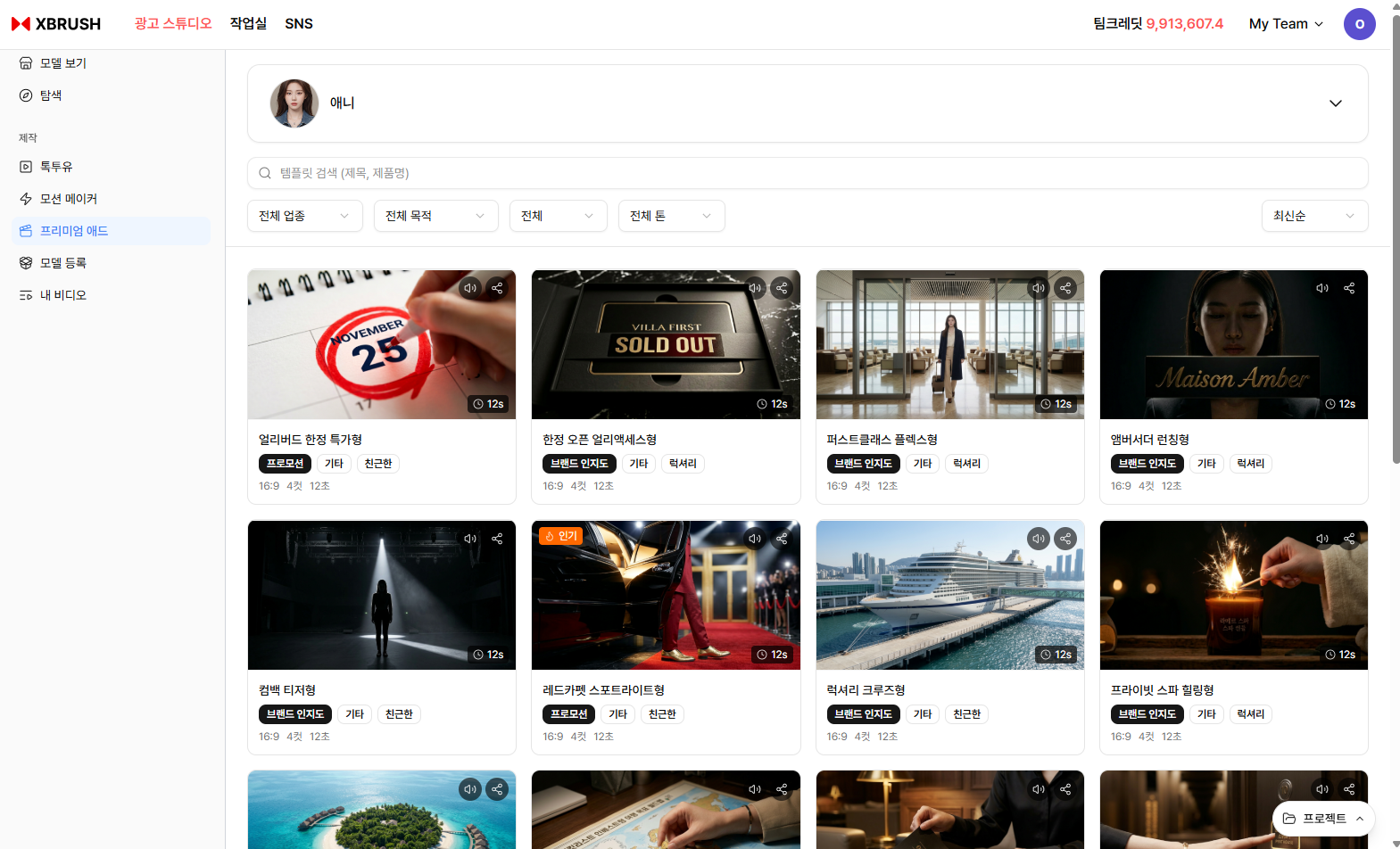
Choose an AI persona to appear in your advertisement.
- Click Premium Ad (프리미엄 에드) in the left sidebar.
- A grid of available personas is displayed — male and female AI models in various styles.
- Click a persona to select it (a checkmark appears on the selected card).
Step 2 — Browse and Select a Template
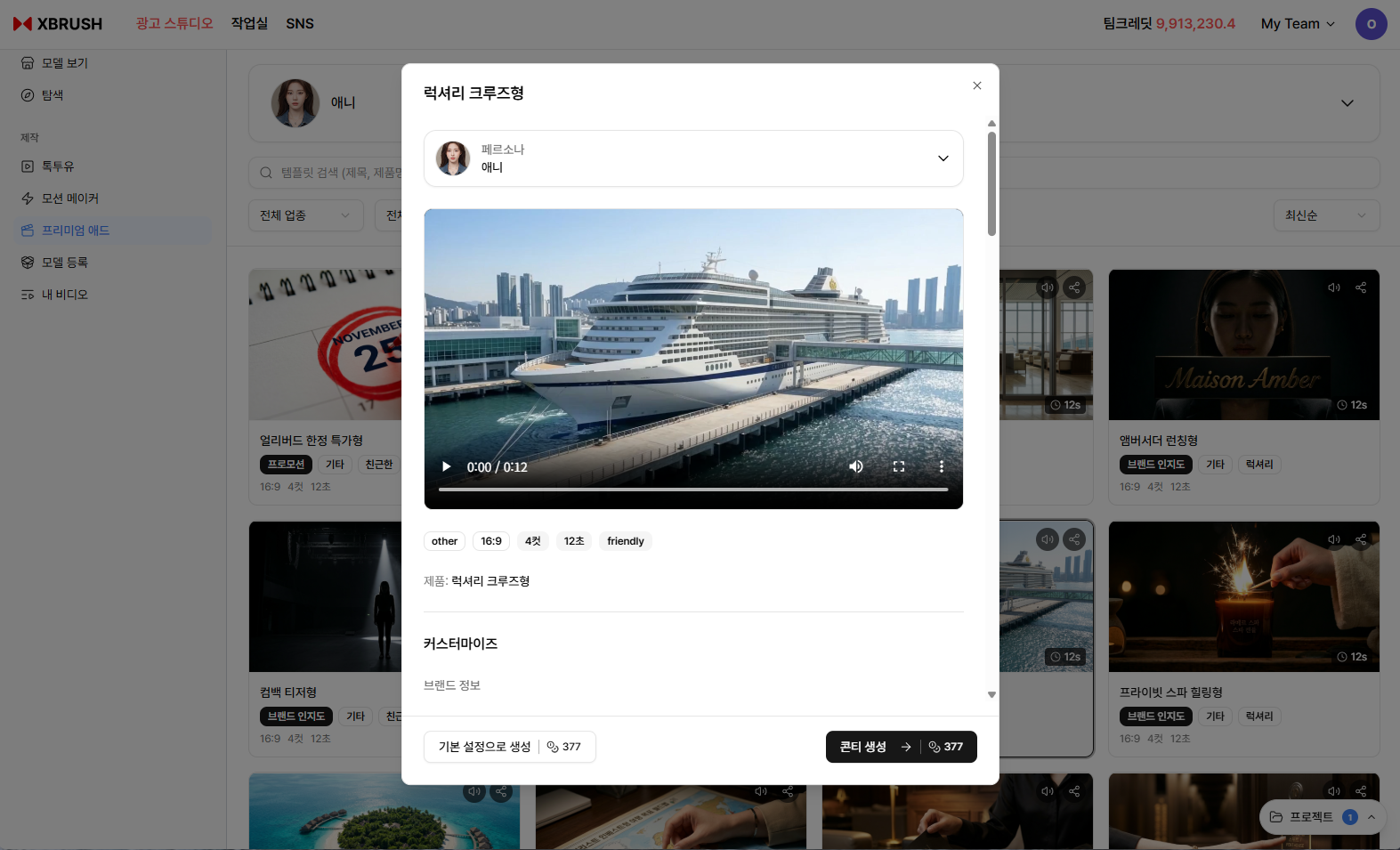
Browse premium templates by industry, purpose, duration, and objective.
- Templates are displayed in a grid with thumbnail previews.
- Use the filter bar to narrow results:
- 전체 업종 — industry (e.g., fashion, beauty, tech)
- 전체 용도 — purpose (e.g., product showcase, brand awareness)
- 전체 길이 — duration
- 전체 목적 — objective
- Each template card shows the brand placement style, duration, and a usage count badge.
- Templates marked 인기 are the most frequently used.
- Click a template card to open the detail modal.
Step 3 — Customize and Generate
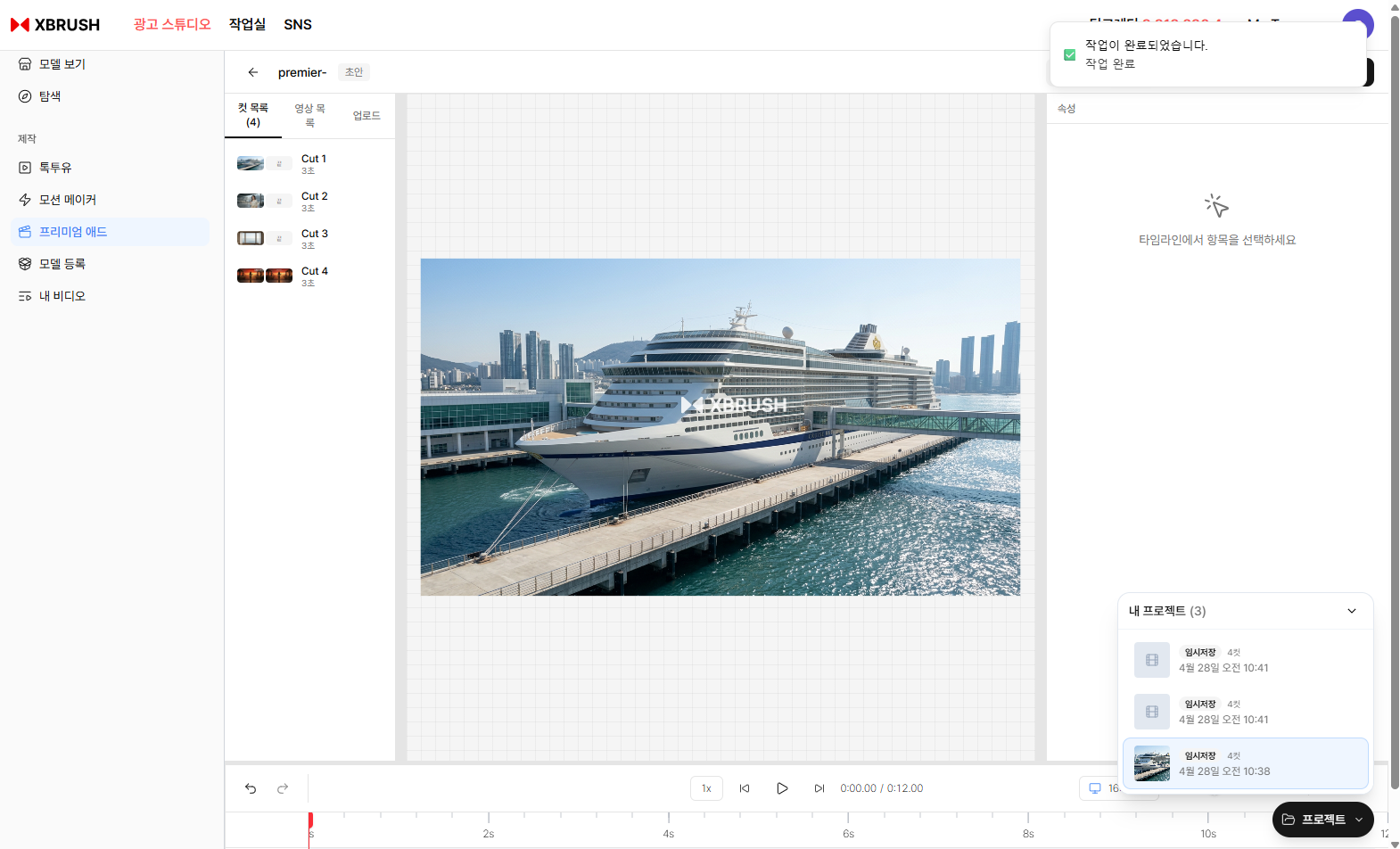
Preview the template, configure format, and enter brand information.
In the template detail modal:
Preview
- A video preview of the template plays automatically.
- Below the preview, select the aspect ratio (e.g., 9:16 for vertical, other options available).
- Choose the cut count and duration variant if multiple options exist.
- Select a style tag (e.g., friendly, cinematic).
Customize (커스터마이즈)
- Expand the 브랜드 정보 (Brand Information) section.
- Enter your brand name, product name, tagline, or other details as prompted.
- This information is incorporated into the template's text layers and script.
Generate
- 기본 설정으로 생성 — generate immediately using default settings (credit cost shown).
- 영상 만들기 — generate with the customized brand information applied (same credit cost).
Timeline Editor
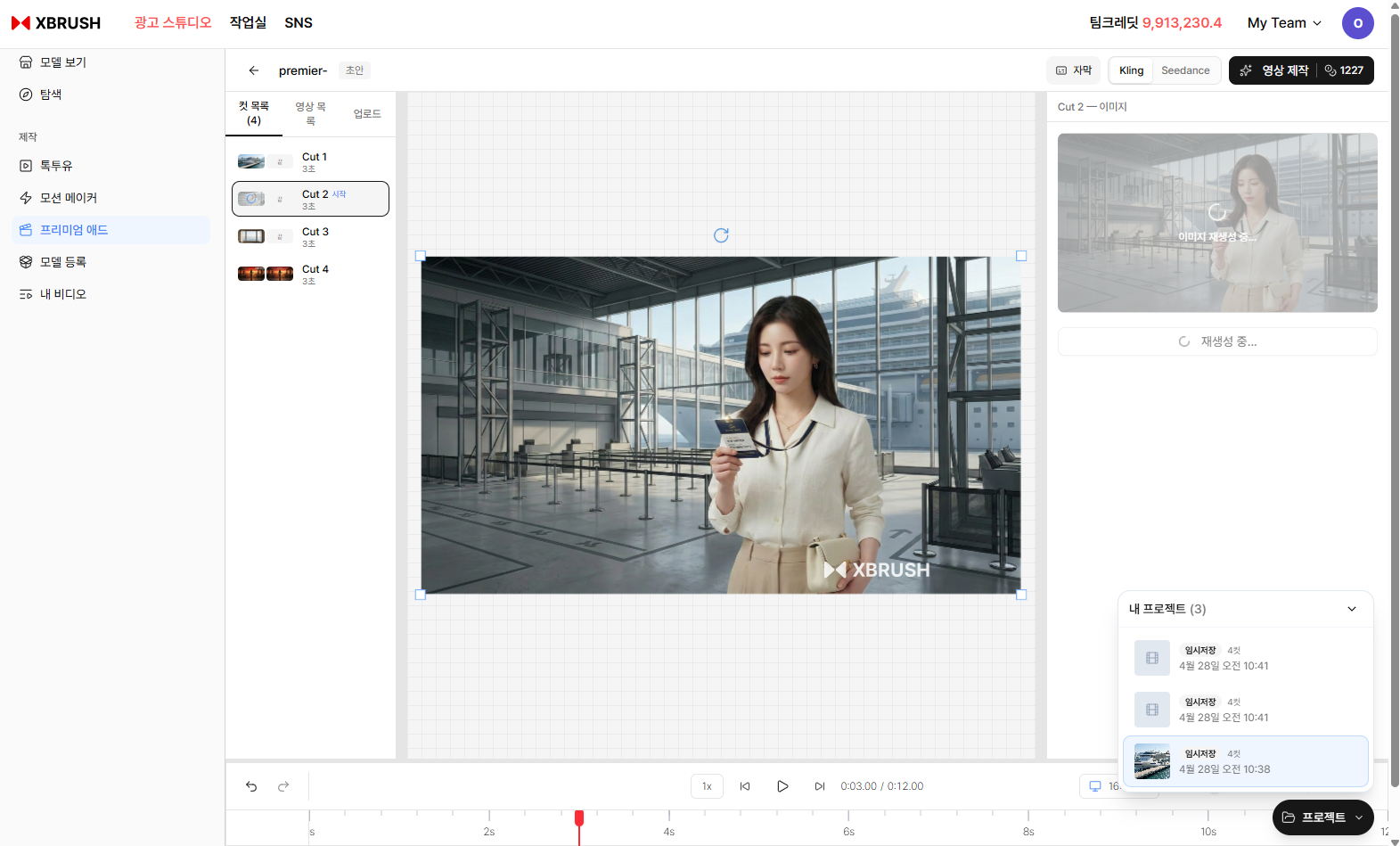
Fine-tune your generated ad in the timeline editor.
After generation, click the edit button to open the Timeline Editor:
- The video is displayed in the center preview.
- The bottom timeline shows individual clips and audio tracks.
- Use the 레이아웃 panel (left) to adjust scene layout.
- Use the 마이 에셋 panel to replace media elements.
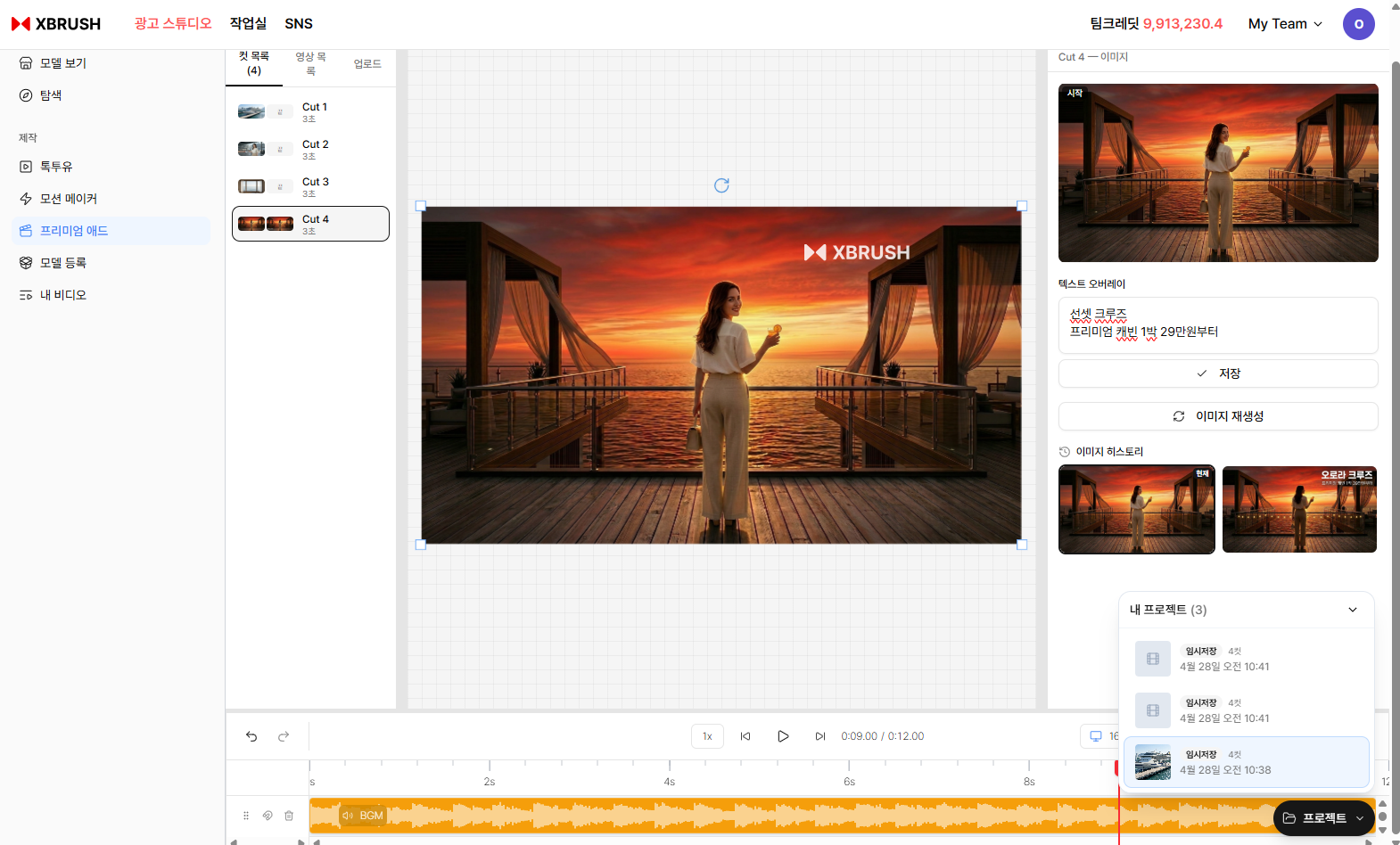
Select a cut from the list to edit its text overlay and regenerate the scene image.
- Click any Cut in the left cut list (컷 목록) to select it for editing.
- In the right panel, edit the 텍스트 오버레이 (Text Overlay) to update on-screen text for that cut.
- Click 저장 to apply the text changes.
- Use 이미지 재생성 to regenerate the scene image while keeping the edited text.
- 이미지 히스토리 lets you revert to a previous version of the scene image.
- Export the final video when all edits are complete.
Viewing the Result
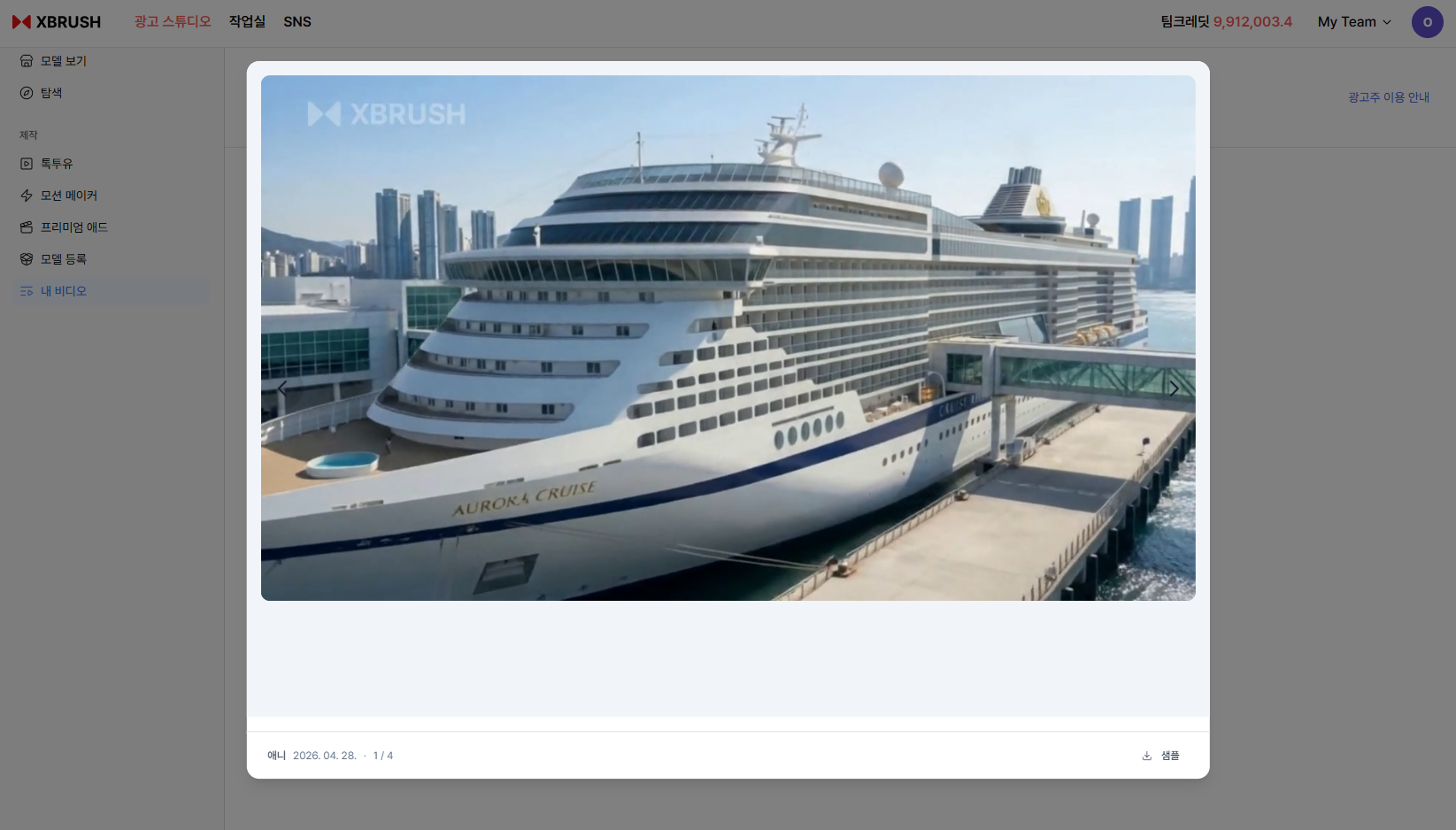
The completed advertisement plays in a lightbox viewer from My Videos.
- The finished video appears in My Videos (내 비디오) in the left sidebar.
- Click any video card to open the lightbox player.
- Use the pagination indicator (e.g., 1 / 4) to browse multiple generated videos.
- Click the 샘플 button to mark the video as a sample for reference.
- Use the download icon to save the video file.
Tips
- Preview the template video before generating — it shows the exact motion and pacing your brand content will follow.
- Vertical (9:16) templates are optimized for Instagram Reels, TikTok, and YouTube Shorts.
- If the generated output needs adjustments, use the timeline editor to swap clips or reorder scenes rather than regenerating from scratch.