Create and Edit in Plain Language
Summary: The Workspace AI agent knows every XBRUSH capability at the API level. Say what you want in plain language and it works out the steps, picks the tool and engine, writes the prompt, and runs it for you. You do not have to know the product to use it. Results are organized in folders, every task can be worked on with your team, and Quick start and Workflow recipes give you ready-made tasks to copy.
Two Ways to Work, One Screen
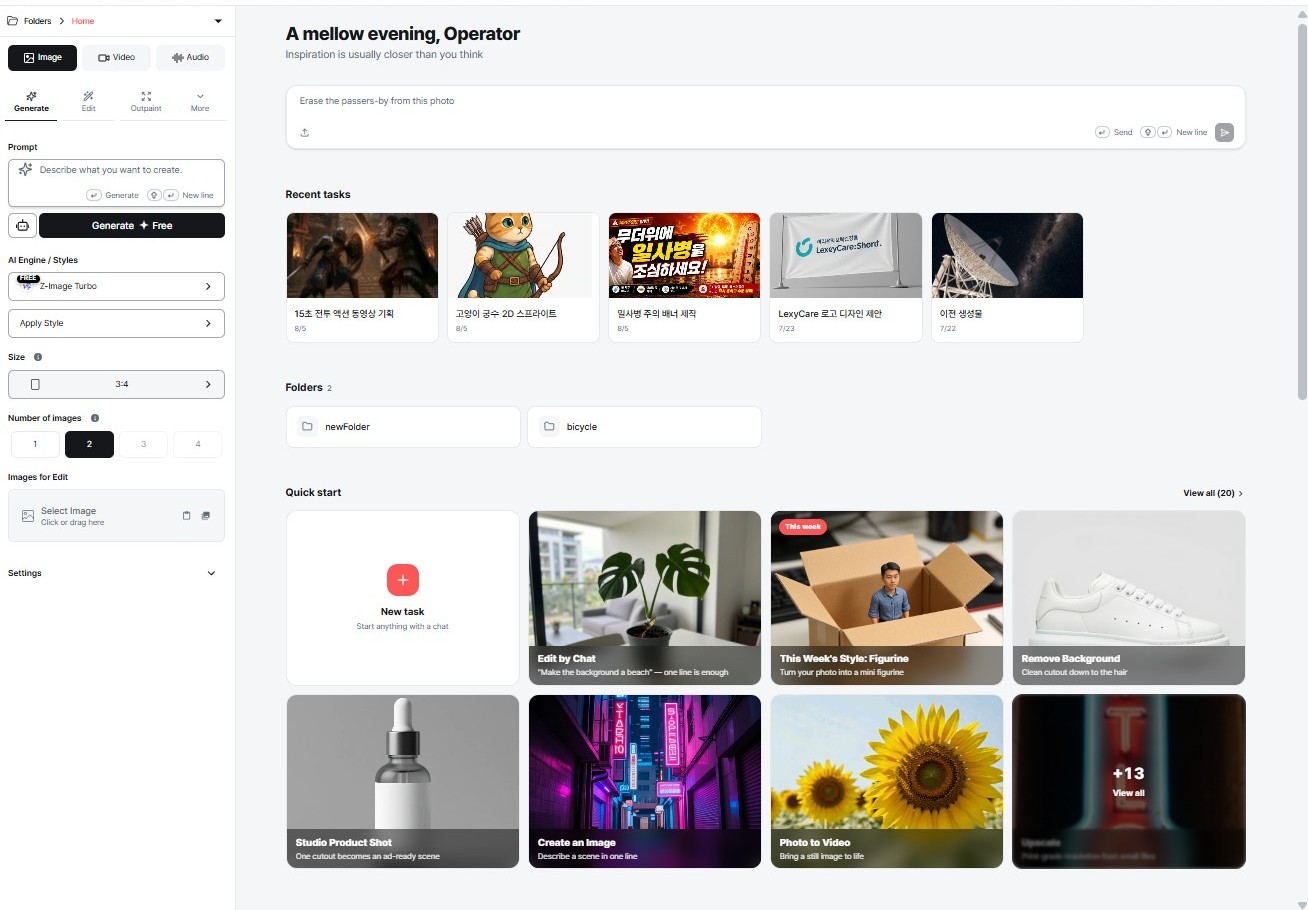
Workspace home — a greeting, the agent's chat box, Recent tasks, Folders, and Quick start. The manual panel stays on the left.
Workspace gives you both approaches at once:
- The chat box at the top — describe the result you want, and the AI agent does the rest.
- The panel on the left — Image / Video / Audio tabs with Generate · Edit · Outpaint · More, engine selection, size, and image count, all under your direct control.
They are not separate modes. Ask the agent to do something, then adjust the details on the left; or set everything yourself and ask the agent only for the awkward step. This page is about the first approach. For the second, the existing guides cover every control in detail — see Working the manual way at the end.
Say It, and It Runs
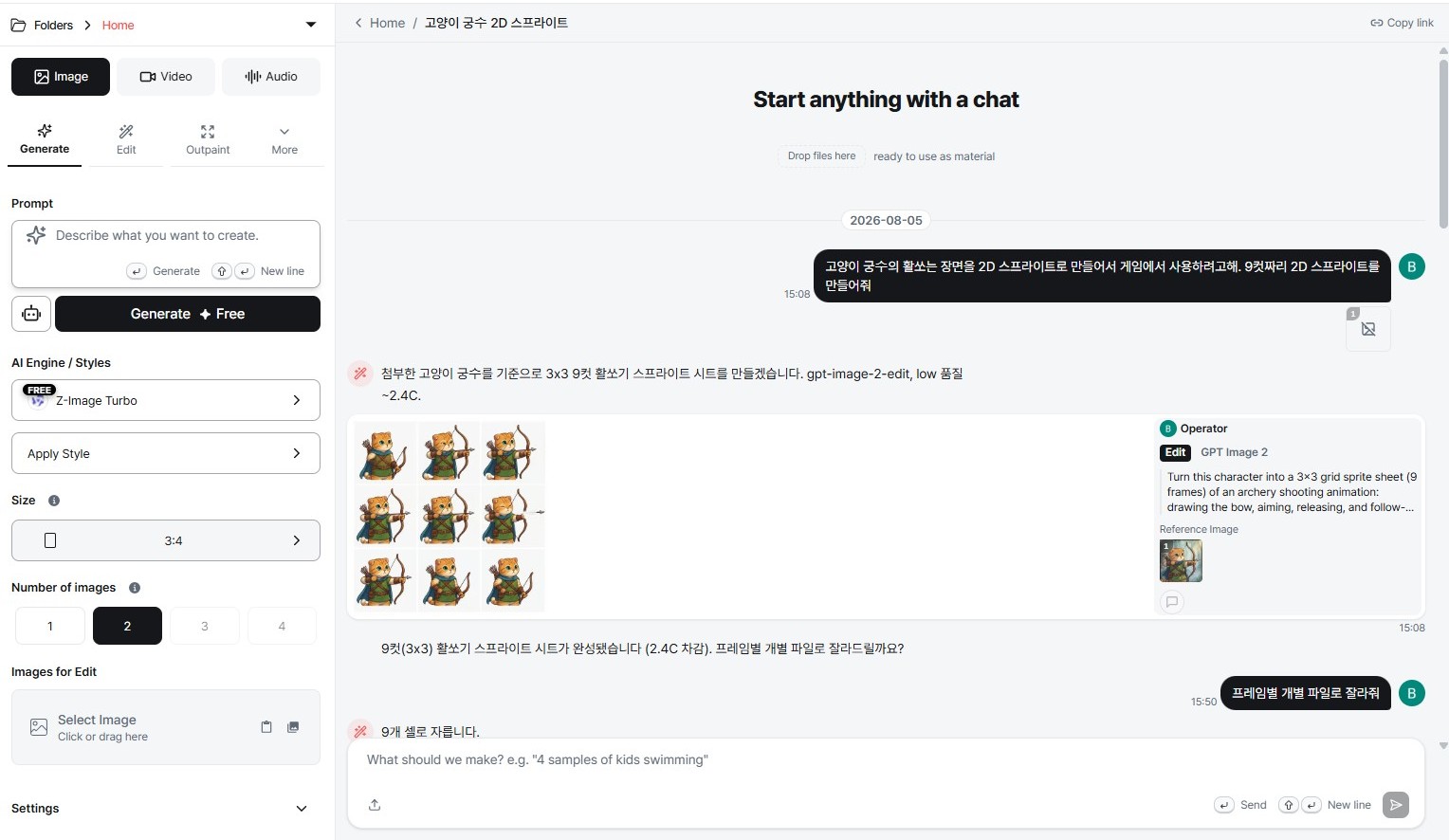
One instruction, one attached image, and a finished 3×3 sprite sheet.
This is what makes the agent different from a prompt box. Follow what actually happened in the screenshot above:
1. The request was ordinary language. The user attached a character image and wrote, in Korean: "I want to turn this cat archer's shooting scene into a 2D sprite for a game. Make me a 9-frame 2D sprite." No tool named, no engine chosen, no format specified.
2. The agent stated its plan and the cost first. "I'll build a 3×3 nine-frame archery sprite sheet from the attached cat archer. gpt-image-2-edit, low quality, ~2.4C." You see what it intends to do and roughly what it will cost before anything is spent.
3. The agent executed it as you. The entry in the stream shows Edit — not Generate — with the engine GPT Image 2, the reference image, and a detailed English prompt the agent wrote itself:
Turn this character into a 3×3 grid sprite sheet (9 frames) of an archery shooting animation: drawing the bow, aiming, releasing, and follow-through. Keep the same 2D game character design, consistent size and side view in every frame, flat clean plain background, evenly spaced cells.
4. It reported the result and offered the next step. "The 9-frame (3×3) archery sprite sheet is done (2.4C charged). Would you like me to slice it into individual frame files?"
Notice what the user never had to know: that this is an Edit job rather than a Generate one, that GPT Image 2 handles grid layouts well, how to phrase a sprite-sheet prompt in English, or what "consistent size and side view in every frame" would prevent. Because the agent knows every XBRUSH API, it translates a requirement into the procedure and the calls that satisfy it.
That applies across images, video, and audio alike. Generation, editing, background removal, upscaling, outpaint, voice, music — if XBRUSH can do it, the agent can be asked for it in plain language.
Starting a Task
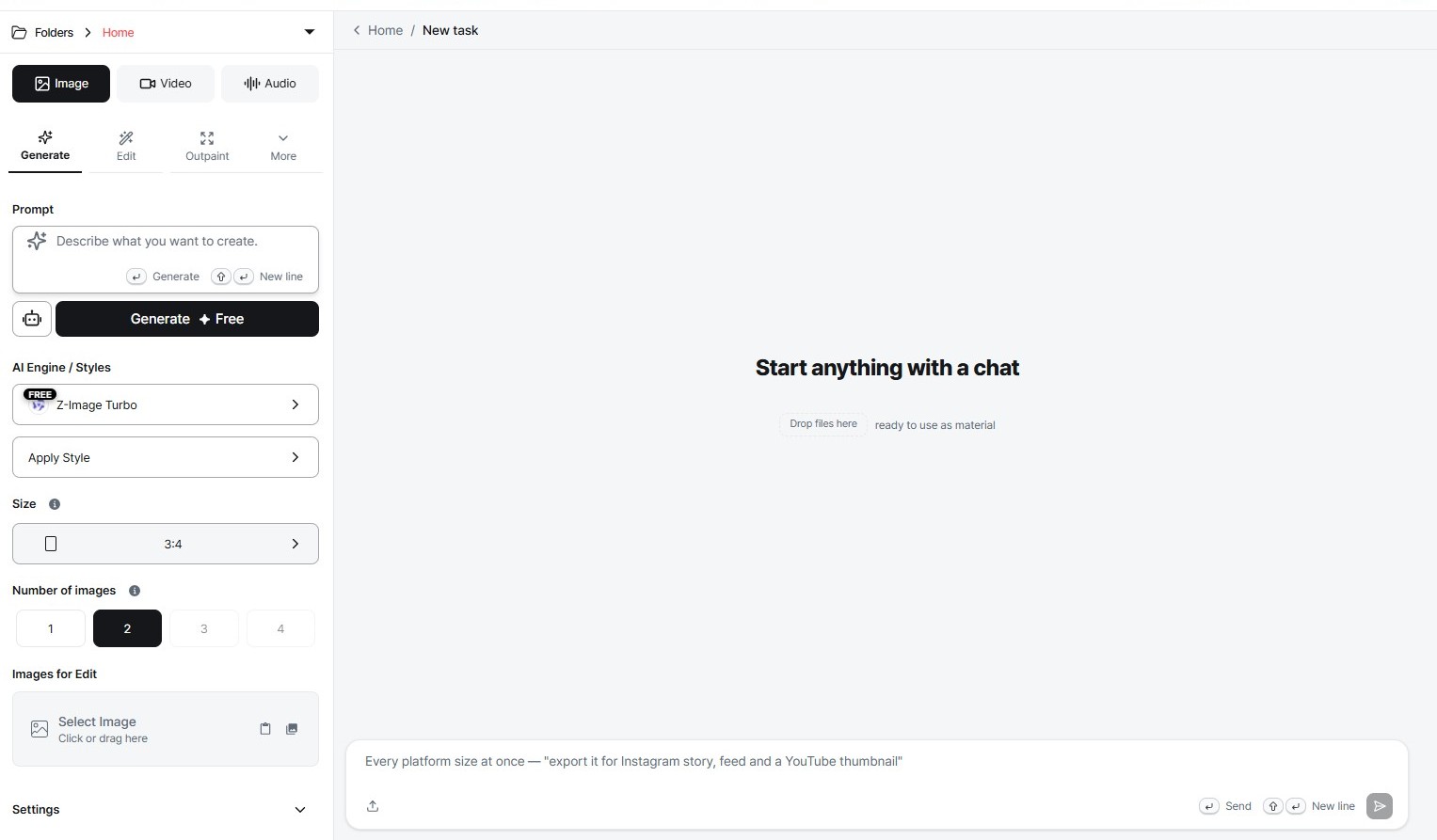
A new task waits at "Start anything with a chat."
Click New task under Quick start, or just type in the chat box on the home screen. Two ways to begin:
- Type an instruction. Describe the outcome, not the operation. The placeholder hints at how loose you can be: "Just say where it will be used and we'll match the format — 'vertical, for an Instagram story'."
- Drop a file. Drop files here — ready to use as material. Anything you drag in becomes source material immediately.
You can keep talking after the first result. The conversation is the task, so follow-ups like "make the background lighter" or "now turn it into a video" continue from what is already there.
Folders, Tasks, and Your Team
Results are not dumped into one pile. Every result belongs to a task, and tasks live in folders — the breadcrumb at the top left (Folders › Home) shows where you are, and the home screen lists Recent tasks and Folders side by side.
Create folders per project, client, or campaign and move tasks into them, so a month later you are opening a folder rather than scrolling a timeline.
Every task can be worked on with your team. Teammates open the same task, add their own instructions, and see results appear in the same stream — the conversation shows who ran what. There is no exporting and re-sharing between people; the task itself is the shared workspace.
- For folder management, permissions, and result-level actions, see the Workspace guide.
Copy a Ready-Made Task
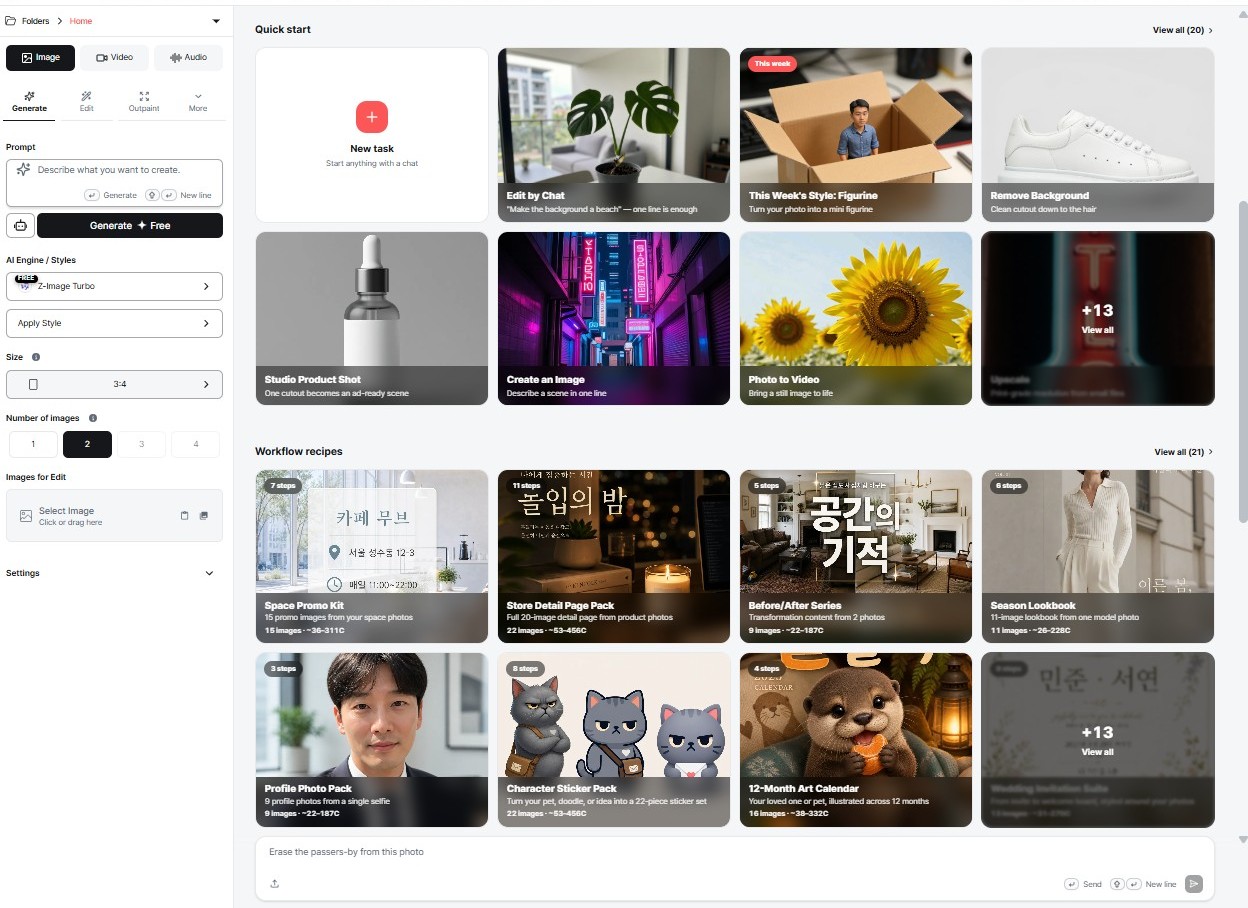
Quick start above, Workflow recipes below. Both are ready-made tasks you can run as they are.
If you do not yet know what to ask for, start from something that already works. The home screen carries two rows:
| Row | What it is |
|---|---|
| Quick start | Single jobs that finish in one instruction — Edit by Chat, Remove Background, Studio Product Shot, Create an Image, Photo to Video, Upscale, and a rotating This week pick |
| Workflow recipes | Multi-step packages that produce a whole set — each card shows its step count, the number of images it produces, and a credit range |
View all at the right of each row opens the full list — 20 Quick start entries and 21 recipes at the time of writing.
Quick start — one instruction, one result
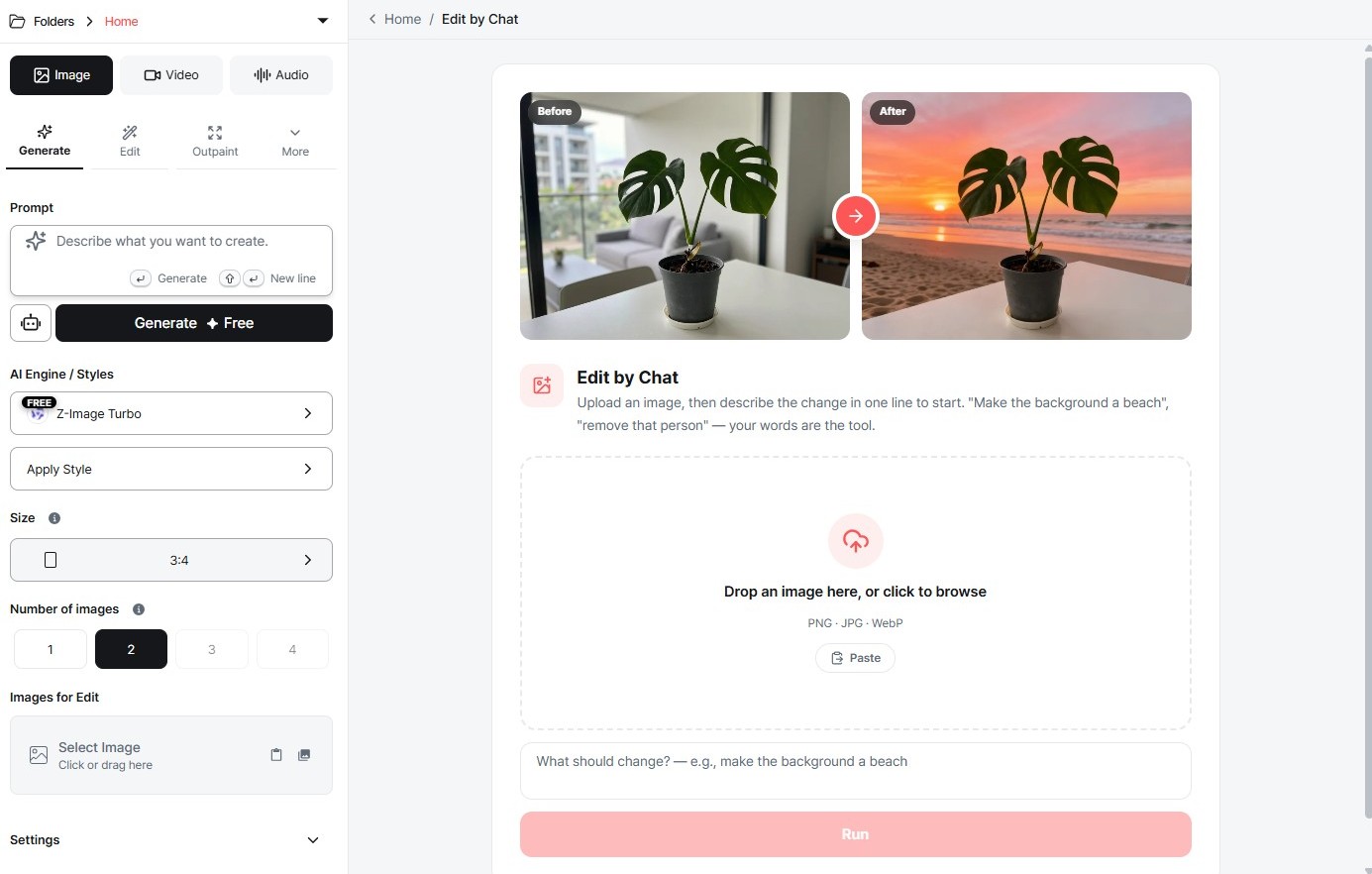
Edit by Chat, with a before/after example at the top.
Open a Quick start card and it explains itself with a worked example, then asks only for what it needs. Edit by Chat shows a plant photo whose background became a beach, and puts it plainly: "Upload an image and write the change in one line. 'Make the background a beach', 'remove that person' — words are the tool."
Drop or paste an image (PNG · JPG · WebP), write the change in the box — "How should we change it? — e.g. make the background a beach" — and press Run.
Workflow recipes — a full set from one setup
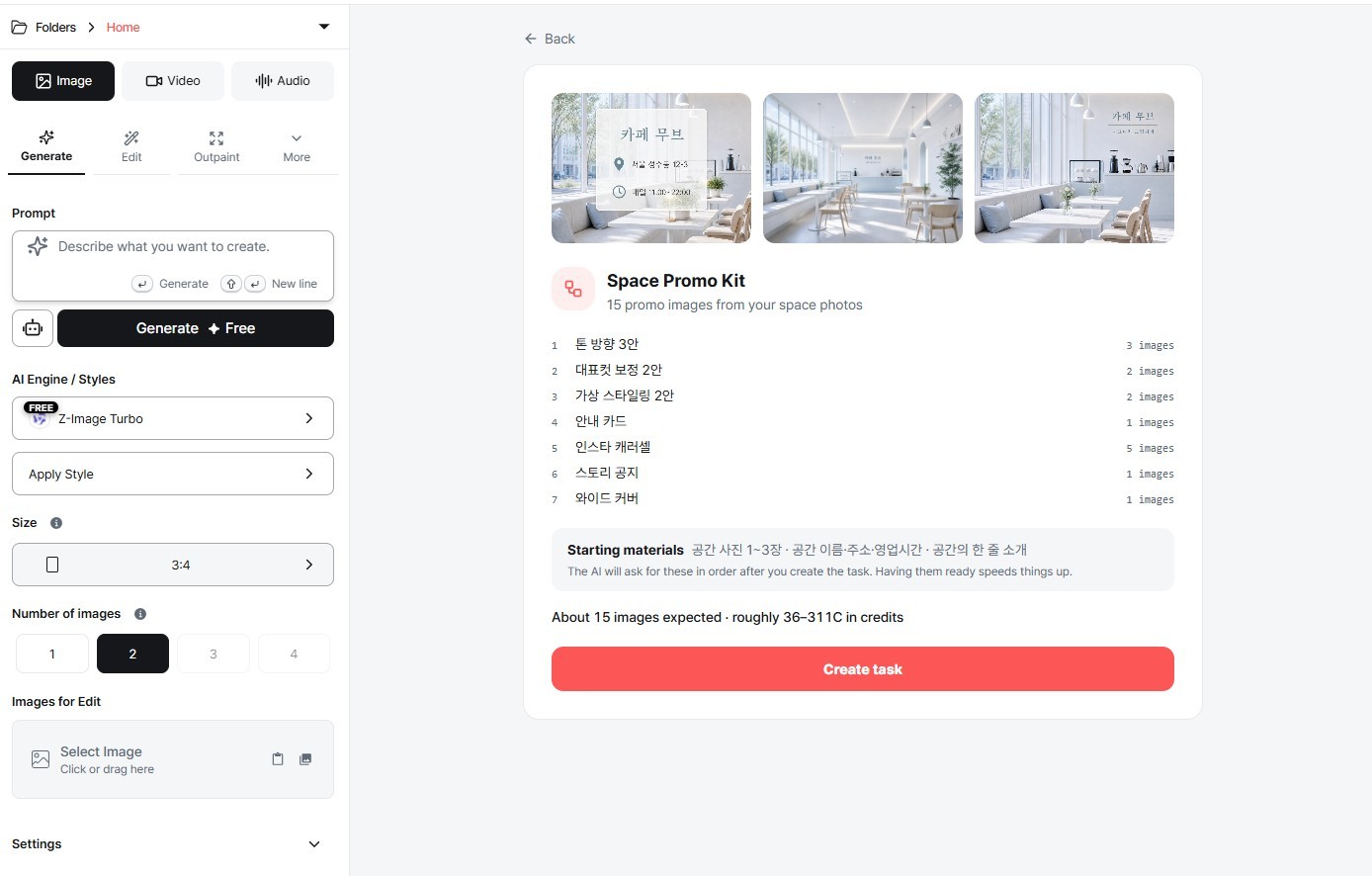
Space Promo Kit — 7 steps producing about 15 images.
A recipe is a whole deliverable, not a single image. Opening one shows you everything before you commit:
- The steps and what each produces — Space Promo Kit runs 7 steps: 3 tone directions, 2 hero-shot retouches, 2 virtual stylings, 1 info card, 5 Instagram carousel images, 1 story notice, 1 wide cover.
- Starting materials — 1–3 photos of the space · name, address, opening hours · a one-line description. As the note says, the AI will ask for these in order after you create the task. Having them ready speeds things up.
- The expected total — About 15 images expected · roughly 36–311C in credits.
Press Create task and the agent walks you through it, asking for each material in turn. You supply the raw ingredients; it handles the sequence.
💡 Recipes are also the fastest way to learn what the agent can do. Run one close to your work, watch which tools and engines it chooses at each step, and you will know what to ask for directly next time.
Working the Manual Way
Nothing here replaces the manual controls. Everything the agent does, you can do yourself from the left panel with full control over engine, parameters, and iteration — and for repeatable production work that is often what you want.
Those controls are documented in full already:
- Workspace guide — folders, tasks, result actions, comments and labels
- Image Generation · Styles & AI Engines · Reference Images & Prompt Tips
- Image Enhancement · Inpaint · Outpaint & Background Removal
- Video Generation · Audio Generation · Style Generation
- Editor · Video Editor