Open Studio
Summary: Open Studio is a shared studio open to everyone. Browsing needs no login — open any task and watch the same AI agent Workspace uses, working in real time. To join in and generate you do need to log in, but participants' generations are charged to the credits of the host who opened the task, so none of your own credits are spent. Each participant has a daily credit allowance instead.
Overview
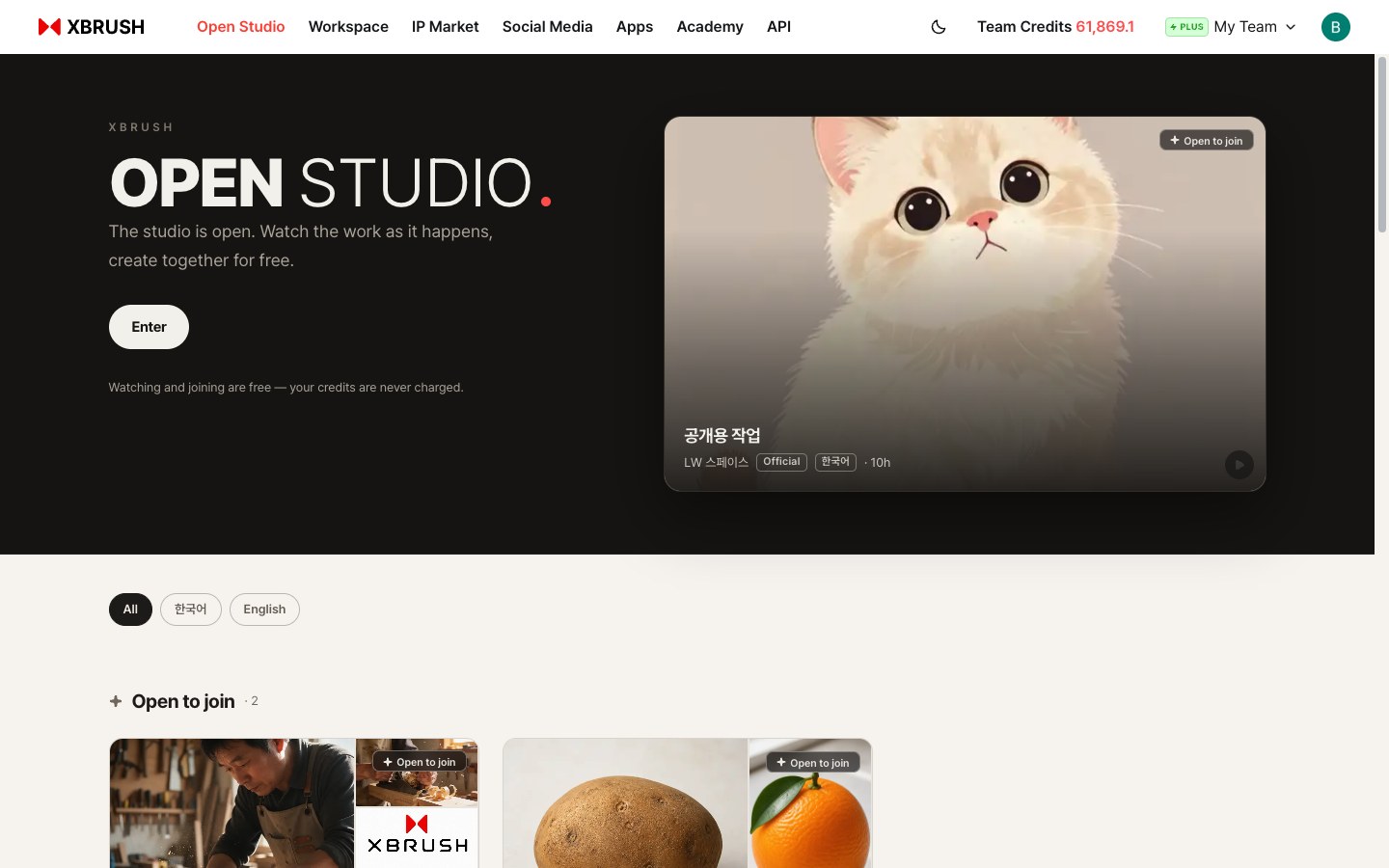
"The studio is open. Watch the work as it happens, create together for free." A featured task card sits on the right, and below it a language filter (All · 한국어 · English) narrows the task lists.
Click Open Studio in the top navigation. The landing page opens with a single button at the top:
- Enter — go straight into the studio and watch work in progress.
Under it is a status line — "Watching and joining are free — your credits are never charged" — and a large featured task card sits on the right, ready to open. The task lists follow below. At the bottom of the page, Create together now starts a task of your own.
The two task lists
Use the language filter above the lists — All · 한국어 · English — to show only tasks running in that language.
| Section | What it holds |
|---|---|
| Open to join | Tasks currently accepting participants. These are the ones to open first. |
| Recent tasks | Recently finished or paused tasks. Cards with no thumbnail have not produced an output yet. |
Each card carries the same information:
- Thumbnail — outputs produced in that task, with a strip of additional results alongside
- Title and description — what the task is making, written by the host
- Team name — the team running it, with an Official badge on XBRUSH-run tasks
- Language badge — the language the task runs in (e.g.
한국어) - Elapsed time — how long ago it ran (
17h) or the date it ran (8/11) - Open to join badge — shown on cards that still accept participants
💡 Everything on this page is visible without logging in. Open a card and see how it was made before you decide whether to create an account — logging in is only needed once you want to generate something yourself.
Watching a Task in Progress
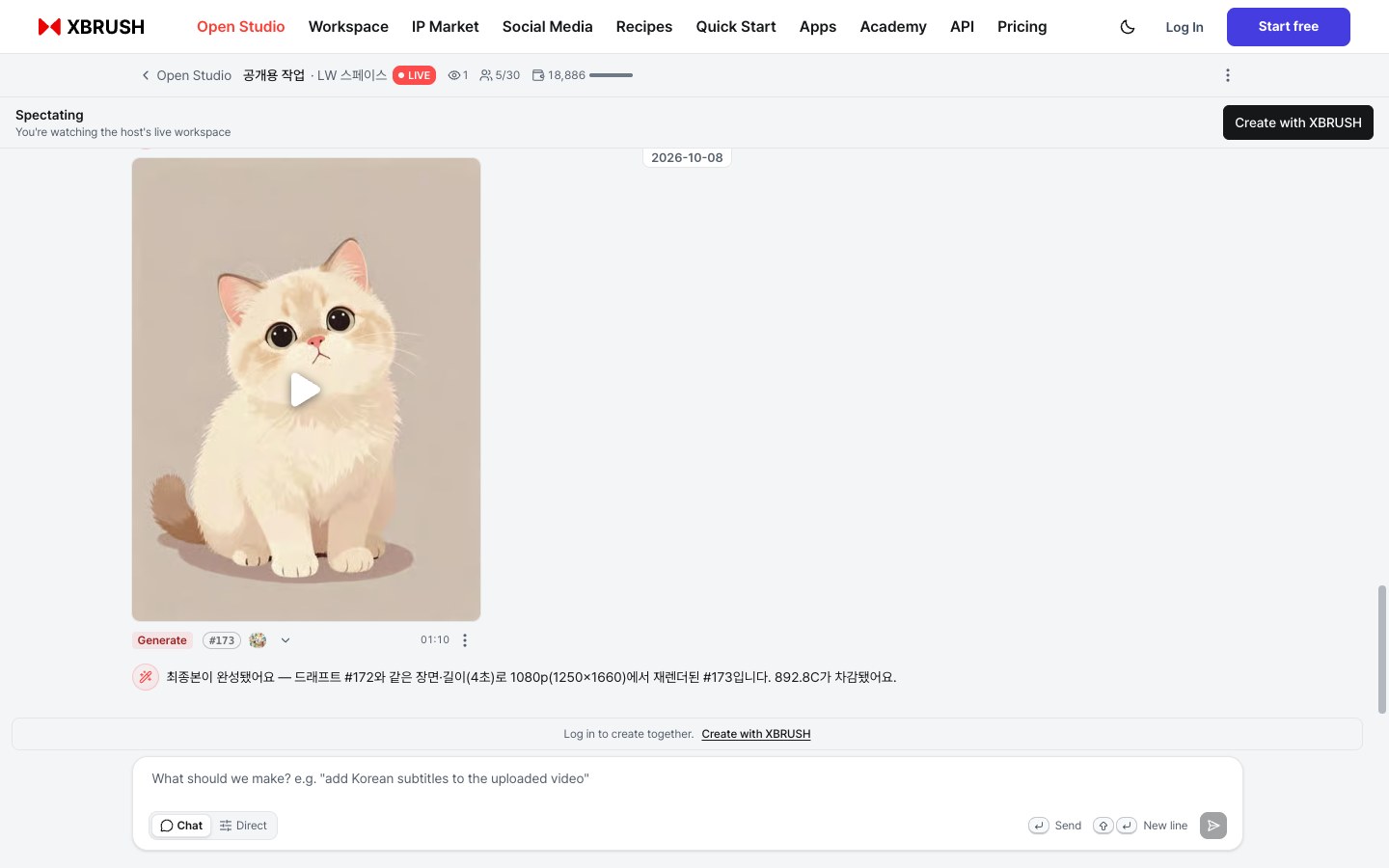
The spectator view when you are not logged in. Under the top bar is the "Spectating" notice with a Create with XBRUSH button, and below the same conversation feed as Workspace sits the input box (Chat · Direct).
Click any card and you enter as a spectator. The screen is laid out like a task in Workspace: there is no generation panel on the left — just a feed where the conversation and results run from top to bottom, and the input box fixed at the bottom.
If you are not logged in, a banner under the top bar reads Spectating — You're watching the host's live workspace, which is exactly what is happening: this is the host's real screen, not a replay. The Create with XBRUSH button on the right starts a task of your own (login required).
Reading the top bar
The bar at the top of the task carries its current state:
| Item | Meaning |
|---|---|
| ‹ Open Studio | Back to the Open Studio landing page |
| Task name · team name | Which task this is and which team is running it (e.g. 공개용 작업 · LW 스페이스) |
| LIVE | The task is running right now |
| 👁 1 | How many people are watching |
| 👥 5/30 | Participants out of the maximum |
| 💳 18,886 | Credits left for generation in this task, with a bar showing how much remains. Participants' generations are charged to the host's credits, so it falls whoever generates |
| ⋮ | The task menu, including Copy link |
The conversation feed
This is where the task actually unfolds. A participant gives the AI agent an instruction in plain language (the bubble on the right), the agent replies with what it is working on, and when a generation finishes a result card follows. After a run the agent also says how many credits were charged (e.g. 892.8C가 차감됐어요 — "892.8C was charged").
The bottom row of each result card shows:
- Label and number — the kind of run, such as Generate or Edit, and the result number (e.g.
#173) - Participant avatar — who ran it
- ▾ Details — expand to see the engine, prompt, and reference images used
- Report — flag content that shouldn't be there
- Time and the ⋮ menu
This is the part worth watching: the instructions and the agent's reasoning are visible, not just the finished results.
The input box and Direct
At the bottom is the same input box as Workspace. It is prefilled with an example (e.g. What should we make? e.g. "add Korean subtitles to the uploaded video"), and underneath are the Chat / Direct toggle and the shortcut hints (Enter to send · Shift+Enter for a new line).
- Chat — describe what you want in plain language and the AI agent works out the steps.
- Direct — just as in Workspace, a panel opens inside the input box. Pick an engine and options yourself in the Image / Video / Audio tabs and their sub-tabs, then run. The panel is the same as Workspace's, so whatever you learn here transfers directly.
When you are not logged in, "Log in to create together." appears above the input box with a Create with XBRUSH link. Logged-in participants see "Guest generations use the host's credits · 100C left for you today" under the input box — see Task settings below.
Starting a New Task
Use Create together now at the bottom of the landing page, or the Create with XBRUSH button at the top right of the spectator view, to start a task of your own.
🔒 Browsing is open to everyone, but creating a task or joining one requires login. When you generate in someone else's task, none of your own credits are spent — see Task settings below.
A new task opens empty, with no results yet. You start it the same way as in Workspace:
- Type an instruction in the input box. Plain language is enough — describe the result you want and the AI agent works out the steps.
- Attach a file. An image you upload becomes source material for the task right away.
- Run it with Direct. If you would rather set the details yourself, press Direct, then pick a tab (Image, Video, or Audio), an engine, and options in the panel that opens inside the input box, and run.
Allowing your team's tasks to be public
Before a team's tasks can appear in Open Studio, the team has to allow it. The setting is the Open Studio Allow publishing works toggle under Team Settings › Team Info ("Allow works to be published to Open Studio").
-
On — task creators can switch their own tasks to public.
-
Off — all of the team's public tasks become private immediately.
-
Only admins can change it.
-
Learn more: Team management
Task settings
The header shows the same indicators as any other task, plus one you control:
- 💳 Credits — the credits used for generation in this task. When a participant generates in Open Studio, the cost is charged to the host's (the team that opened the task) credits, and never to the participant's own. Each participant does have a daily allowance: logged-in participants see how much is left today under the input box, as in "Guest generations use the host's credits · 100C left for you today". If you open a task, you are the host — so participants' generations are charged to your team's credits.
- 👥 Participants — how many people have joined, out of the maximum (e.g. 5/30).
- 🔒 Participation closed — whether others may join. A closed task can still be watched; it just cannot be joined.
💡 Name the task before sharing the link. A descriptive title is what makes people open your card rather than scroll past it.
Open Studio and Workspace
Open Studio and Workspace run the same AI agent, with the same input box and Direct panel. The difference is who they belong to.
| Open Studio | Workspace | |
|---|---|---|
| Access | Browsing open to all; generating requires login | Your team, after logging in |
| Visibility | Public — anyone can watch (when the team allows public tasks) | Private to your team |
| Credits | Participants' generations are charged to the host's (the team that opened the task) credits — yours are untouched, and each participant has a daily allowance | Your team's credits |
| Best for | Trying things out with no credits of your own, learning by watching | Real production work that can't be held to a daily allowance |
Once you know how you want to work, move to Workspace — your jobs stay private there, your team's folders, history, and storage come with it, and you work from your team's credits with no daily participant allowance.
💡 If you have used up today's allowance, join again tomorrow — or move to Workspace, where you work from your team's credits.
- Learn more: Getting Started · Workspace guide · Image Generation