Image Enhancement
Summary: XBRUSH's image enhancement features — Edit (inpaint), Outpaint, Remove BG, Upscale, HD Upscale, and Object Removal — are all integrated into the Workspace Image tab (Direct mode). Select the appropriate sub-tab to access each tool.
What Is Image Enhancement?
Image enhancement is XBRUSH's set of AI editing features available within the Workspace Image tab. The tools are: Edit/Inpaint (prompt-based partial replacement), Outpaint (area expansion), Remove BG (background removal), Upscale and HD Upscale (resolution boost), and Object Removal.
All tools are accessed from the Image tab in the Workspace at xbrush.ai/workspace: switch the input box to Direct mode and select the Image tab.
Image Enhancement Overview
The Image tab provides the following enhancement modes as sub-tabs:
| Sub-tab | Description |
|---|---|
| Edit | Prompt-based inpainting — replace specific areas of an image with new AI-generated content |
| Outpaint | Expand the canvas beyond the original image borders using AI |
| Remove BG | Automatically remove the background from an image |
| Upscale | Increase the resolution of an image by a scale factor (1.5x–4x) |
| HD Upscale | Upscale an image to a target resolution (e.g., 4K) |
| Object Removal | Remove unwanted objects such as people, watermarks, or text |
Edit (Inpaint): Partial Replacement
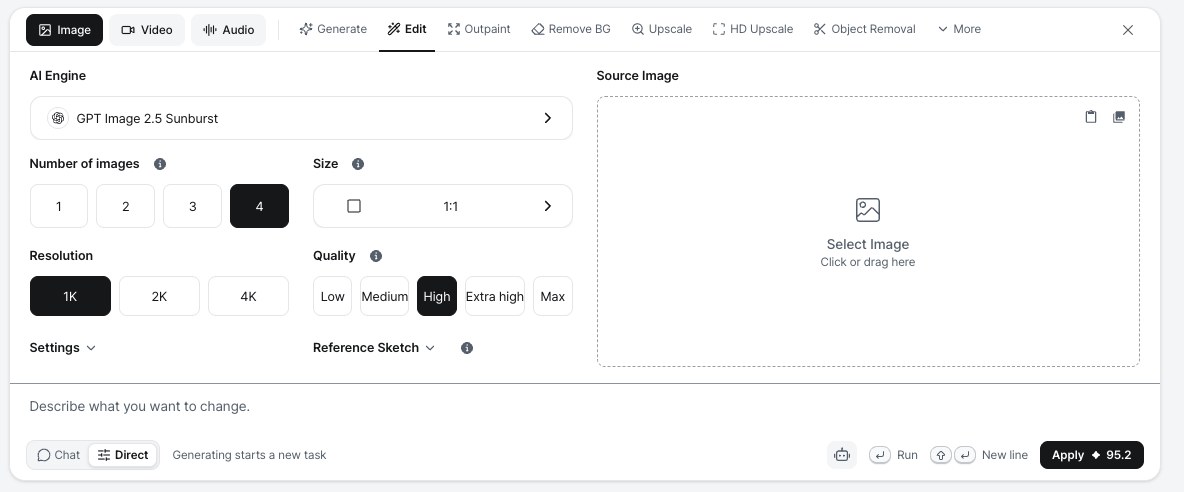
The Edit tab in the Workspace Image tab — upload an image and use a prompt to replace specific areas.
- Click or drag an image into the Source Image area, or paste one.
- Enter a prompt describing the content you want generated in the target area.
- Click Apply to generate the inpainted result.
- For detailed step-by-step instructions, see Inpaint.
Upscale: Increase Resolution
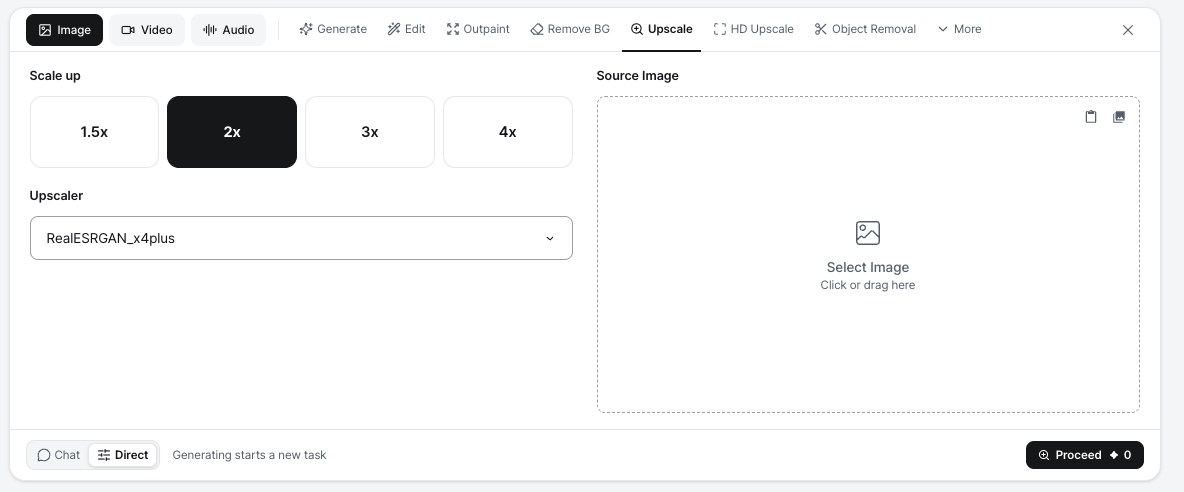
The Upscale tab — upload an image and select the scale factor.
- Click or drag an image into the Source Image area.
- Select the Scale up factor (1.5x / 2x / 3x / 4x, default 2x) and the Upscaler model (e.g., RealESRGAN_x4plus).
- Click Proceed to generate the high-resolution image.
- The upscaler fills in weakened or broken pixels based on the original image, producing a high-quality enlarged result.
The credit cost is shown on the Proceed button. At the time of writing, Upscale, HD Upscale, Remove BG, and Object Removal show ✦ 0 (free).
HD Upscale: Upscale to a Target Resolution
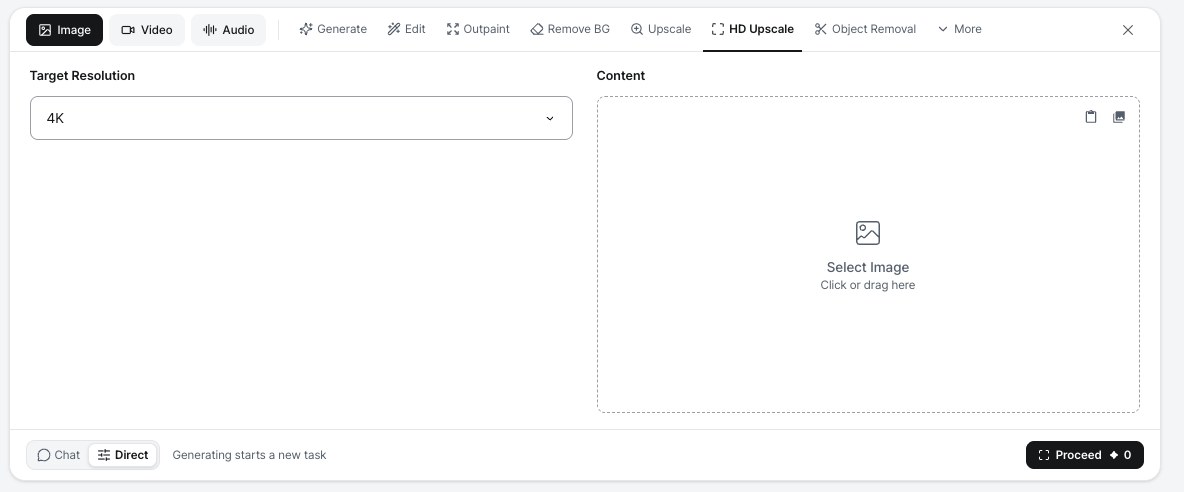
The HD Upscale tab — choose a target resolution and upload the content.
- Select the Target Resolution (e.g., 4K) from the dropdown.
- Click or drag an image into the Content area.
- Click Proceed.
Object Removal: Erase Unwanted Objects
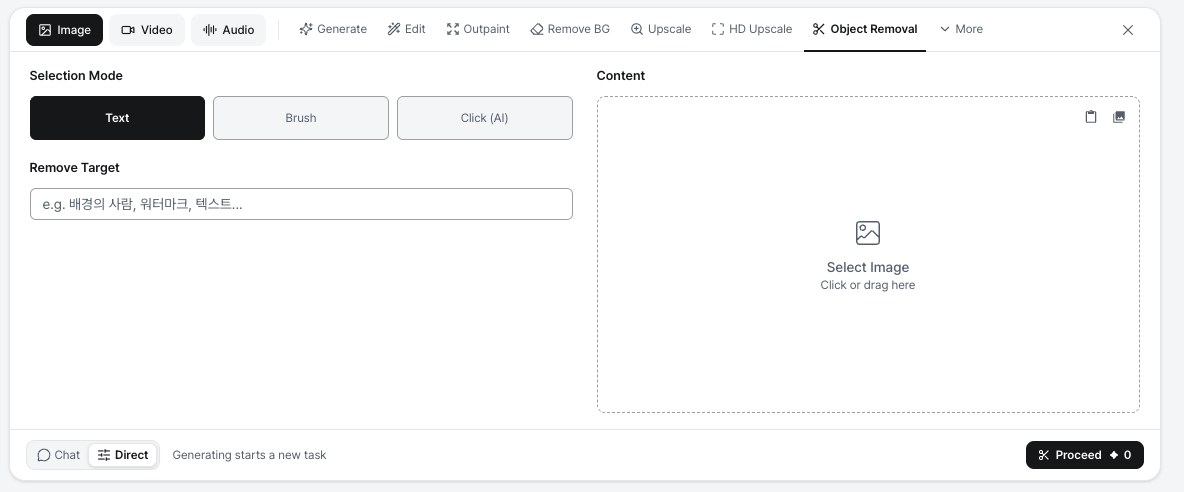
The Object Removal tab — choose how to select the object and upload the content.
- Choose a Selection Mode: Text / Brush / Click (AI).
- In Text mode, describe the Remove Target (e.g., people in the background, watermark, text).
- Click or drag an image into the Content area, then click Proceed.
Next Steps