Image Generation
Summary: XBRUSH's image generation is a core feature that automatically creates images from text prompts using an AI engine. You can combine various AI engines, styles (LoRA), reference images, and templates to produce the results you want.
What is Image Generation?
Image generation is XBRUSH's core feature that automatically creates images when you enter a text prompt into an AI engine. Users can combine prompts, reference images, and styles (LoRA) to generate the images they want. Generating one image consumes credits and takes 1–3 minutes.
From the home screen, you can navigate to the image generation screen by:
- Clicking the "Create" button, or
- Clicking the "Run" action button on a style in the My Styles tab.
Image Generation Overview
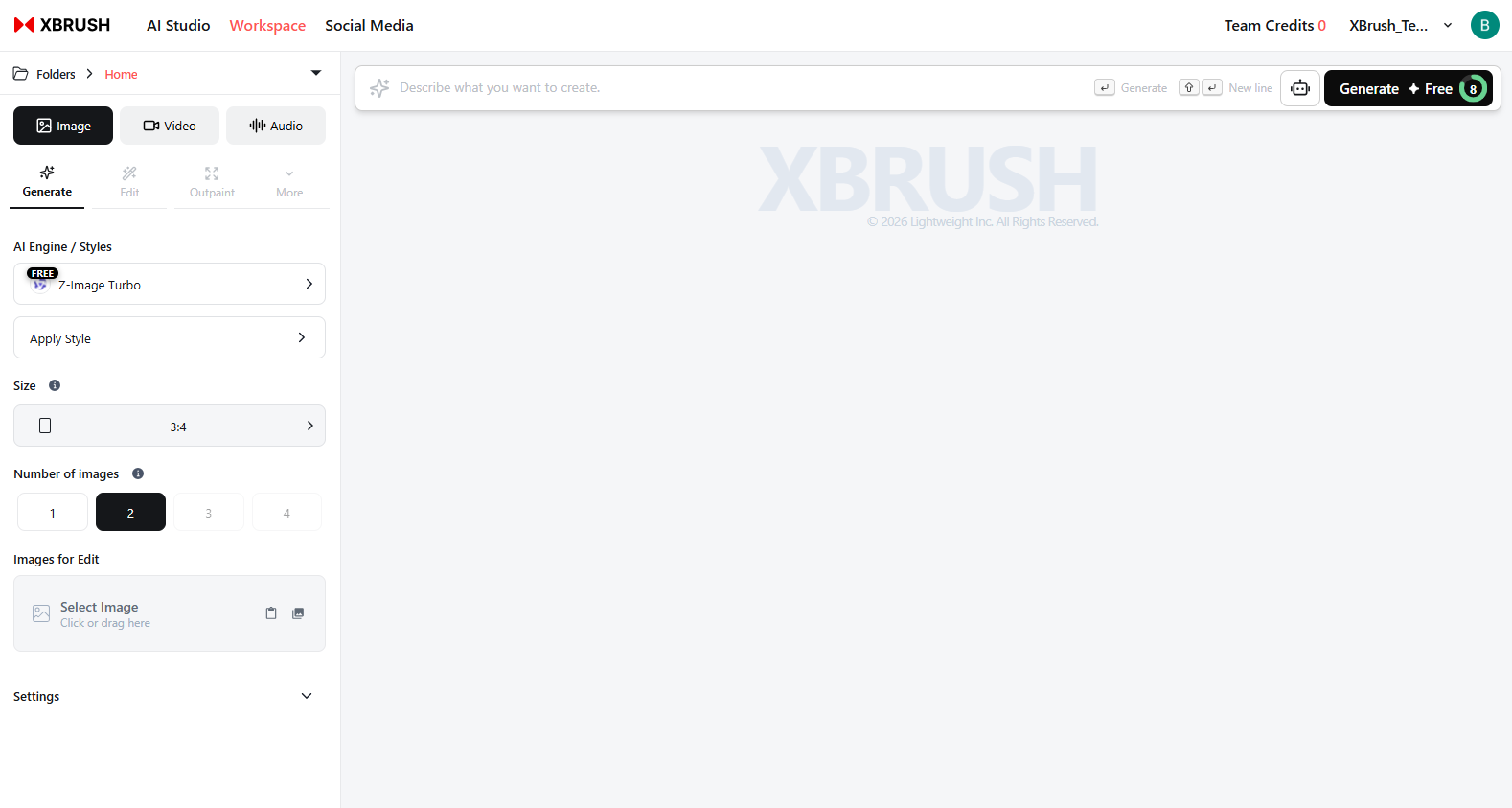 Image generation screen and configuration variables
There are two main ways to generate images:
- Generate an image from text
- Generate an image from an image or sketch
You can also generate images easily using this method:
- Generate images using a style
Control Panel
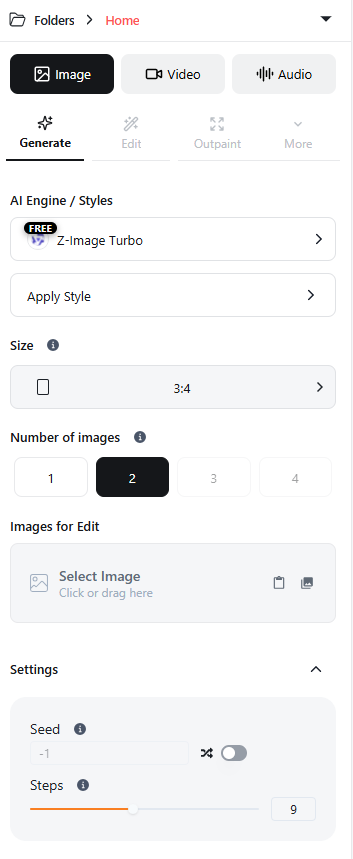

- The control panel is located on the left side of the generation screen. Each section is described below.
- Clicking the folder icon at the top lets you view all folders and select a specific one. For more details, refer to the Workspace documentation.
- Select the Image / Video / Audio tab to choose the type of content you want to create.
- AI Engine lets you select the base generation model used to create images.
- Apply Style lets you choose an artistic style for the generated image, such as realistic or cartoon.
- Under Reference Image, you can attach an image or sketch and use it as a basis to guide image generation.
- Settings lets you configure additional options such as image size and the number of images to generate.
- The Idea input field is placed separately at the top, where you can enter a text description of the image you want.
- Click the robot icon to the right of the idea input field to access the Enhance Prompt or Image to Prompt menu.
- Enhance Prompt recommends a more specific and detailed prompt based on the idea you entered.
- Image to Prompt extracts text from an image you provide and applies it to the idea field.
- Be specific: describe the subject, style, lighting, colors, and mood together for closer results.
- Use the Enhance Prompt button (robot icon next to the idea field) to automatically expand a simple idea into a detailed prompt.
- Abstract or vague ideas tend to produce unexpected results — add concrete details to guide the AI.
Generate Images from Text
 How to generate an image by entering an idea on the creation screen.
- Click the "Create" button on the main screen to go to the generation screen, enter your idea in the idea input field, then click the "Generate" button on the right.
- By default, 4 images are randomly generated.
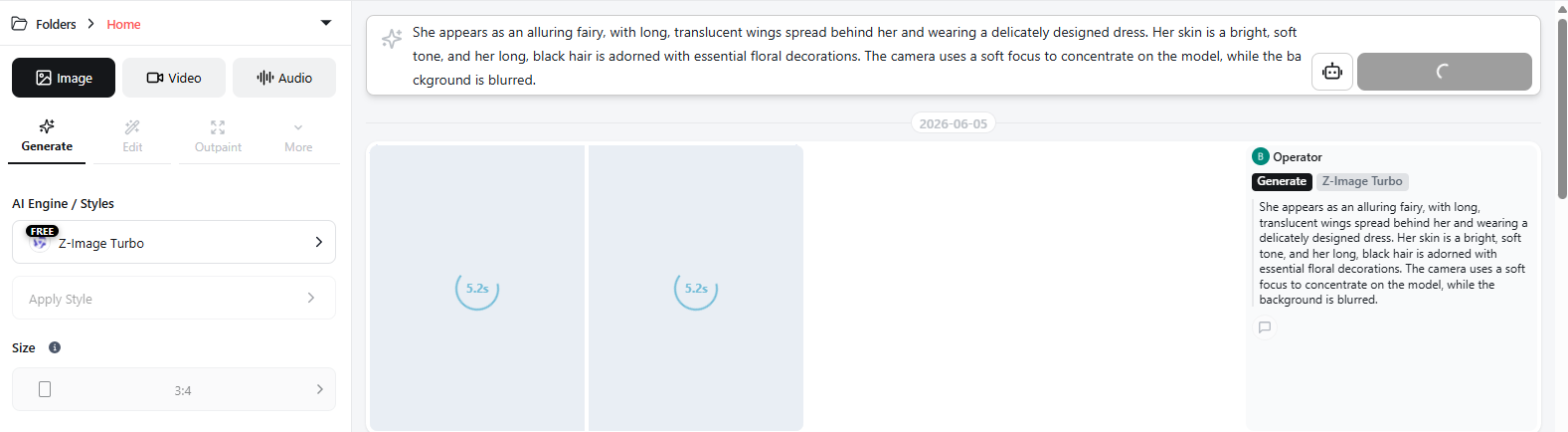 Image generation takes anywhere from a few seconds to tens of seconds; 4 images are generated by default.
- You can start another image generation while one is already in progress.
- Additional generation requests are queued and executed sequentially.
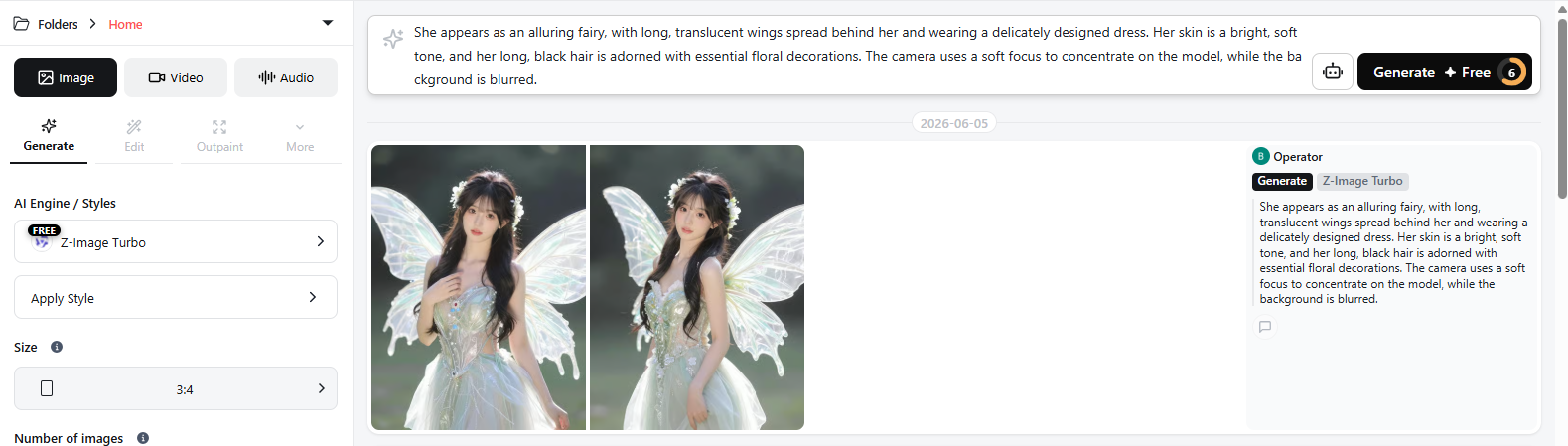 Shows the image generation results.
- Results appear as 4 randomly generated images based on random seed values.
Next Steps