Model Registration (Persona)
Summary: One selfie taken on your phone is all you need. Register your likeness as a Persona and complete the 5-step registration flow to manage it in My Persona. When advertisers request to use a public persona and you approve, a license is issued — and you can receive 70% of the license sales revenue as a KRW payout in Settlement.
What is a Persona?
A Persona is an AI model created from your own face. You do not need a studio shoot or a set of professionally lit photos — a single front-facing selfie taken casually on your phone is enough. Once registered, your Persona can be used right away in Talk To You, Cinema, and ads. If you make it public (shown on the market), advertisers can request to use it; when you approve a request, a license is issued and you can settle 70% of the sales revenue.
No professional camera, no studio, no multi-angle photo set. Just take one clear front-facing photo with your phone and the AI builds your persona from it. Registration takes only a few minutes.
After completing persona registration, Model Registration in the left sidebar becomes Add Persona, and a Model group is added with My Persona, Confirm Requests, License Management, and Settlement.
How to Create a Persona
Step 1 — Open Model Registration
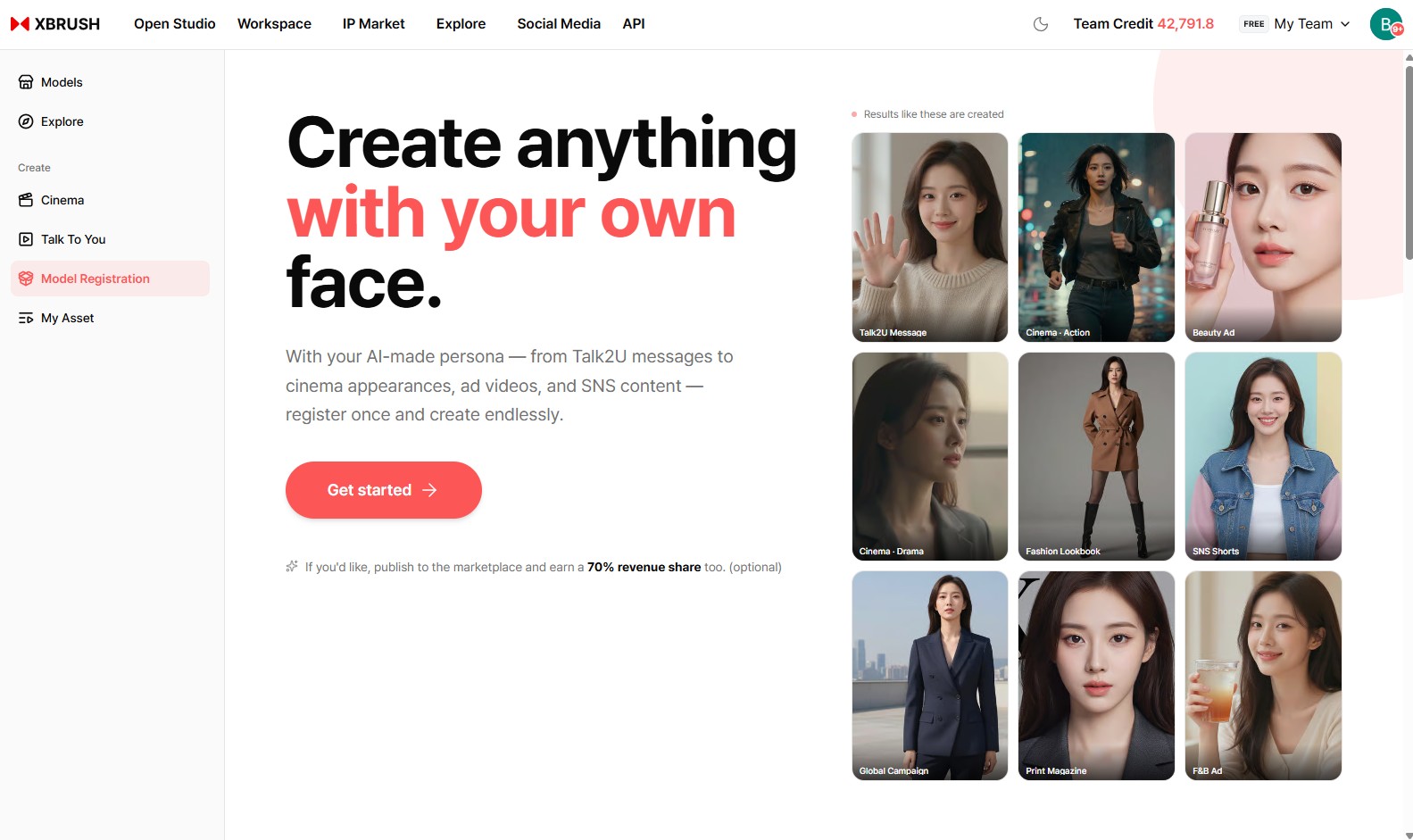
Click Model Registration in the left sidebar to open the persona registration screen.
- Click Model Registration in the left sidebar.
- The registration overview screen opens, showing what you can create with your own face — Talk To You messages, cinema appearances, ad videos, and SNS content.
- Click Get started to begin.
Publishing your persona to the marketplace is optional — but if you make it public, you receive 70% of license sales revenue as the creator share.
Step 2 — Agree to Terms
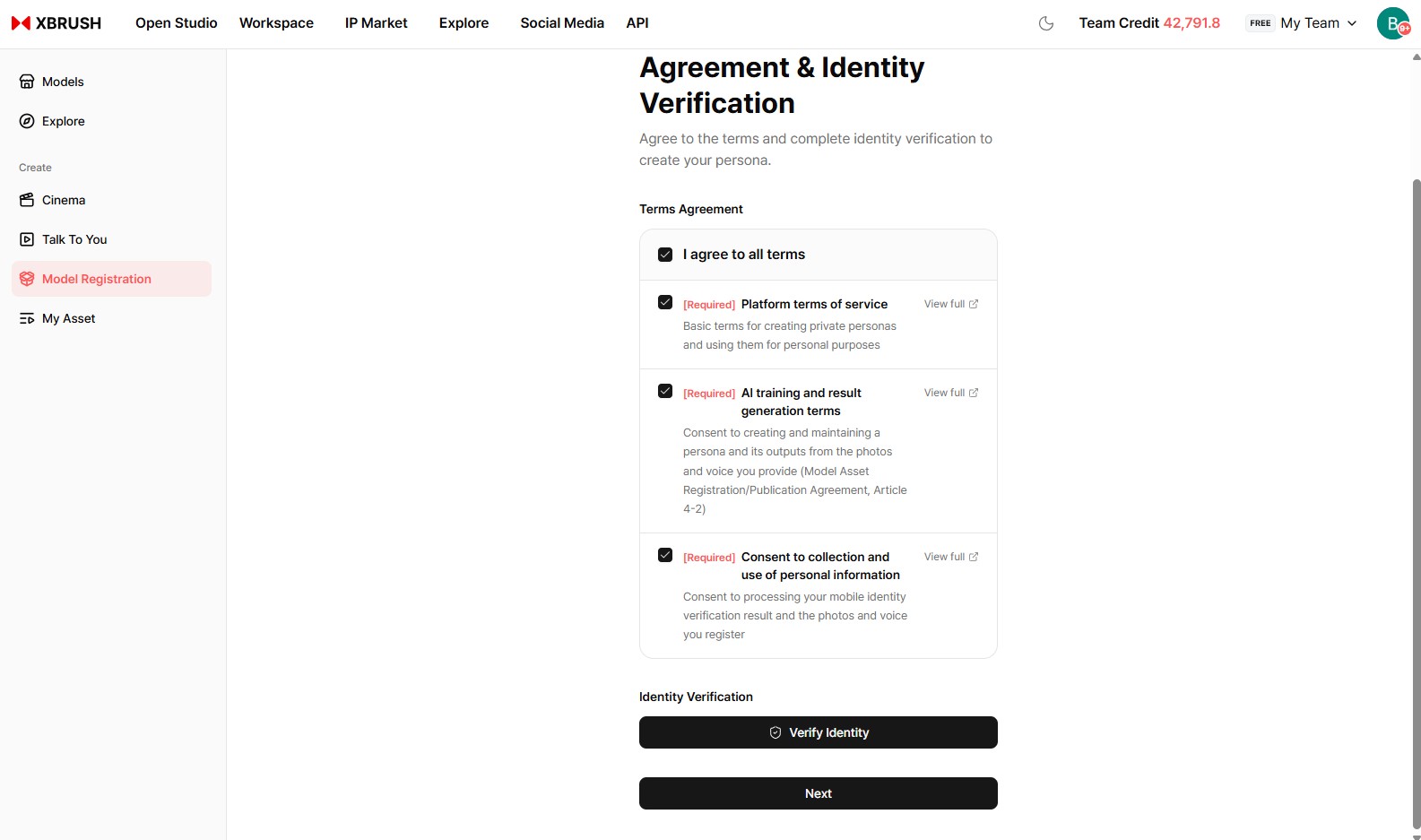
Review and accept the required terms on the Agreement & Identity Verification screen.
- Check I agree to all terms, or review and check each item individually:
- Platform terms of service — basic terms for creating private personas and using them for personal purposes.
- AI training and result generation terms — consent to creating and maintaining a persona and its outputs from the photos and voice you provide.
- Consent to collection and use of personal information — consent to processing your identity verification result and the photos and voice you register.
- Click View full on any item to read the complete document.
Step 3 — Verify Your Identity
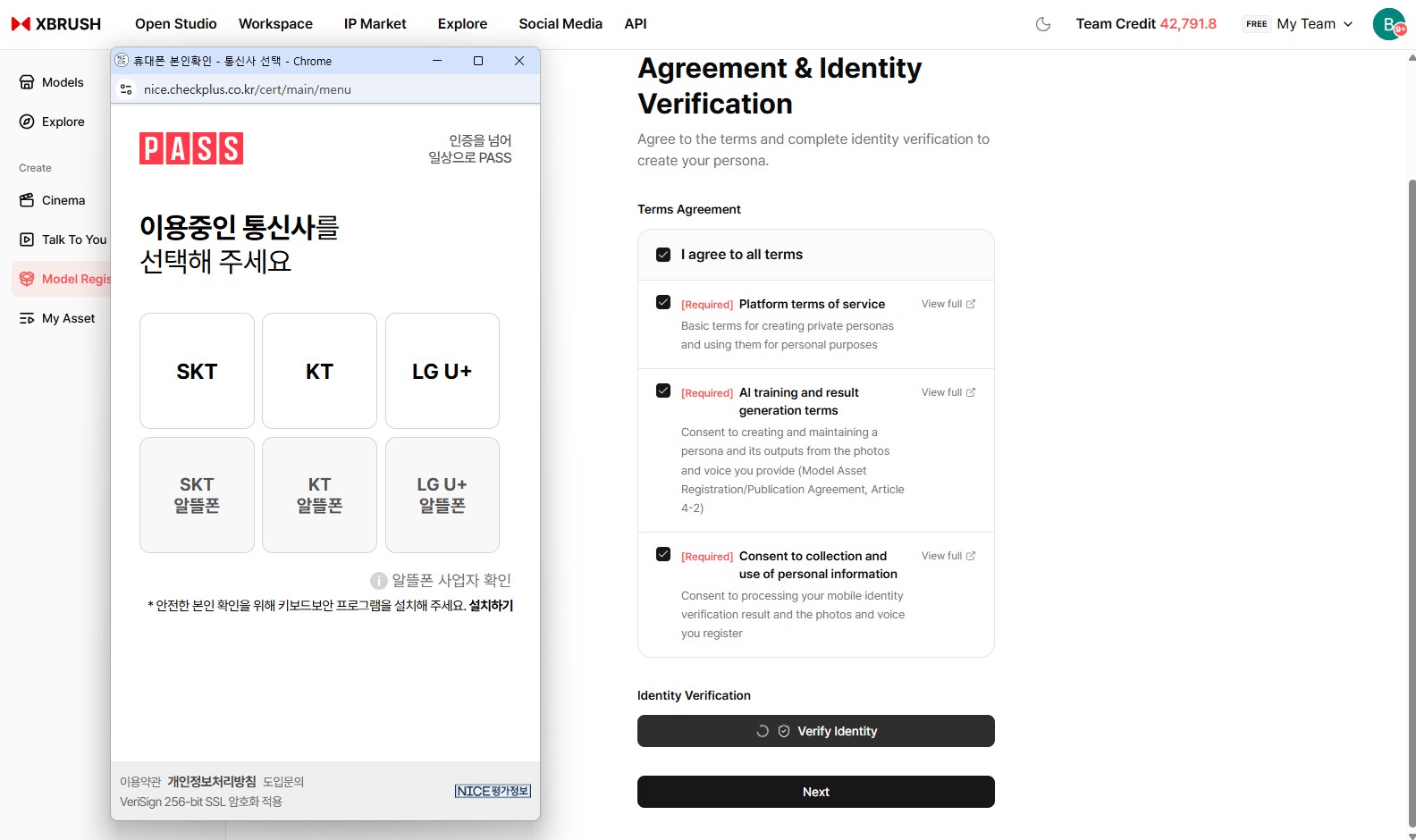
Click Verify Identity to complete mobile identity verification.
- Click Verify Identity under the Identity Verification section.
- A verification window opens — select your mobile carrier and follow the prompts to complete verification.
- Identity verification is required to confirm that the face you register is your own.
Step 4 — Continue to Profile Setup
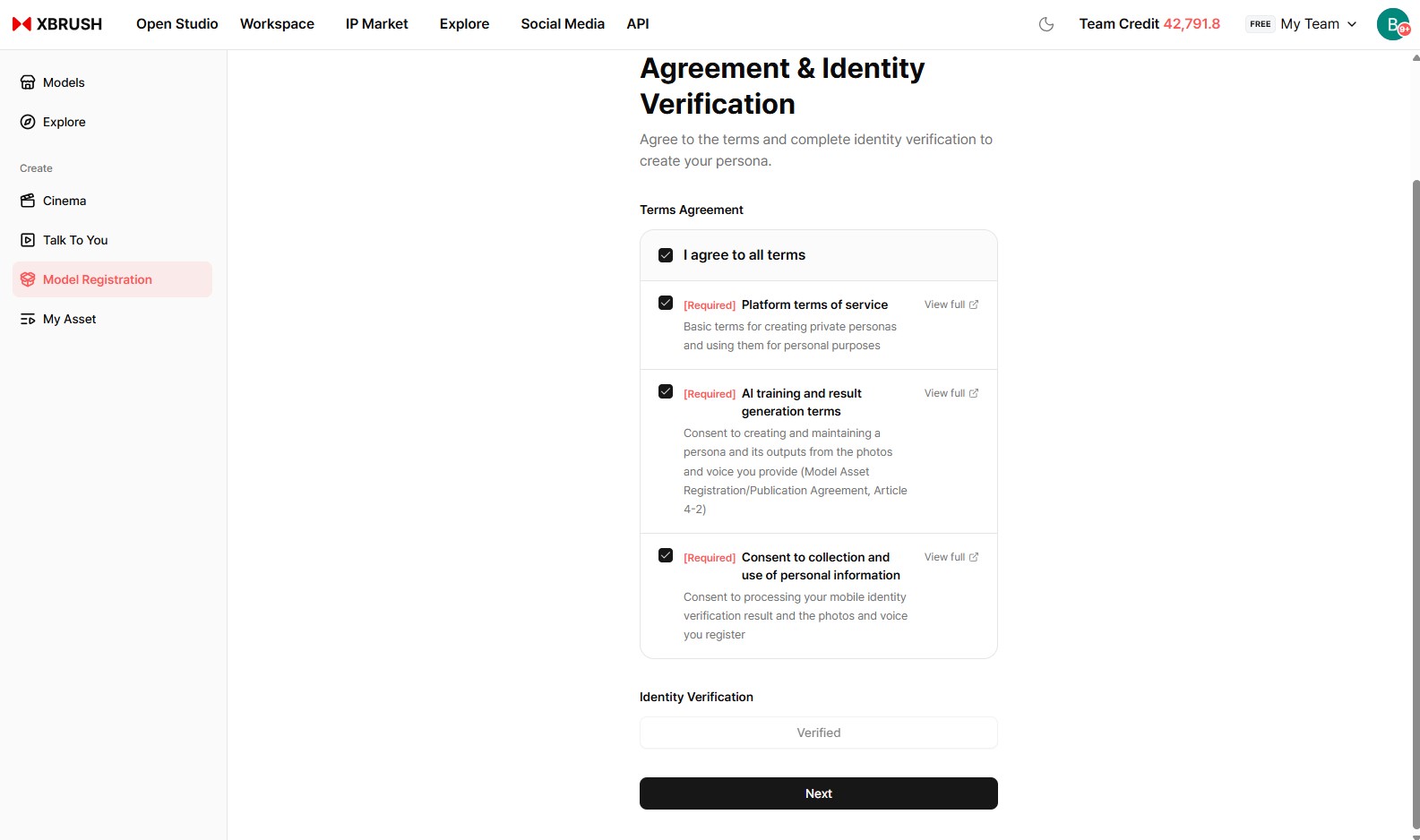
Once verification succeeds, the button changes to Verified.
- Confirm that the Identity Verification section shows Verified.
- Click Next to move on to profile information.
Step 5 — Enter Profile Information
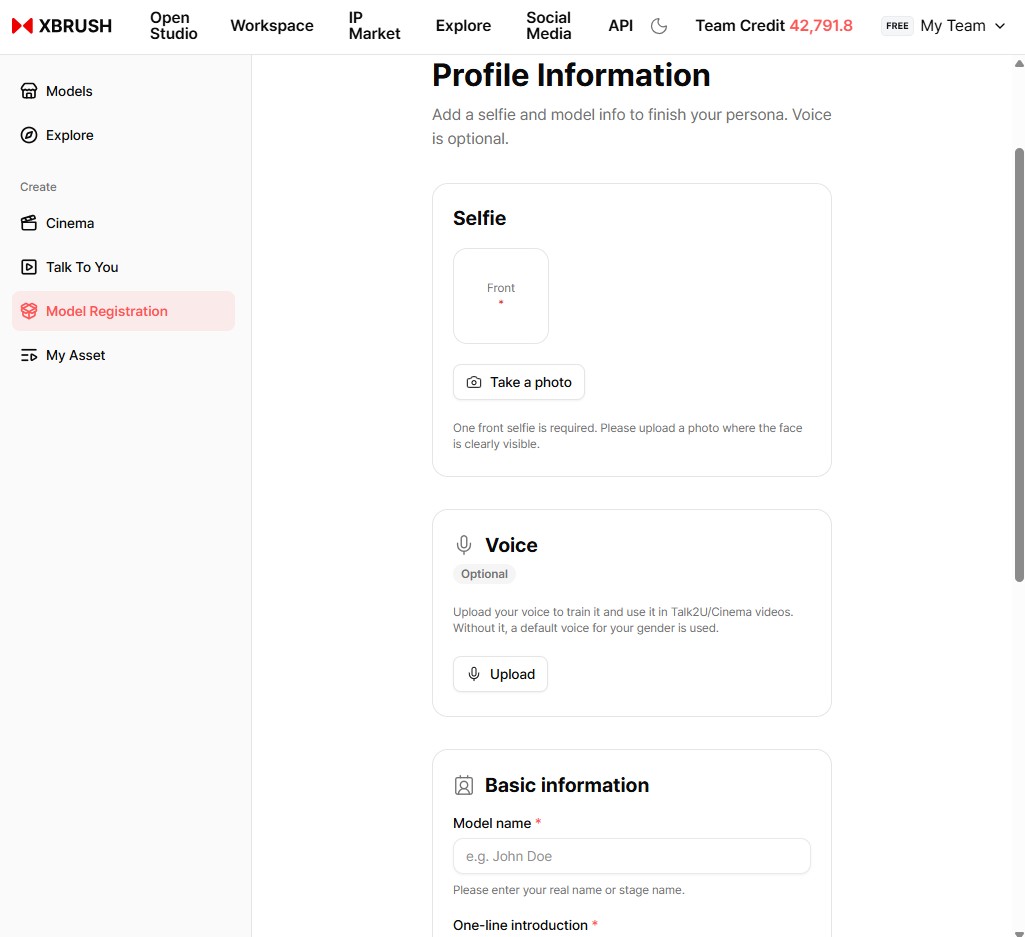
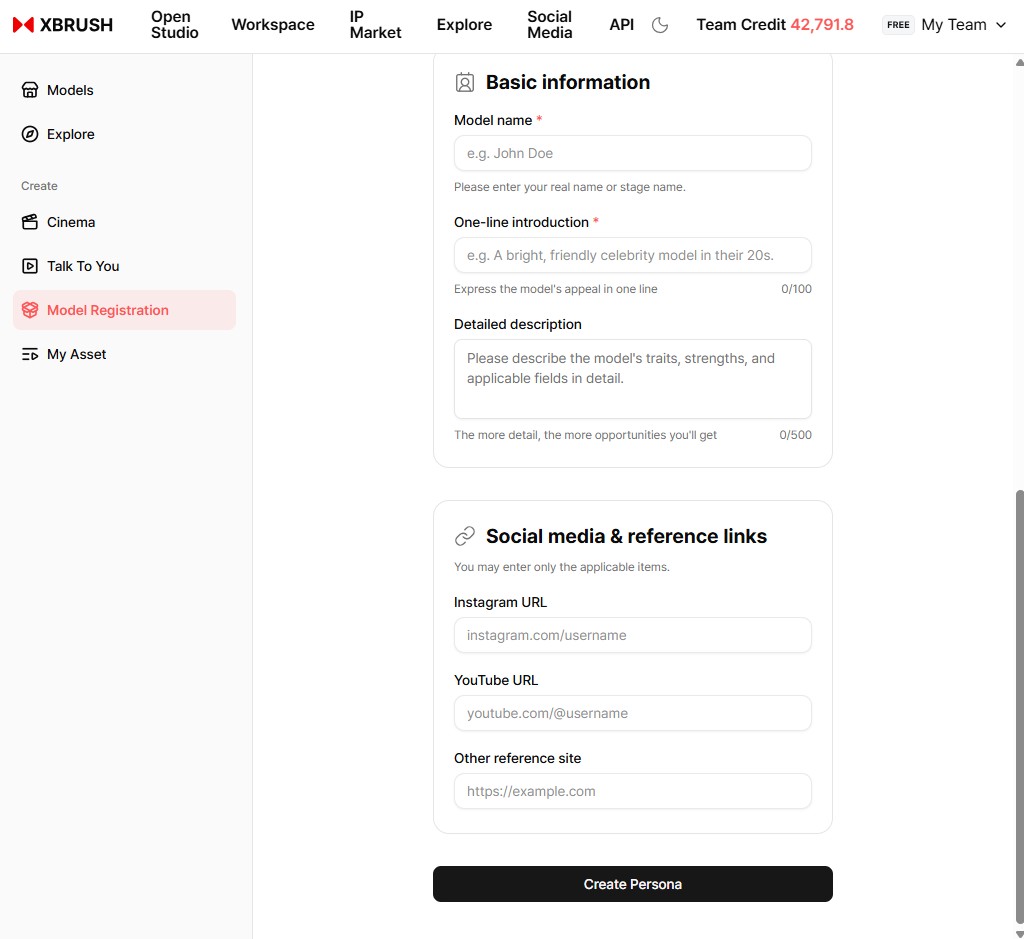
Add a selfie and model info to finish your persona. Just one photo taken on your phone is enough — voice is optional.
- Selfie (required) — Only one photo is needed. Click Take a photo to add a single front-facing selfie. A casual shot taken on your phone works fine — just make sure the face is clearly visible.
- Voice (optional) — Upload your voice to train it and use it in Talk To You and Cinema videos. Without it, a default voice for your gender is used.
- Basic information
- Model name (required) — Your real name or stage name.
- One-line introduction (required) — Express the model's appeal in one line (up to 100 characters).
- Detailed description — Describe the model's traits, strengths, and applicable fields (up to 500 characters). The more detail, the more opportunities you'll get.
- Social media & reference links — Add your Instagram, YouTube, or other reference URLs. Enter only the items that apply.
- Click Create Persona to complete registration.
Your persona is now registered and visible in My Persona, and the Model menus are added to the left sidebar. In My Persona, personas are managed as Public (market exposure) or Private (owner only).
How Persona Revenue Works
Persona revenue comes from license sales, not credits, and is paid out in KRW when you request settlement.
- Public — Advertisers can request to use personas that are Public (shown on the market). Private personas are for the owner only.
- Approve — Advertisers' usage requests arrive in Confirm Requests, where you approve or reject them.
- License issued — A license is issued for each approved request. Check it in License Management.
- Settle — Request settlement of your creator share (70%) of license sales revenue in Settlement, and it is paid out in KRW.
Managing Your Personas
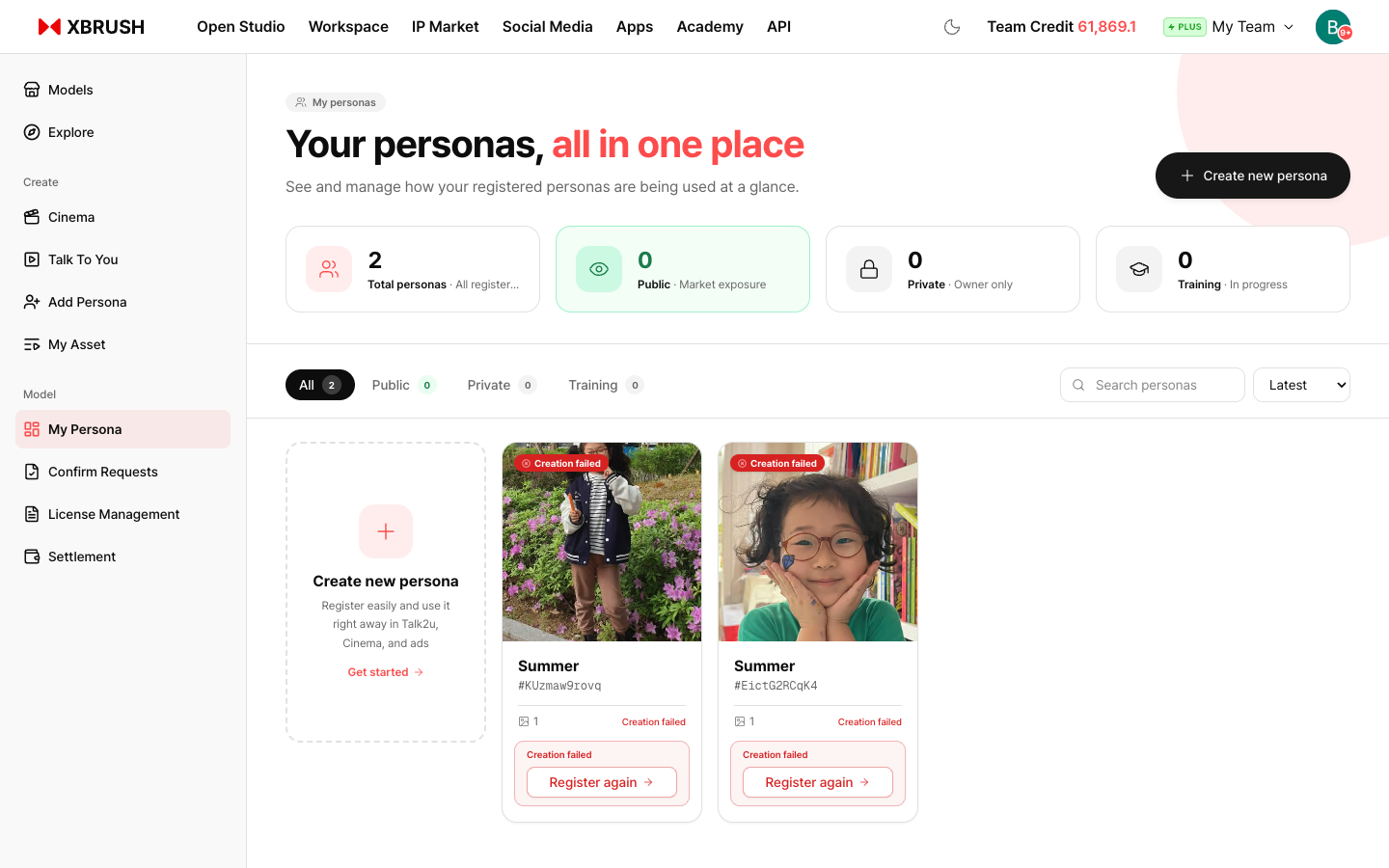
See and manage all your registered personas in one place.
- Click My Persona in the Model group of the left sidebar.
- The top of the page shows counts for Total personas, Public (market exposure), Private (owner only), and Training.
- Filter with the All / Public / Private / Training tabs, search by name, or sort by latest, oldest, or name.
- Each persona card shows its current status as a badge. If creation failed, click Register again to register it again.
- Click Create new persona to register another persona. Registered personas can be used right away in Talk To You, Cinema, and ads.
Confirm Requests
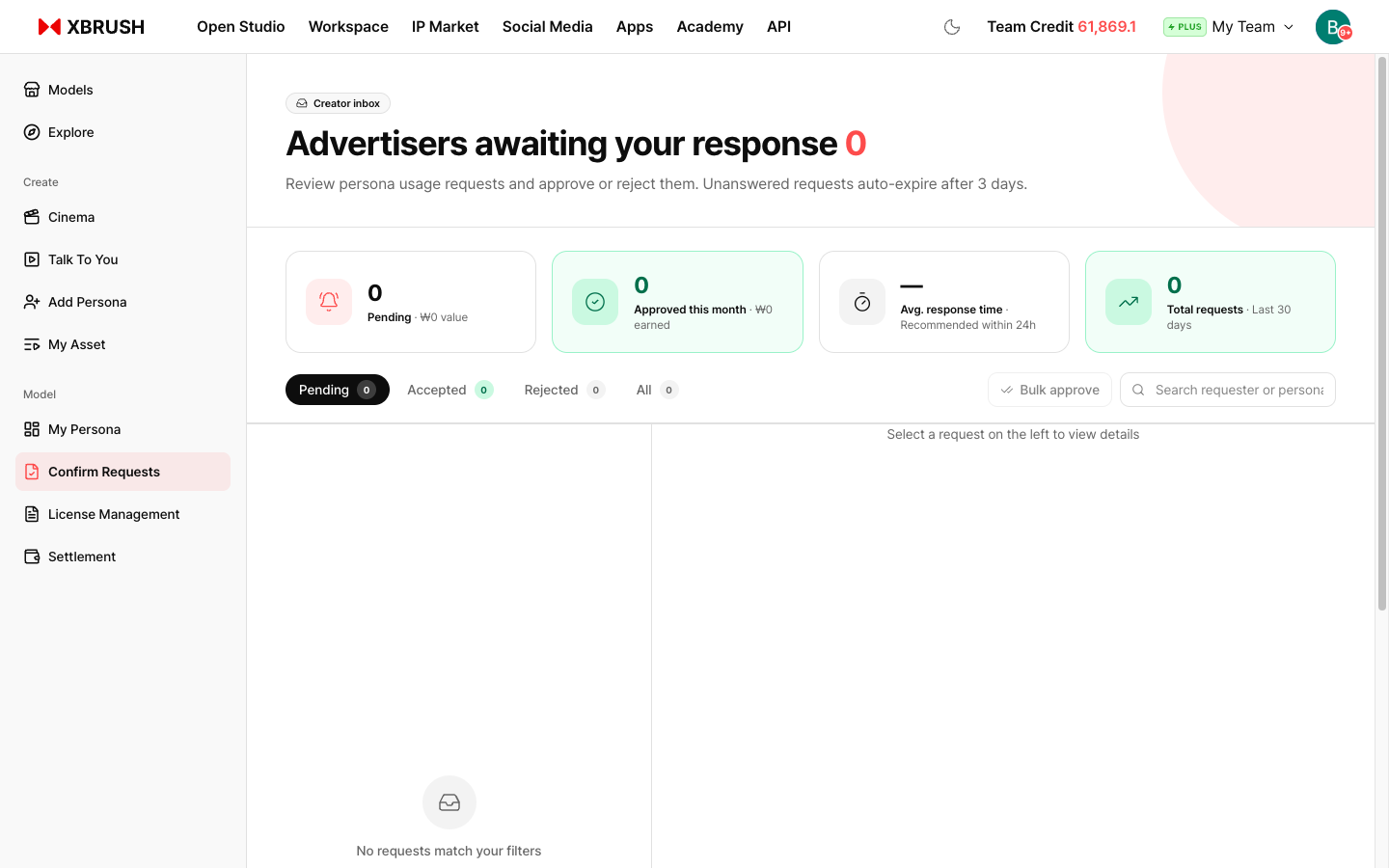
Creator inbox — approve or reject advertisers' persona usage requests.
- When an advertiser requests to use your persona, the request appears here. Review it and approve or reject it.
- Unanswered requests auto-expire after 3 days.
- Stats at the top
- Pending — requests awaiting your response and their value
- Approved this month — requests approved this month and the amount earned
- Avg. response time — responding within 24 hours is recommended.
- Total requests — over the last 30 days
- Filter with the Pending / Accepted / Rejected / All tabs, or search by requester or persona.
- Select a request in the list on the left to see its details on the right. To handle several requests at once, use Bulk approve.
License Management
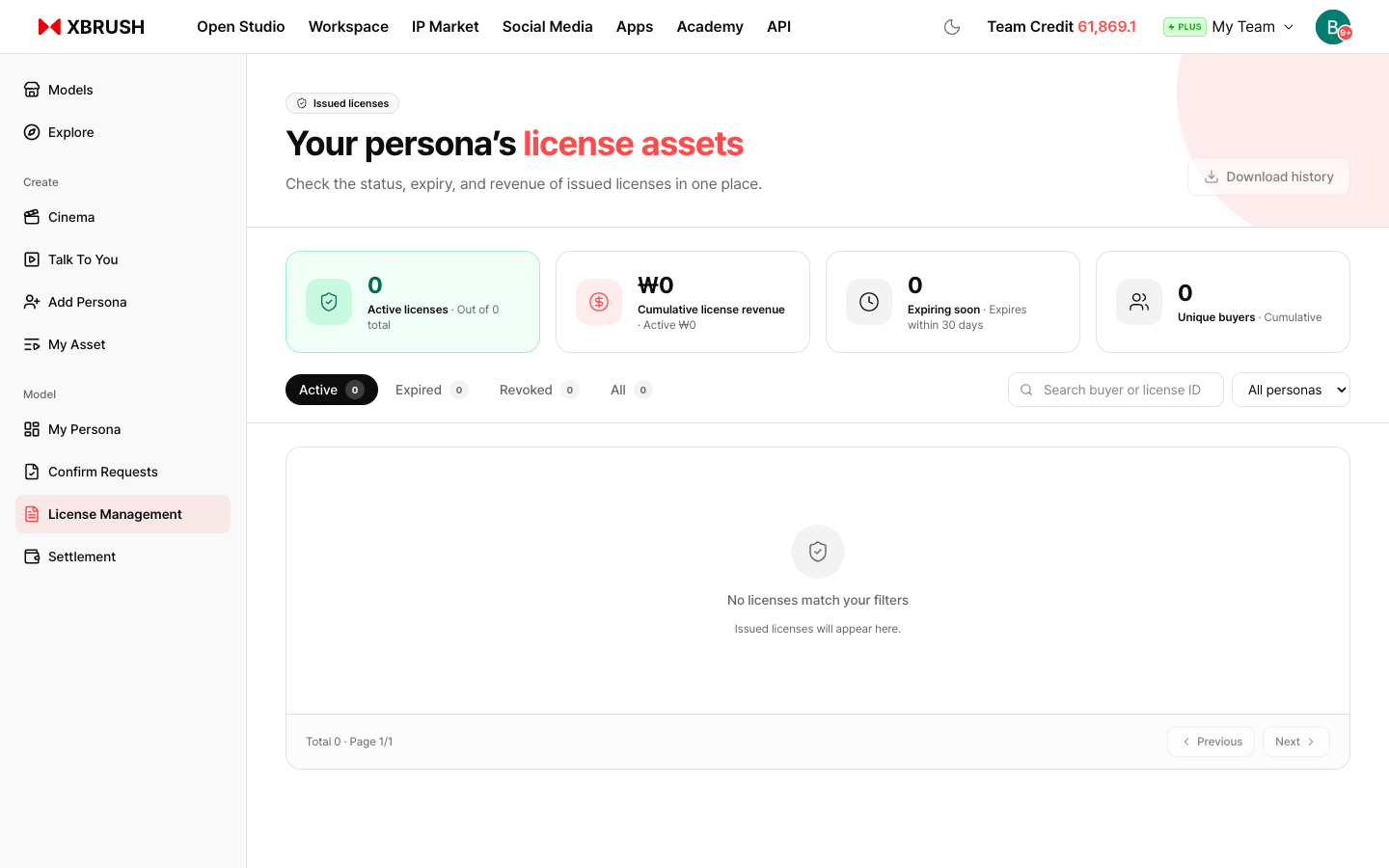
Issued licenses — check the status, expiry, and revenue of issued licenses in one place.
- Stats at the top
- Active licenses — licenses currently in effect
- Cumulative license revenue
- Expiring soon — licenses expiring within 30 days
- Unique buyers — cumulative
- Filter licenses with the Active / Expired / Revoked / All tabs and the All personas filter, or search by buyer or license ID.
- Click Download history to download your license records.
Settlement
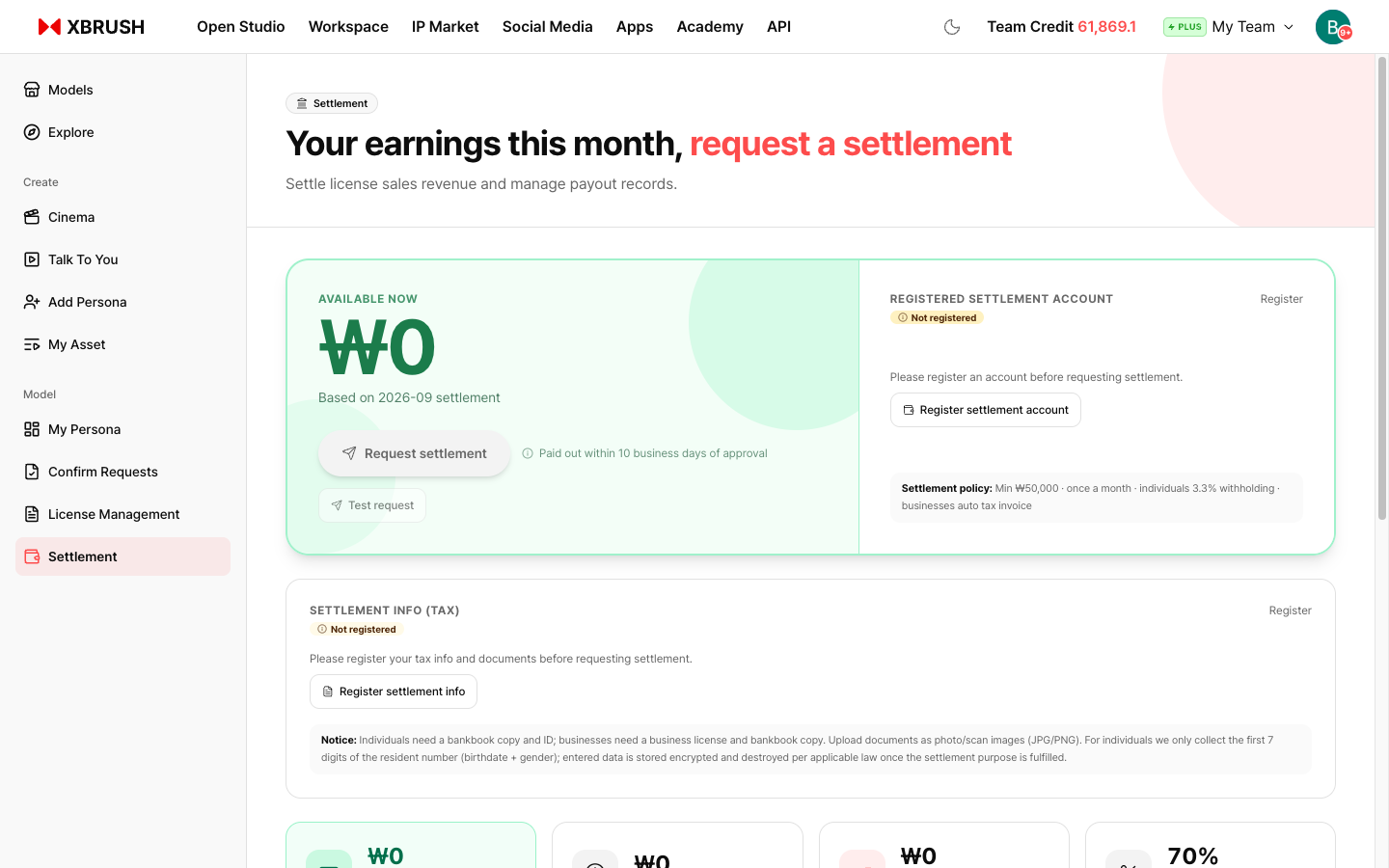
Settle license sales revenue and manage payout records.
- Register settlement account — Register the bank account to receive payouts before requesting settlement.
- Register settlement info (tax) — Register your tax info and documents. Upload documents as photo or scan images (JPG/PNG).
- Individuals: bankbook copy and ID
- Businesses: business license and bankbook copy
- Request settlement — Check the amount Available now (based on the previous month's settlement) and request settlement. Payouts are made within 10 business days of approval.
Settlement policy
| Item | Details |
|---|---|
| Creator share | 70% (fixed 30% platform fee) |
| Minimum settlement | ₩50,000 |
| Frequency | Once a month |
| Tax | Individuals: 3.3% withholding · Businesses: tax invoice issued automatically |
| Payout timing | Within 10 business days of approval |
- Further down the page, you can see cumulative completed settlements, pending amounts, and this month's sales.
- The settlement history table lists your payout records, which you can download as CSV.
Notes
- Only one front-facing selfie is required — a photo taken on your phone is fine, as long as the face is clearly visible.
- Photo requirements and content guidelines are provided during the registration flow.
- Persona registration and license sales are subject to XBRUSH's terms of service.
- Persona revenue is not added to your credit balance. Request settlement of license sales revenue in Settlement to receive a KRW payout to your registered account.