Apps
Summary: Apps are single-purpose AI tools, organized into four groups — Snapshot, Remove & Clean Up, Refine & Transform, and Inpaint & Outpaint. Where Workspace is for combining multiple steps and tuning the details, Apps takes the shortest path to finish one task: upload a file, press one button, download the result.
Overview
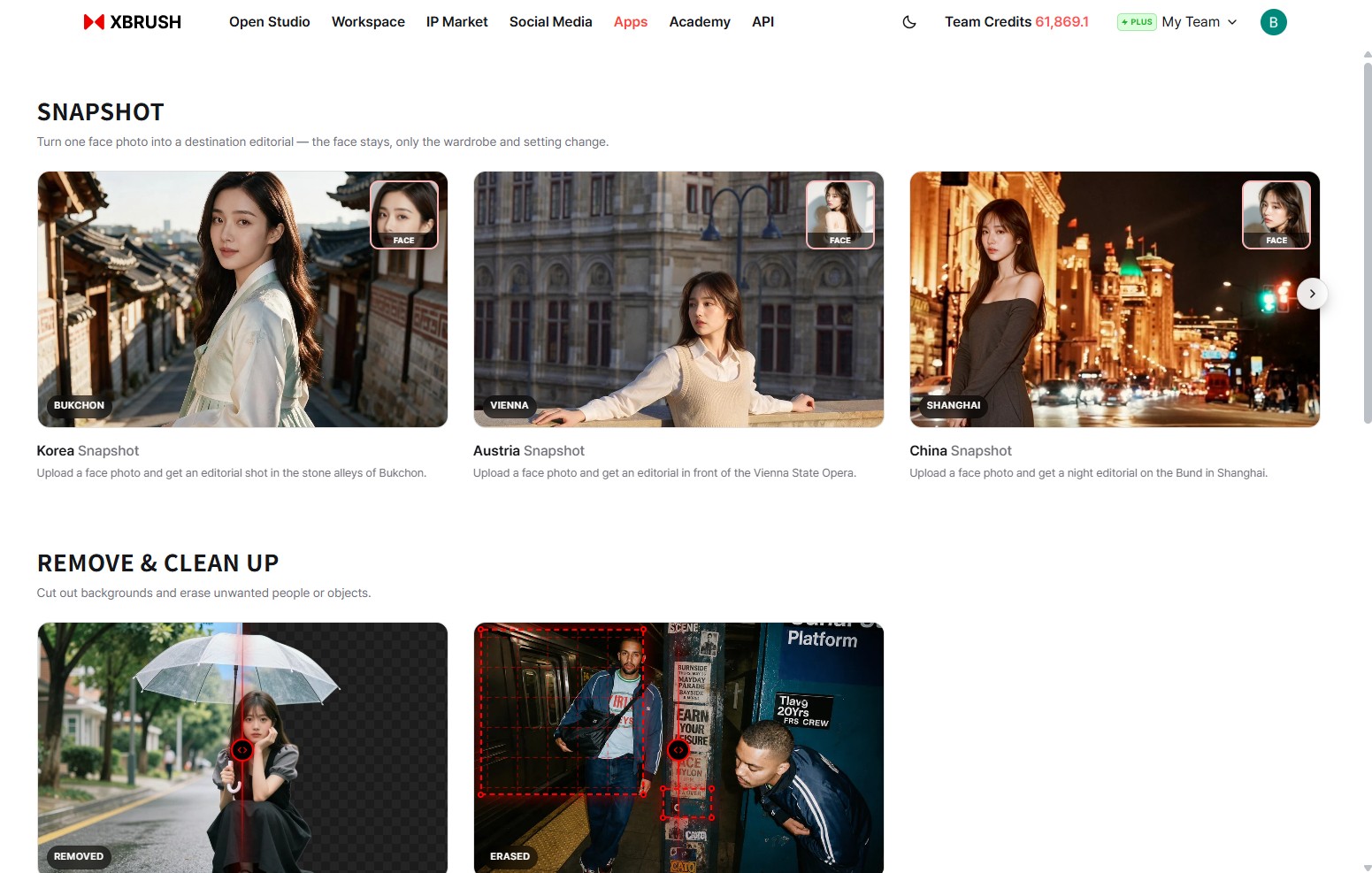
The Apps landing page. Tools are grouped by purpose, and each group holds one or more tools.
Click Apps in the top navigation to open the landing page, then click a tool card to open it.
The card titles on the Apps screen are in English. This guide leads with the on-screen label so you can match a heading to a card at a glance, with the descriptive name in parentheses where the two differ — for example AI Photo Resize (Photo Outpaint & Expand).
Every tool shares the same layout, so once you learn one, you know them all:
| Area | What it holds |
|---|---|
| Left panel | File upload, tool options, History, and the run button |
| Right panel — Tool tab | A description of the tool, a before/after comparison slider, and the four steps |
| Right panel — History tab | Results you have produced with this tool before |
Every tool accepts PNG, JPEG, WebP, and BMP files up to 20 MB. You can drag and drop a file, click to browse, or paste from the clipboard (⌘V / Ctrl+V). Select from history reuses something you made earlier instead of uploading again.
The credits a run costs are shown on the run button itself — the Background Removal button reads Remove Background −10, for example. Charges come out of your team credits, shown at the top right.
🔒 Apps is available after you log in.
Snapshot
Turn one face photo into a destination editorial — the face stays, only the wardrobe and setting change.
Snapshot is a family of tools, one per destination. They all work the same way and differ only in the setting and wardrobe they produce:
| Tool | What you get |
|---|---|
| Korea Snapshot | A hanbok editorial shot in the stone alleys of Bukchon |
| Italy Snapshot | An editorial shot in the pastel lanes of Burano, Italy |
| France Snapshot | A full-body street editorial on a sunlit Paris street |
| Japan Snapshot | A travel snapshot in Japan — Mount Fuji, or in front of a convenience store |
Destinations are added over time. The Apps landing page is the authoritative list — treat the table above as examples rather than a complete inventory.
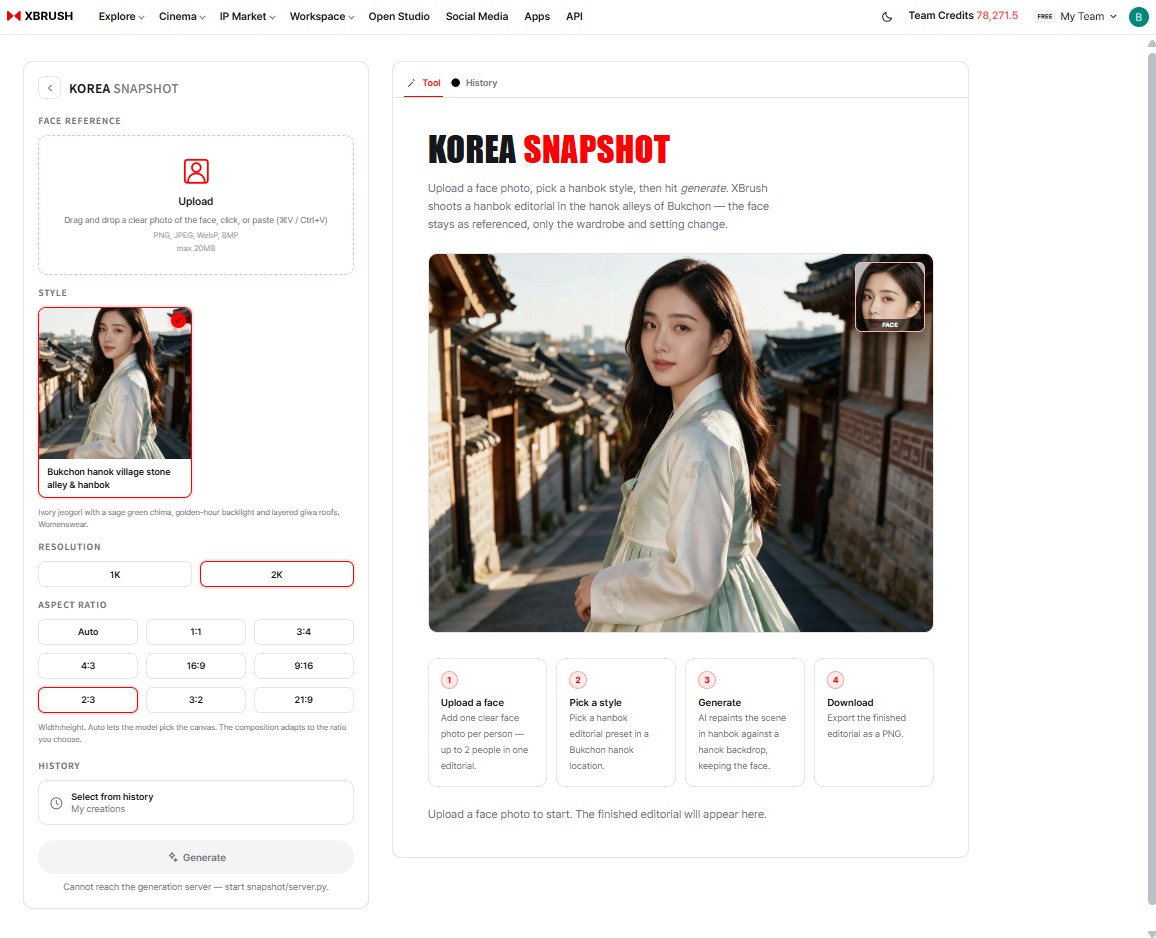
Korea Snapshot. Upload a face photo, pick a style, and press Generate — the face stays as referenced, only the wardrobe and setting change.
The point of these tools is that the face is preserved: AI repaints the scene around it, so the person stays recognizable while the clothing and background are replaced.
How to use it
- Upload a face — Add one clear photo per person. Up to two people can appear in one editorial.
- Pick a style — Choose an editorial preset, such as Bukchon hanok village stone alley & hanbok. The description below the preset tells you what it produces.
- Set resolution and aspect ratio — Choose 1K or 2K, then an aspect ratio. Auto lets the model pick the canvas; any other ratio adapts the composition to it.
- Generate — AI repaints the scene, keeping the face.
- Download — Export the finished editorial as a PNG.
💡 Use a photo where the face is clearly visible and well lit. The face reference is the one thing these tools will not change, so its quality carries the result.
Remove & Clean Up
Cut out backgrounds and erase unwanted people or objects.
Background Removal (Cutout)
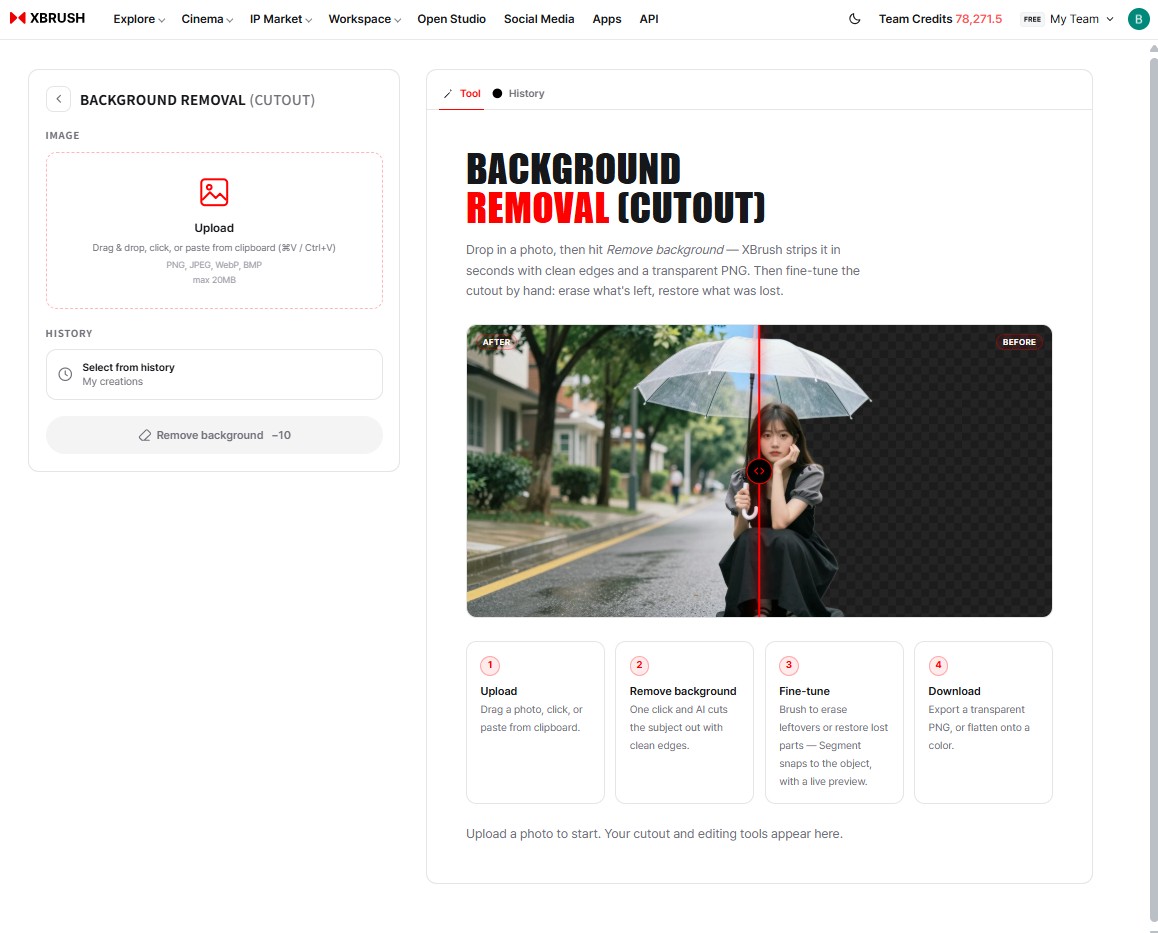
The before/after slider shows the original on one side and the transparent cutout on the other.
Background Removal cuts the subject out of a photo and gives you a transparent PNG in a few seconds. Unlike a one-shot filter, it lets you correct the cutout by hand afterwards — erase what the AI left behind, and restore what it removed by mistake.
- Upload — Drag, click, or paste your photo.
- Remove background — One click and AI cuts the subject out along a clean edge.
- Refine — Brush away leftover areas or paint back parts that disappeared. Segment snaps to objects and shows a live preview as you work.
- Download — Export as a transparent PNG, or composite it onto a color.
💡 Subjects with fine edges — hair, fur, transparent objects like the umbrella above — are exactly where step 3 pays off. Check the edges at full zoom before exporting.
Object / People Eraser
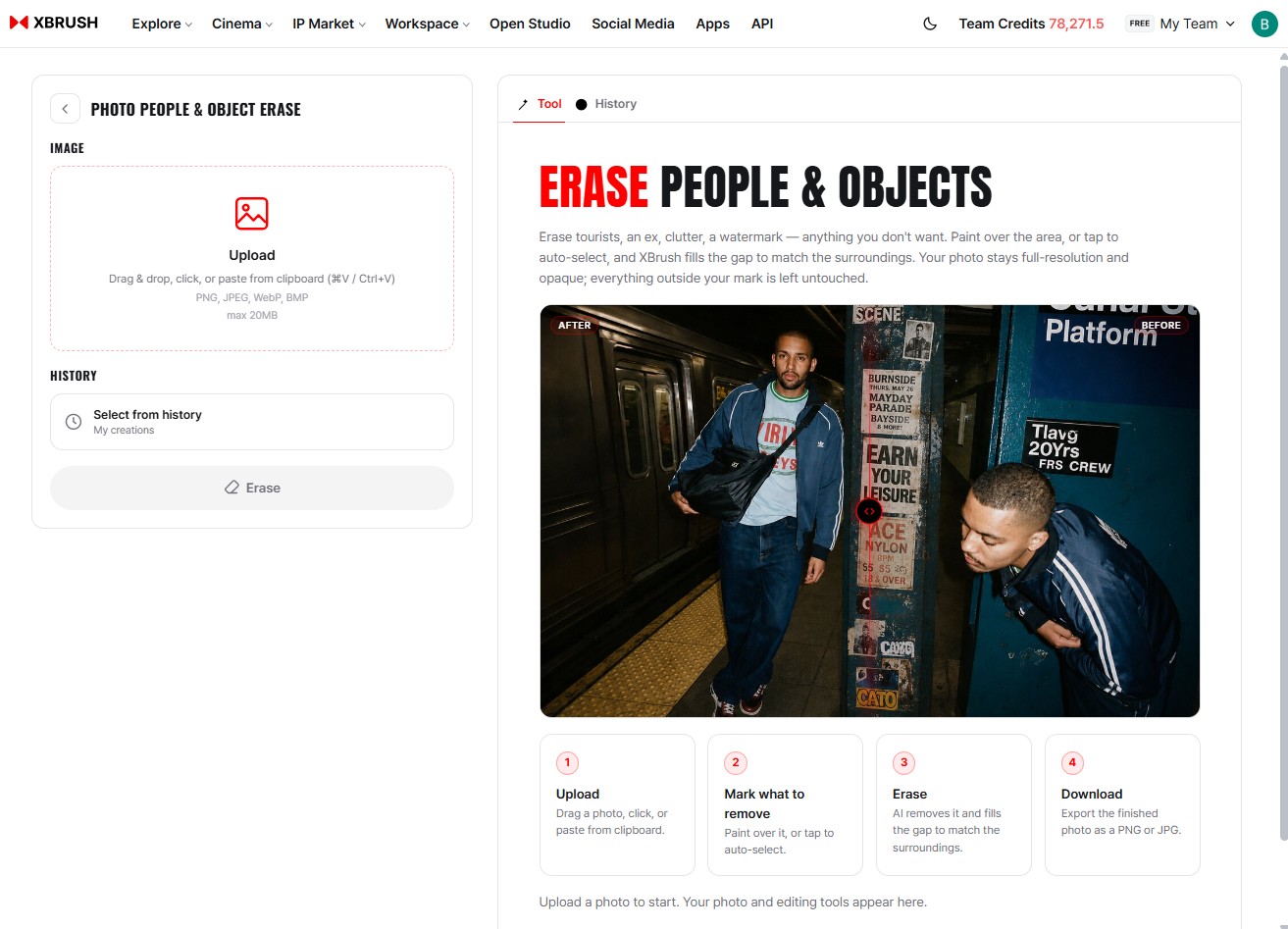
A bystander removed from a subway platform shot. AI fills the gap with what belongs there.
Object / People Eraser removes anything you don't want in the frame — tourists, an ex, clutter, a watermark. Mark the area and XBRUSH fills the gap to match its surroundings. The photo keeps its original resolution and opacity, and everything outside the mark is left alone.
- Upload — Drag, click, or paste your photo.
- Mark what to erase — Paint over the area, or tap it to select automatically.
- Erase — AI removes it and fills the gap to match the surroundings.
- Download — Export as a PNG or JPG.
💡 Include the subject's shadow and reflection in the mark. Erasing a person but leaving their shadow is the most common giveaway.
Refine & Transform
Enhance faces and relight scenes with natural, detail-preserving AI.
Face Enhancer
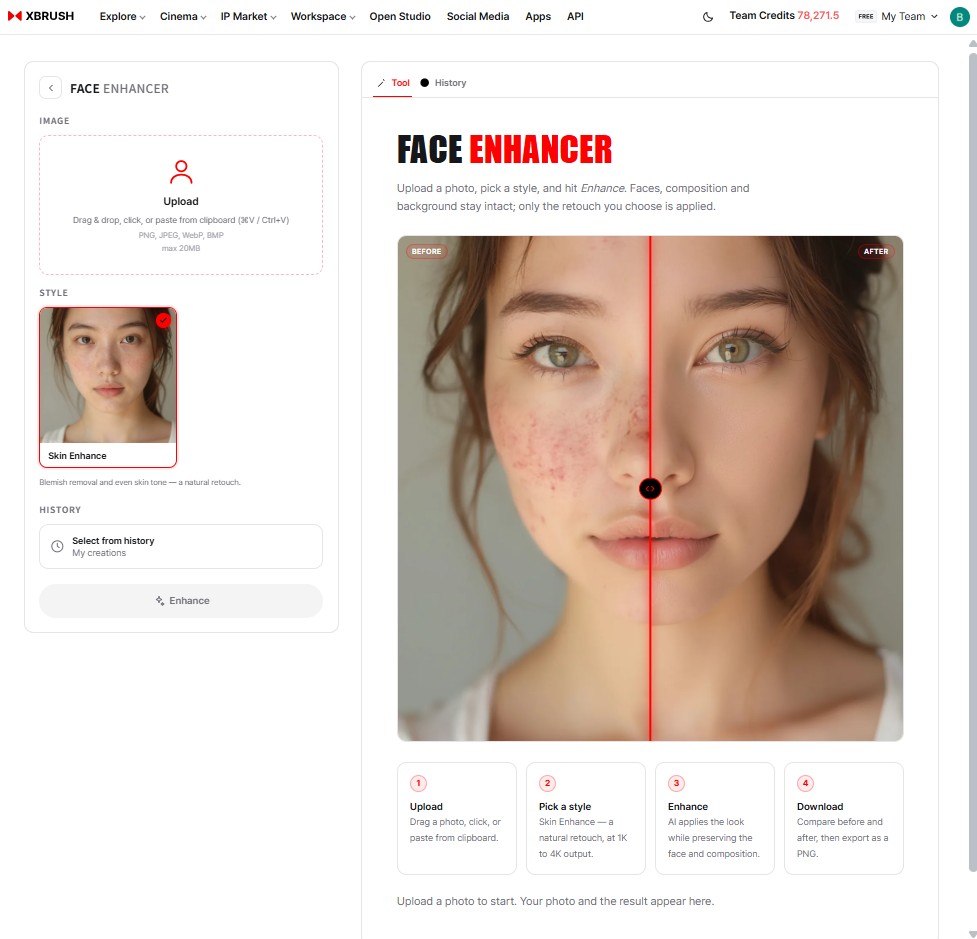
Skin retouching applied. The face, framing, and background are unchanged — only the selected retouch is applied.
Face Enhancer applies natural retouching to a portrait. It deliberately leaves the face, framing, and background as they are and applies only the style you select, so the result still looks like the same photo of the same person.
- Upload — Drag, click, or paste your photo.
- Pick a style — For example Skin Retouch, which clears blemishes and evens skin tone at 1K–4K output.
- Enhance — AI applies the style while preserving the face and composition.
- Download — Compare before and after with the slider, then export as a PNG.
💡 Drag the divider in the comparison slider to check the result before downloading. Retouching that goes unnoticed is usually the retouching you want.
Weather Transform
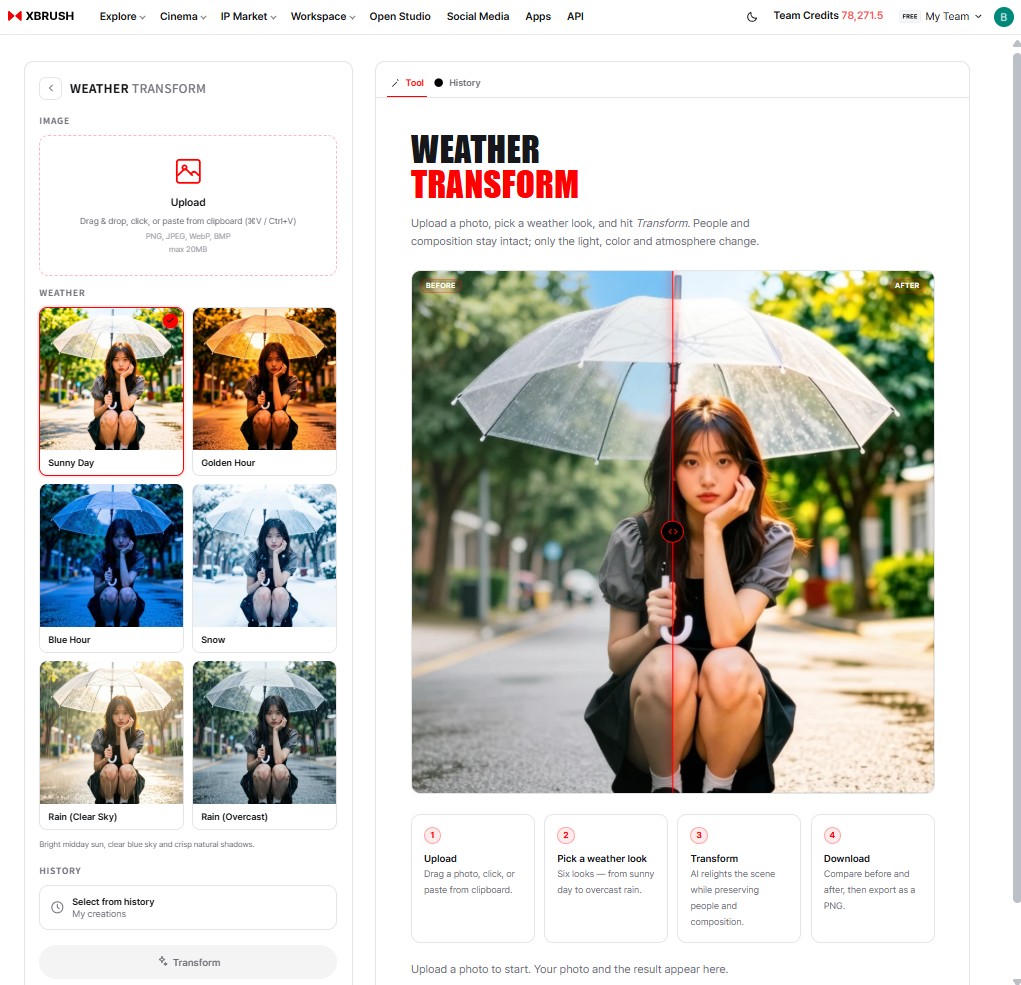
An overcast street relit as a clear day. The subject and composition stay put; only light, color, and mood change.
Weather Transform relights a photo under different weather. The subject and composition are preserved — only the light, color, and atmosphere change. Six looks are available: Clear Day, Golden Hour, Blue Hour, Snow, Rain (clear sky), and Rain (overcast).
- Upload — Drag, click, or paste your photo.
- Pick weather — Six looks, from clear day through overcast rain.
- Transform — AI relights the scene while keeping the subject and composition.
- Download — Compare before and after, then export as a PNG.
💡 Outdoor photos respond best. Shots that were already lit in one strong direction can fight a weather change that implies the opposite.
Inpaint & Outpaint
AI Inpaint (Photo Inpaint & Repaint)
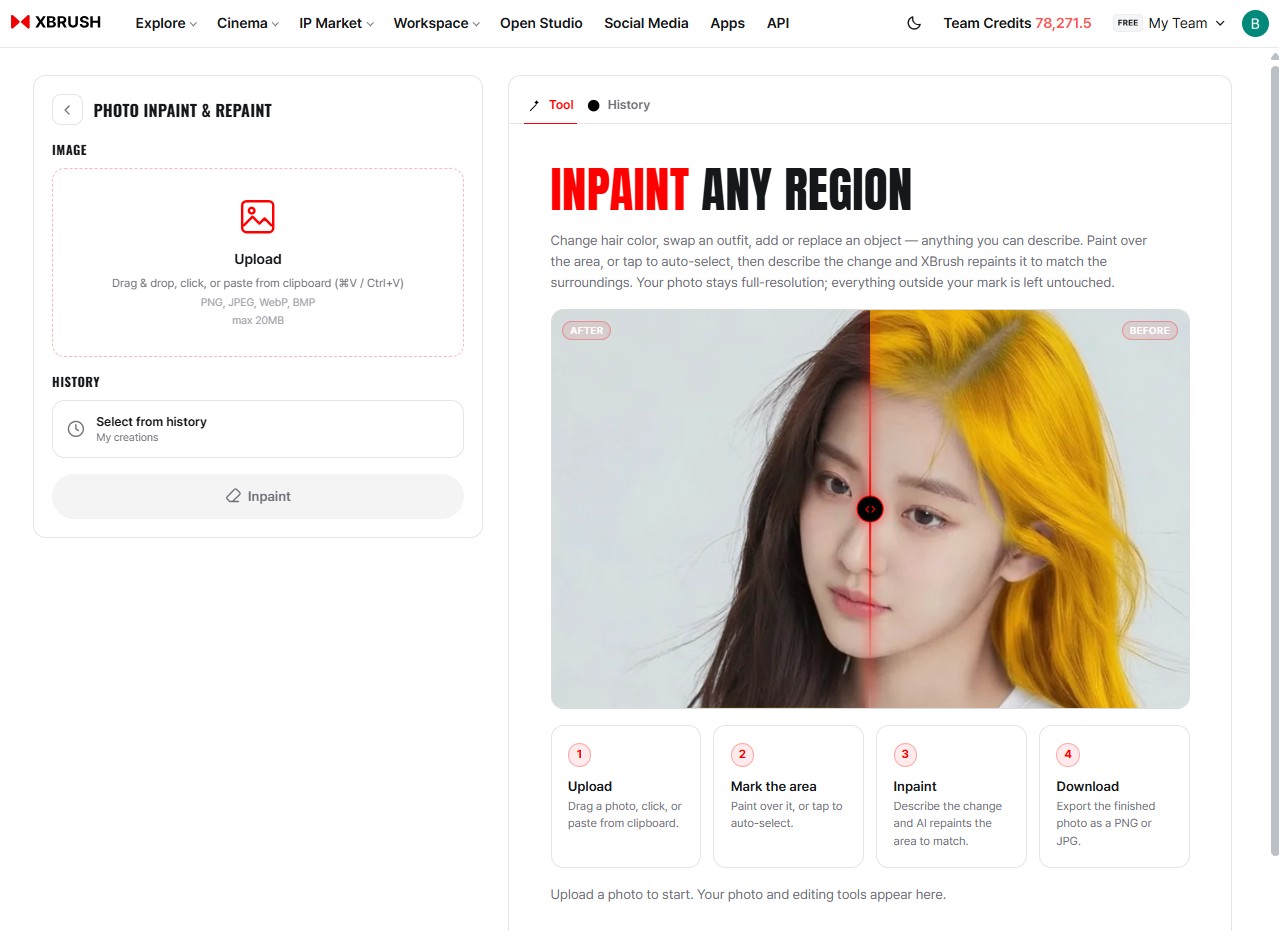
Hair color changed by marking the region and describing the change. Everything outside the marked area is untouched.
AI Inpaint rewrites any region you mark. Change hair color, swap clothing, add or replace an object — anything you can describe. XBRUSH repaints the marked region to match its surroundings, keeps the photo at its original resolution, and leaves everything outside the mark exactly as it was.
- Upload — Drag, click, or paste your photo.
- Mark a region — Paint over the area, or tap it to select automatically.
- Inpaint — Describe the change you want, and AI repaints the region to match its surroundings.
- Download — Export as a PNG or JPG.
💡 Describe the result, not the instruction — "long dark brown hair" works better than "change the hair." If the edges of the region look off, extend the mark slightly past the boundary and run it again.
AI Photo Resize (Photo Outpaint & Expand)
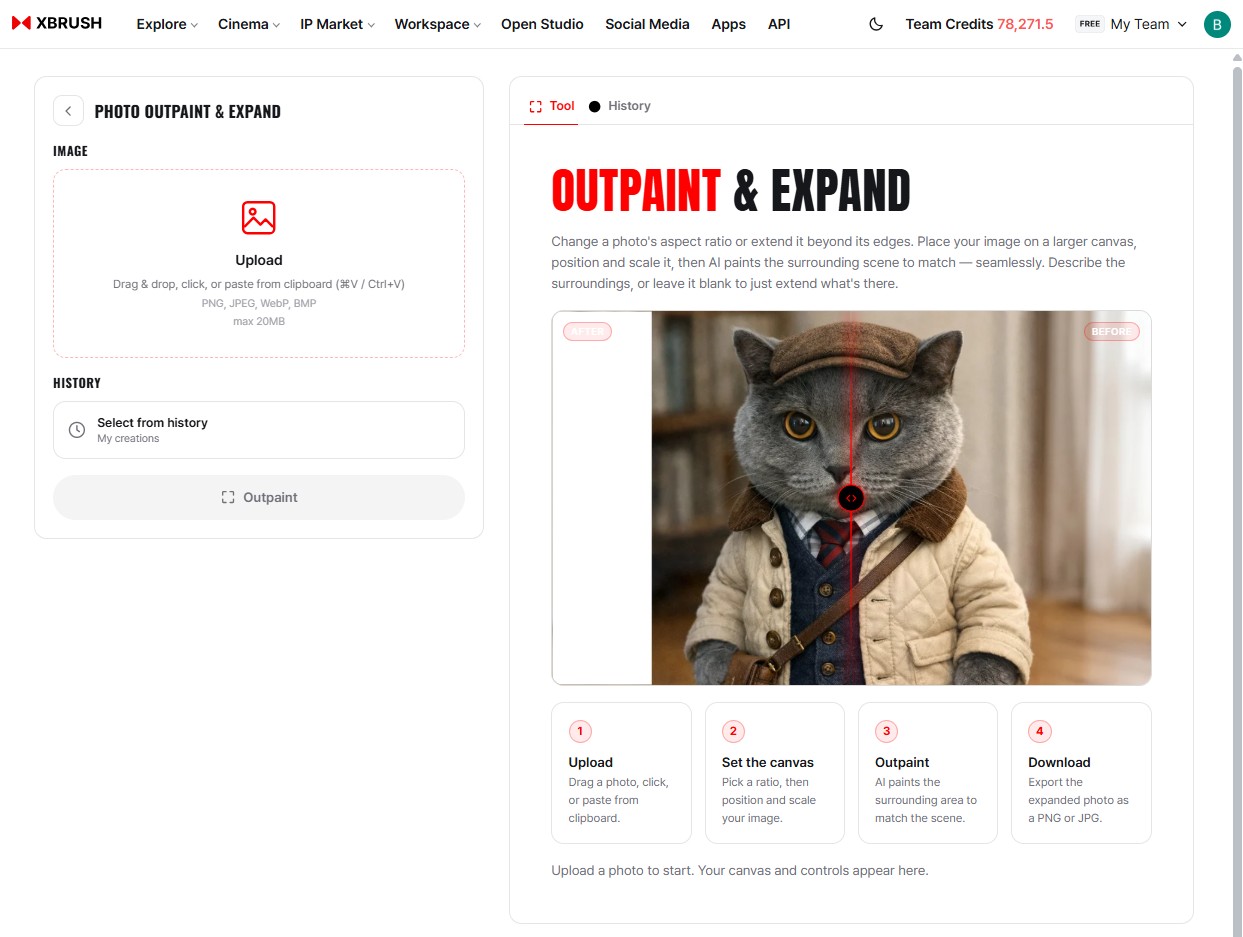
A portrait expanded past its original edges. AI paints the surrounding scene to match.
AI Photo Resize changes a photo's aspect ratio or extends it beyond its edges. Place the image on a larger canvas, adjust its position and size, and AI paints the surrounding scene naturally. You can describe what should be around it, or leave that blank to simply continue the existing scene.
- Upload — Drag, click, or paste your photo.
- Set the canvas — Pick a ratio, then adjust the image's position and size on it.
- Outpaint — AI paints the surrounding area to match the scene.
- Download — Export the expanded photo as a PNG or JPG.
💡 This is the tool for turning a 1:1 photo into a 16:9 banner, or a 9:16 story frame, without cropping the subject.
Apps or Workspace?
Both can remove a background, inpaint a region, or outpaint an edge. Which one to use depends on what you are doing.
| Apps | Workspace | |
|---|---|---|
| Best for | One task, finished fast | Multi-step work, fine control |
| Operation | Upload → one button → download | Choose an engine, adjust parameters, iterate |
| AI agent | Not used | Chain steps with natural-language instructions |
| Collaboration | Solo | Work with teammates in the same job |
If you need a transparent PNG right now, use Apps. If that cutout then has to go onto a new background with a caption and become a video, that is Workspace.
- Learn more: Workspace guide · Image Enhancement · Inpaint · Outpaint