Academy
Summary: Academy is a course for becoming an AI Creator. It is designed to build two skills together: telling the agent exactly what you want on screen, and the eye that judges whether a generated result is any good. There are three courses — 10 Hands-On Steps · AI Ad Video Concept Map · 20 Tips for Directing That Lands — covering ordering, vocabulary, and judgement. Reading the lessons needs no login; you log in once you start making things.
Overview
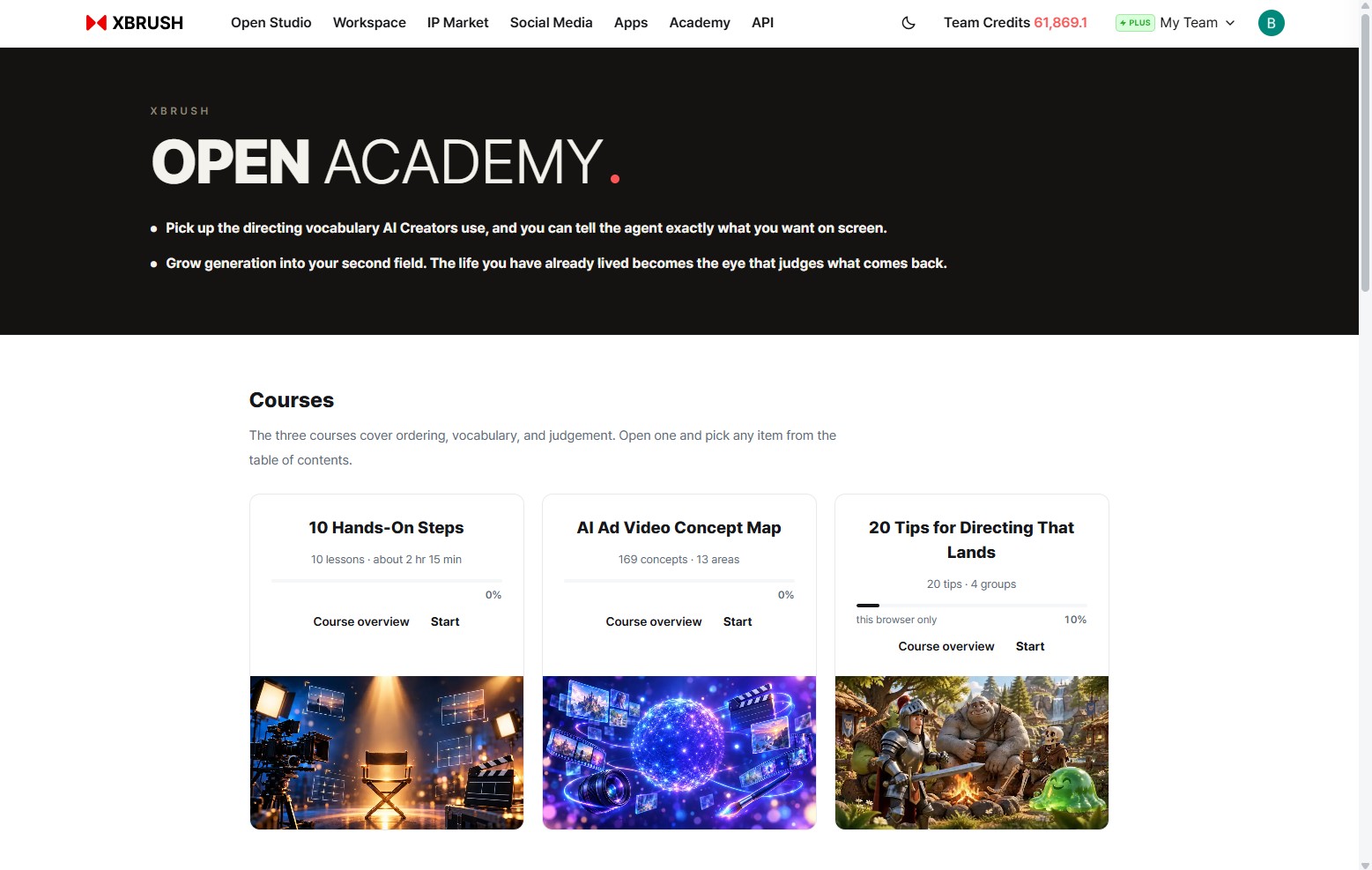
The OPEN ACADEMY landing page, opened from Academy in the top navigation. The three courses sit side by side as cards.
Click Academy in the top navigation. The landing page states the two goals Academy is built around:
- Pick up the directing vocabulary AI Creators use — and you can tell the agent exactly what you want on screen.
- Grow generation into your second field — the life you have already lived becomes the eye that judges what comes back.
When AI does the making, what is left for people is ordering precisely what to make and telling whether the result is usable. The three courses split these two skills between them.
| Course | Role | Size |
|---|---|---|
| 10 Hands-On Steps | Ordering — make something end to end and learn the sequence | 10 lessons · about 2 hr 15 min |
| AI Ad Video Concept Map | Vocabulary — learn the names you need to point at what to fix | 169 concepts · 13 areas |
| 20 Tips for Directing That Lands | Judgement — check what to fix before you spend credits | 20 tips · 4 groups |
Using the course cards
Each card has a progress bar and two buttons.
- Course overview — opens the course introduction and full contents.
- Start — jumps straight to the first item.
Inside a course, the table of contents on the left lets you pick any item, and Search titles above it finds one by name. Follow the order or read only what you need.
ℹ️ Under the progress bar of 20 Tips you will see "this browser only". Progress is saved in the browser you are using, not your account, so it does not carry over to another device or browser.
10 Hands-On Steps
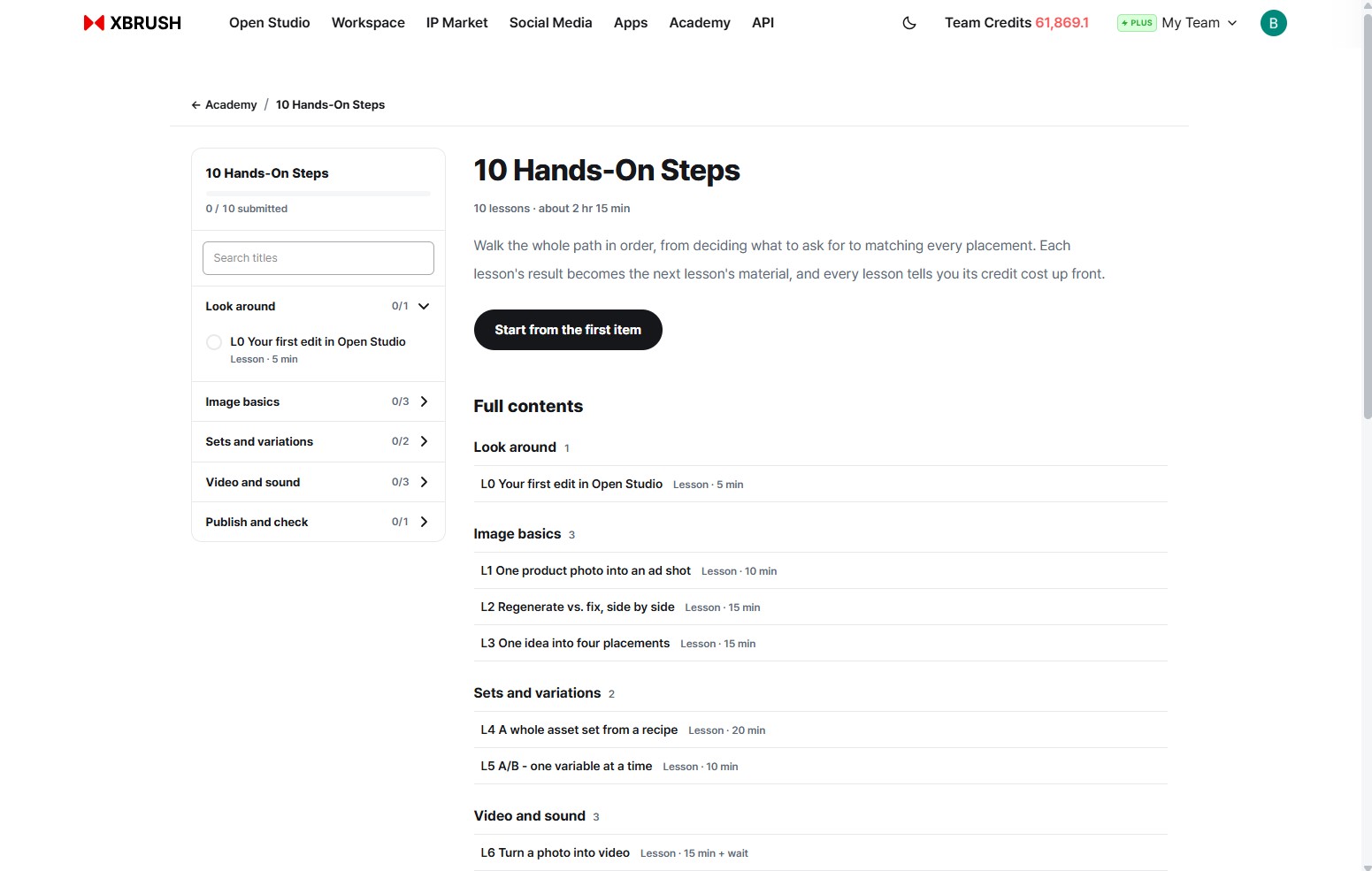
The left-hand contents are grouped into five sections, each showing how many lessons you have submitted (e.g. 0/3).
Walk the whole path in order, from deciding what to ask for to matching every placement. Each lesson's result becomes the next lesson's material, so going in order works best. Every lesson tells you its credit cost up front, before you start.
| Section | Lesson | Time |
|---|---|---|
| Look around | L0 Your first edit in Open Studio | 5 min |
| Image basics | L1 One product photo into an ad shot | 10 min |
| L2 Regenerate vs. fix, side by side | 15 min | |
| L3 One idea into four placements | 15 min | |
| Sets and variations | L4 A whole asset set from a recipe | 20 min |
| L5 A/B - one variable at a time | 10 min | |
| Video and sound | L6 Turn a photo into video | 15 min + wait |
| L7–L8 15-second vertical ad · Cinema | — | |
| Publish and check | L9 Publish to social and check metrics after 7 days | — |
The top of the contents shows overall progress (e.g. 0 / 10 submitted), and Start from the first item on the right begins at L0.
What it costs
| Section | Credits |
|---|---|
| L0 Look around | Runs on Open Studio's shared company credits — none of your own |
| L1–L3 Image basics | Can be finished with the 100C sign-up credit and low-cost engines |
| L4–L5 Sets and variations | The credits shown on the recipe card |
| L6–L8 Video and sound | Video and audio show an estimated cost before running |
| L9 Publish and check | No extra credits |
Finishing a section unlocks the credits for the next one. Credits go to accounts that have verified their email.
💡 The recipe in L4, photo-to-video in L6, and Cinema in L8 are all the real features. Once you finish, you can put the Workspace AI agent's Quick Start and recipes and Cinema straight to work.
AI Ad Video Concept Map
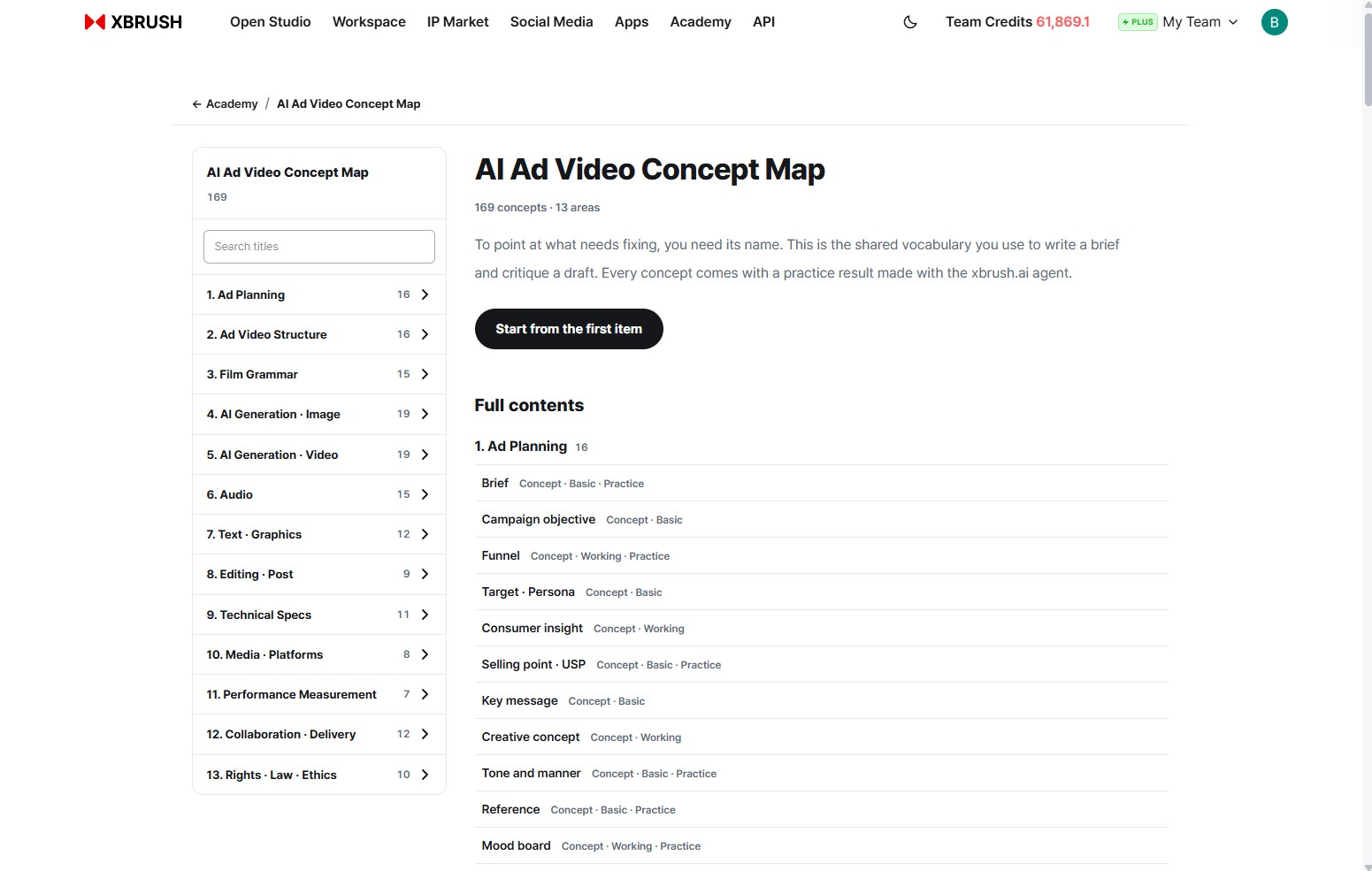
The 13 areas are on the left; each area's concepts are listed on the right, tagged Concept · Basic · Working · Practice.
To point at what needs fixing, you need its name. The concept map is the shared vocabulary for writing a brief and critiquing a draft. Every concept comes with a practice result made with the xbrush.ai agent, so you see the word and the picture together.
| Area | Concepts | Area | Concepts |
|---|---|---|---|
| 1. Ad Planning | 16 | 8. Editing · Post | 9 |
| 2. Ad Video Structure | 16 | 9. Technical Specs | 11 |
| 3. Film Grammar | 15 | 10. Media · Platforms | 8 |
| 4. AI Generation · Image | 19 | 11. Performance Measurement | 7 |
| 5. AI Generation · Video | 19 | 12. Collaboration · Delivery | 12 |
| 6. Audio | 15 | 13. Rights · Law · Ethics | 10 |
| 7. Text · Graphics | 12 |
For example, 1. Ad Planning covers Brief, Campaign objective, Funnel, Target · Persona, Consumer insight, Selling point · USP, Key message, Creative concept, Tone and manner, Reference, and Mood board.
💡 If a result feels off but you can't say why, skim the matching area of the map. Once you can say "the tone and manner doesn't fit the target" instead of "something's weird", the agent can fix it precisely.
20 Tips for Directing That Lands
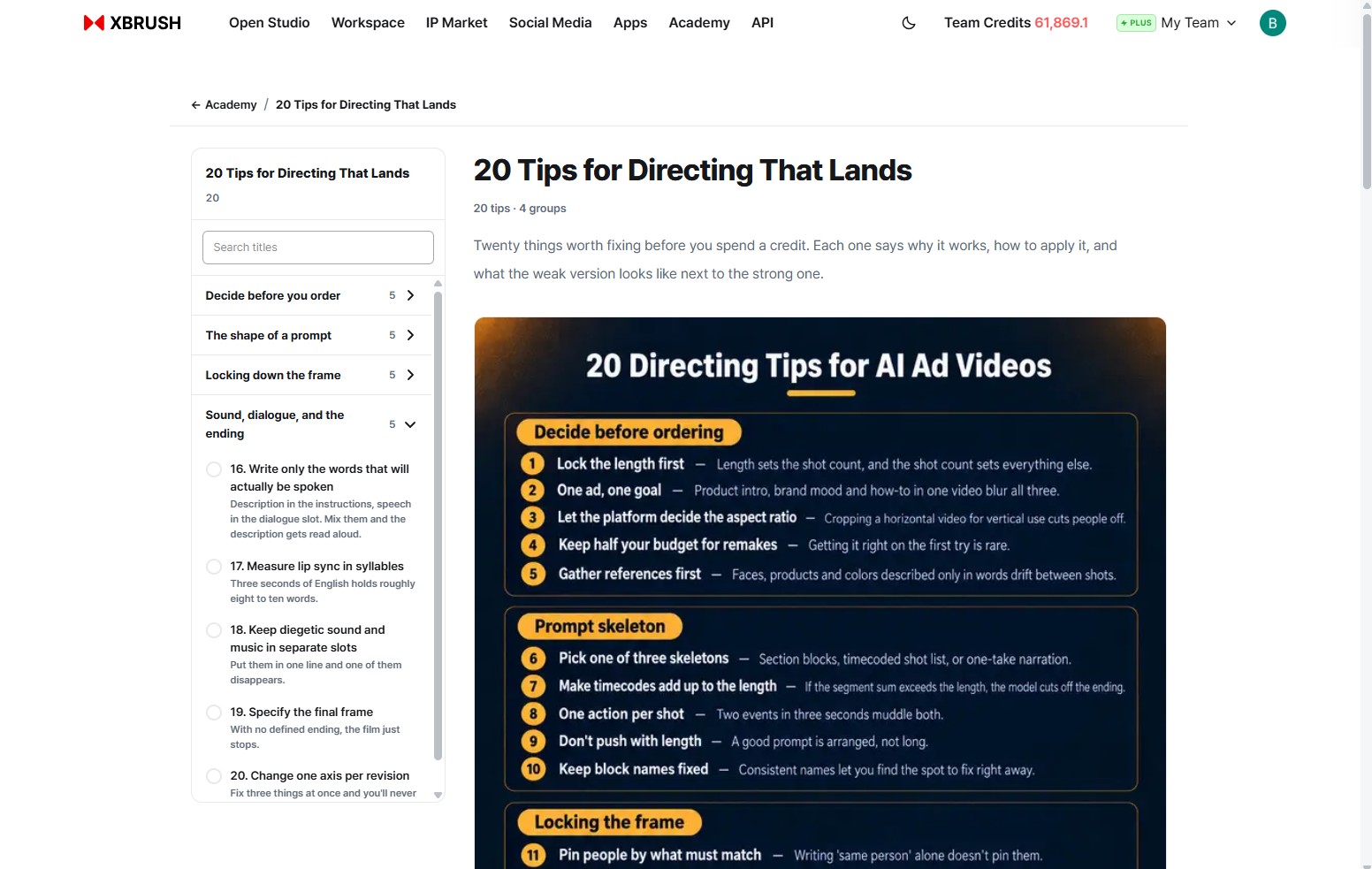
All 20 tips on a single infographic. Open any tip from the left-hand contents for the full explanation.
Twenty things worth fixing before you spend a credit. Each tip says why it works, how to apply it, and shows the weak version next to the strong one. The tips come in four groups.
| Group | Tips | Examples |
|---|---|---|
| Decide before you order | 1–5 | Lock the length first · One ad, one goal · Gather references first |
| The shape of a prompt | 6–10 | Pick one of three skeletons · One action per shot · Keep block names fixed |
| Locking down the frame | 11–15 | Pin people by what must match · Call the camera by name |
| Sound, dialogue, and the ending | 16–20 | Write only the words that will actually be spoken · Specify the final frame · Change one axis per revision |
💡 Video costs more credits than images. Checking just the five Decide before you order tips before your first order cuts the number of remakes a lot.
Learning path and medals
Further down the landing page is the order to take the courses in and what comes after you finish.
- Reading lessons is free. Making things requires a login, and signing up gives you 100C.
- 6-week cohort (coming soon) — a brief-based, hands-on program open to anyone who has finished L1–L3 of 10 Hands-On Steps.
- Medal tiers — after completion there are five tiers: Bronze · Silver · Gold · Platinum · Master. Tiers are judged on three axes: skill (assignment review · generation logs), response (7 days after posting), and external validation.
| Tier | Criterion |
|---|---|
| Bronze | Finish an ad image set and a 15-second video — complete the 6-week program |
| Silver | Make to spec within a time limit, and people respond |
| Gold | Run a series in a consistent tone |
| Platinum | Make work that gets paid for and actually used — a real ad run, delivery, or contest award |
| Master | Bring others up to that level — mentor the next cohort |
ℹ️ The 6-week cohort and the response thresholds for the tiers will be set from the first cohort's data, so the details may change.
Related docs
- Open Studio — where L0 takes place
- Workspace AI agent — Quick Start and recipes
- Cinema — template-based ad videos
- Video Generation